 Meily Trips
 Android
 iOS
iOS
1.1 How to create trip itineraries
On this page you will find a step by step guide showing how to create a trip itinerary with the different options that Meily Trips offers:
- ✓ Automatically with AI, getting a recommended trip itinerary
- ✓ From imported social media posts, getting a trip itinerary based on the stops mentioned on the chosen posts
- ✓ Adding stops manually, starting from an empty template
As an example, a trip to San Francisco will be created, showing all the steps and options in the process. For easier understanding, screenshots of the app will be included for all the steps. Let's get started!
First Steps: Choose Trip Options
Once in the Trips page, tab on "+" to generate a new trip. You will be asked to enter your travel destination, preferences, dates for the trip, and the transport for the trip. The images below show how these options look on the screen.
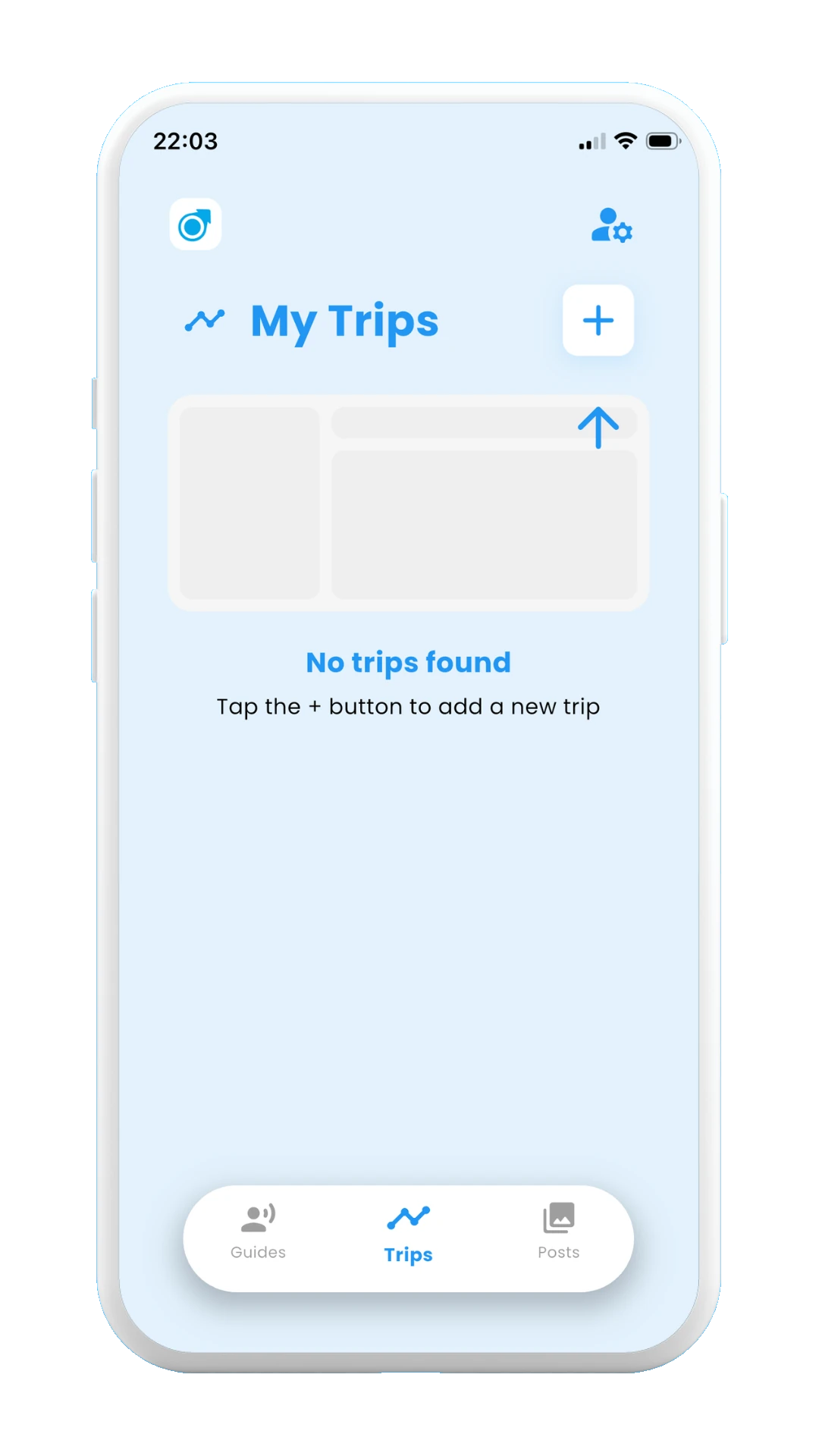
Tap on "+"
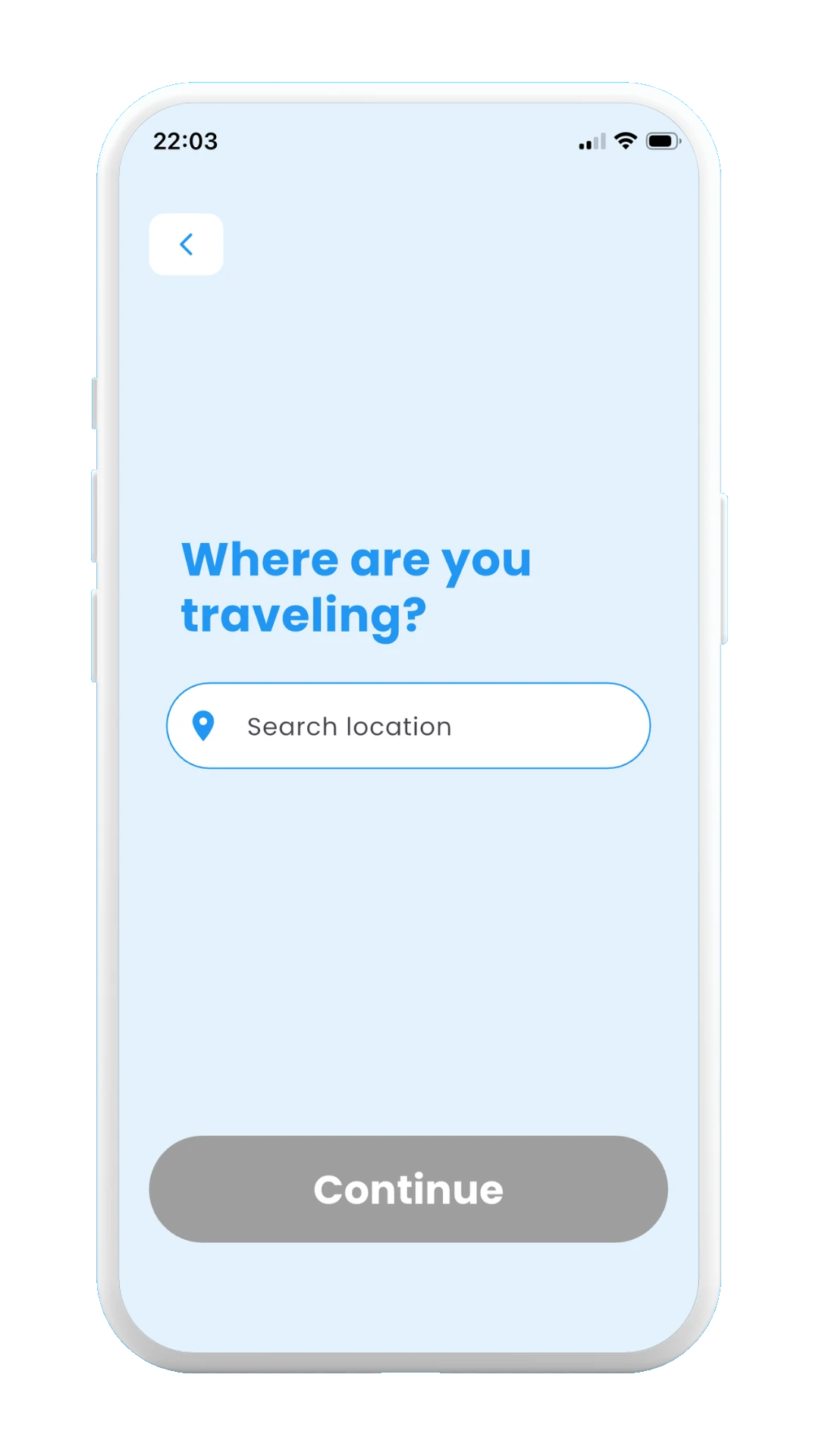
Write where you want to go
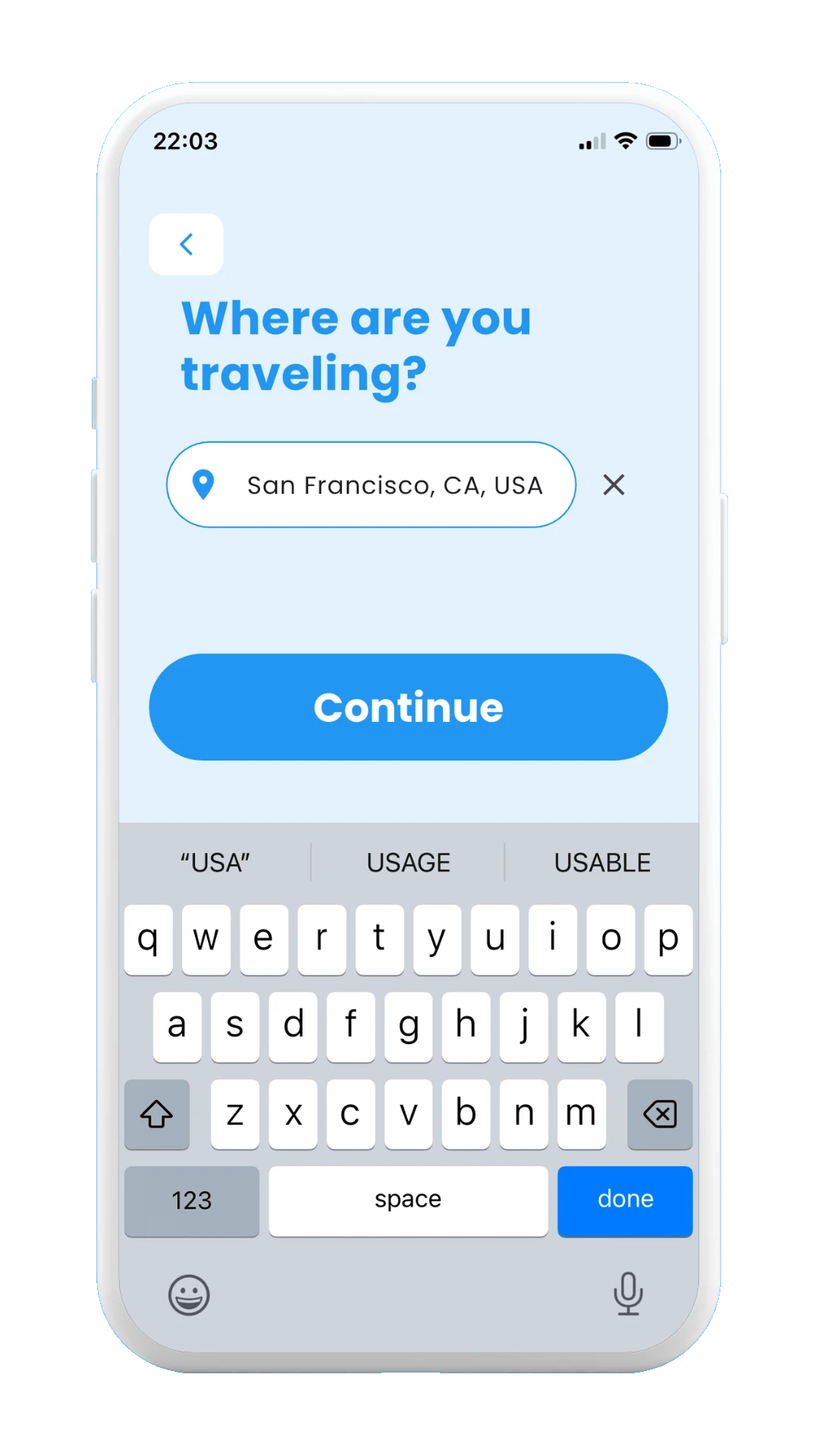
Tap on "Continue"
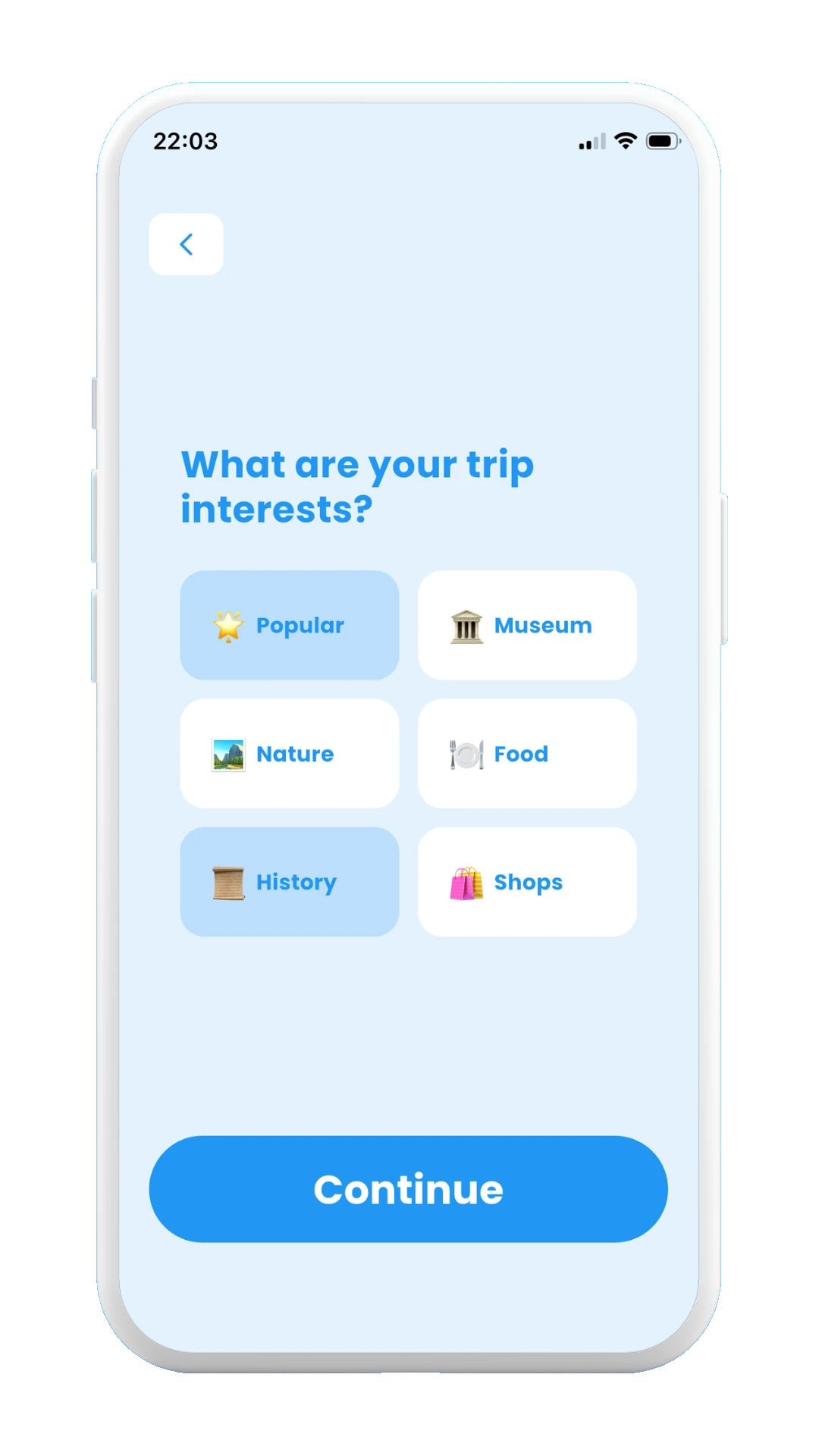
Choose your trip preferences
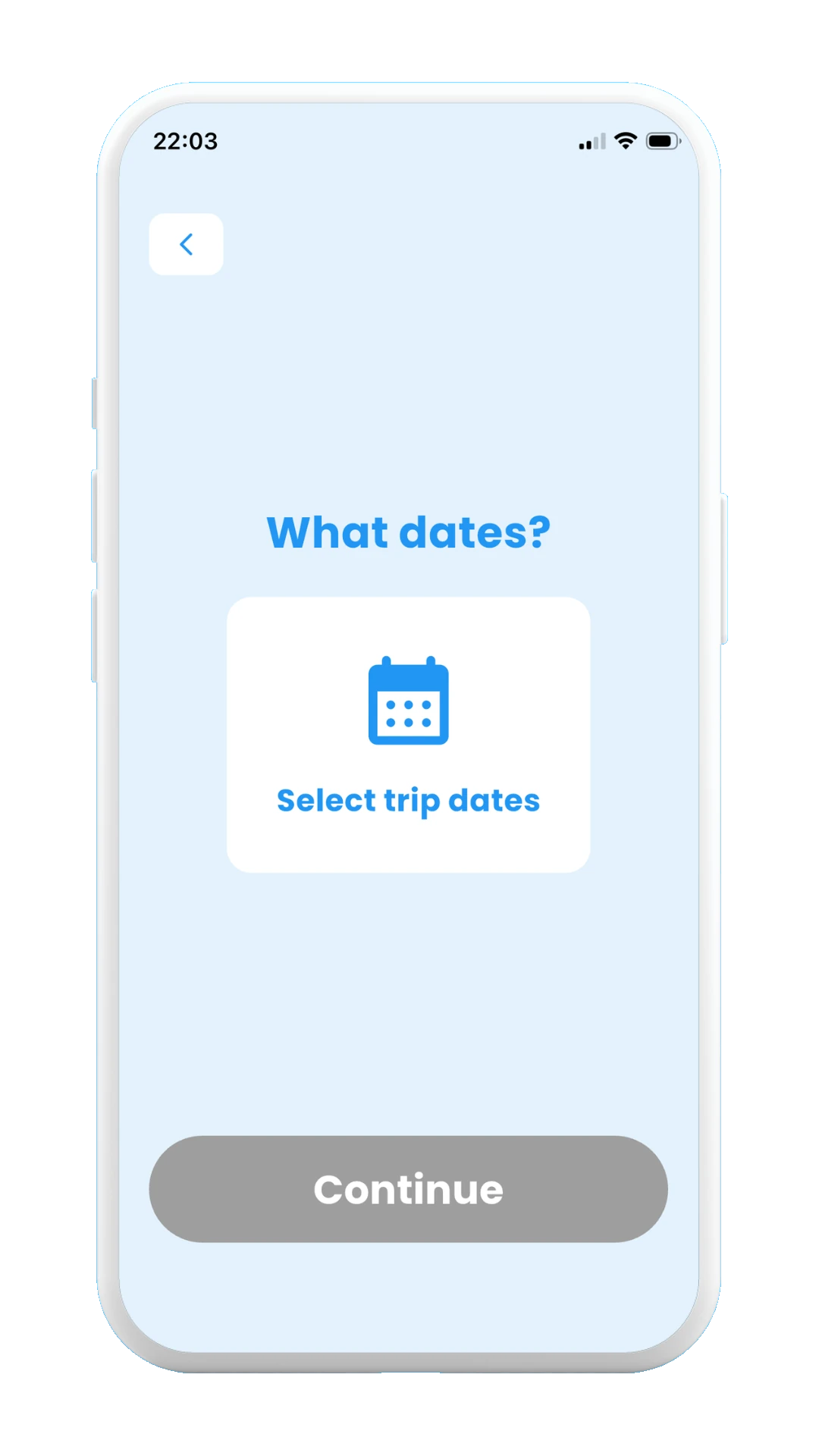
Tap on "+"
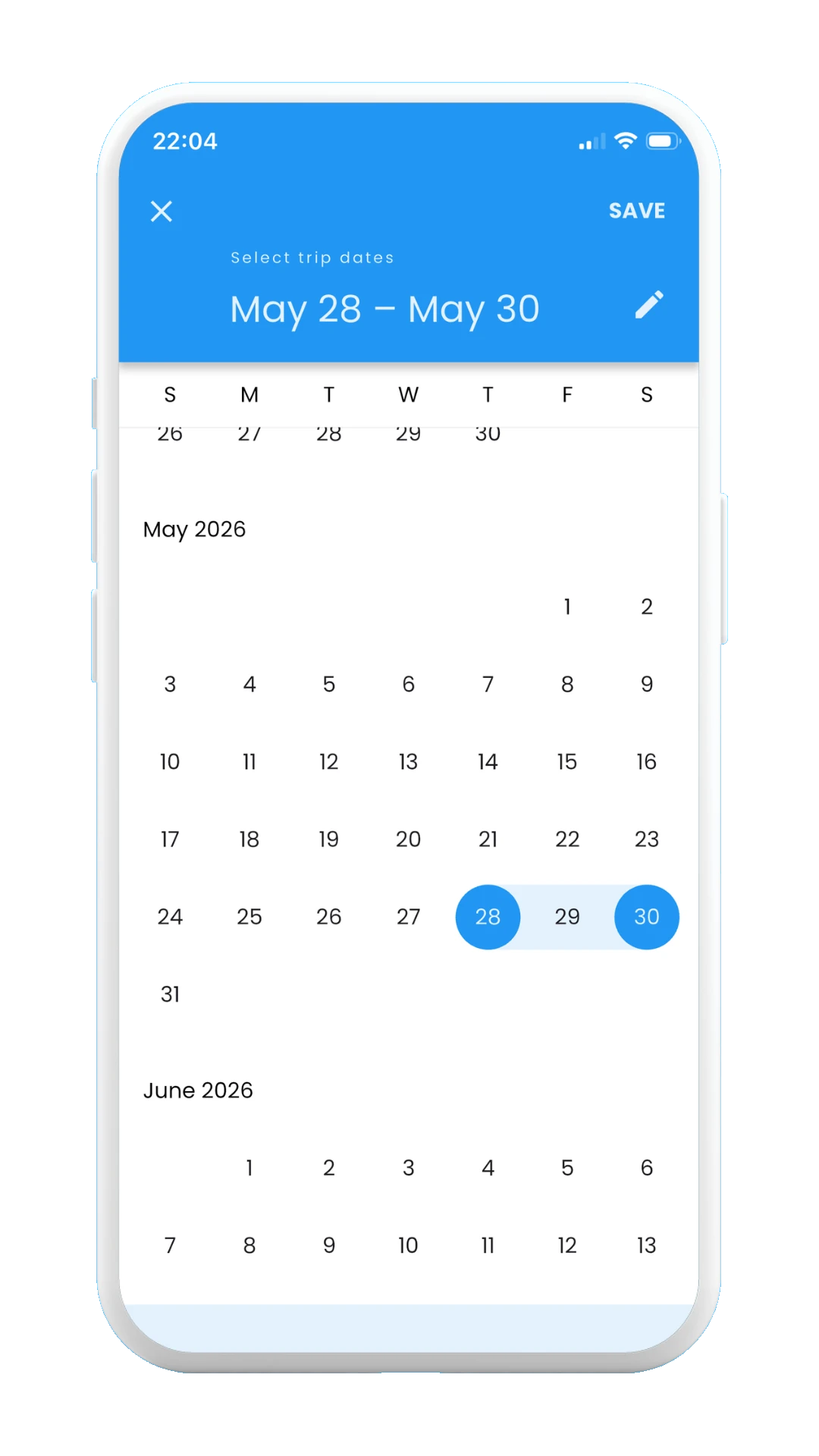
Choose the dates, then click Save
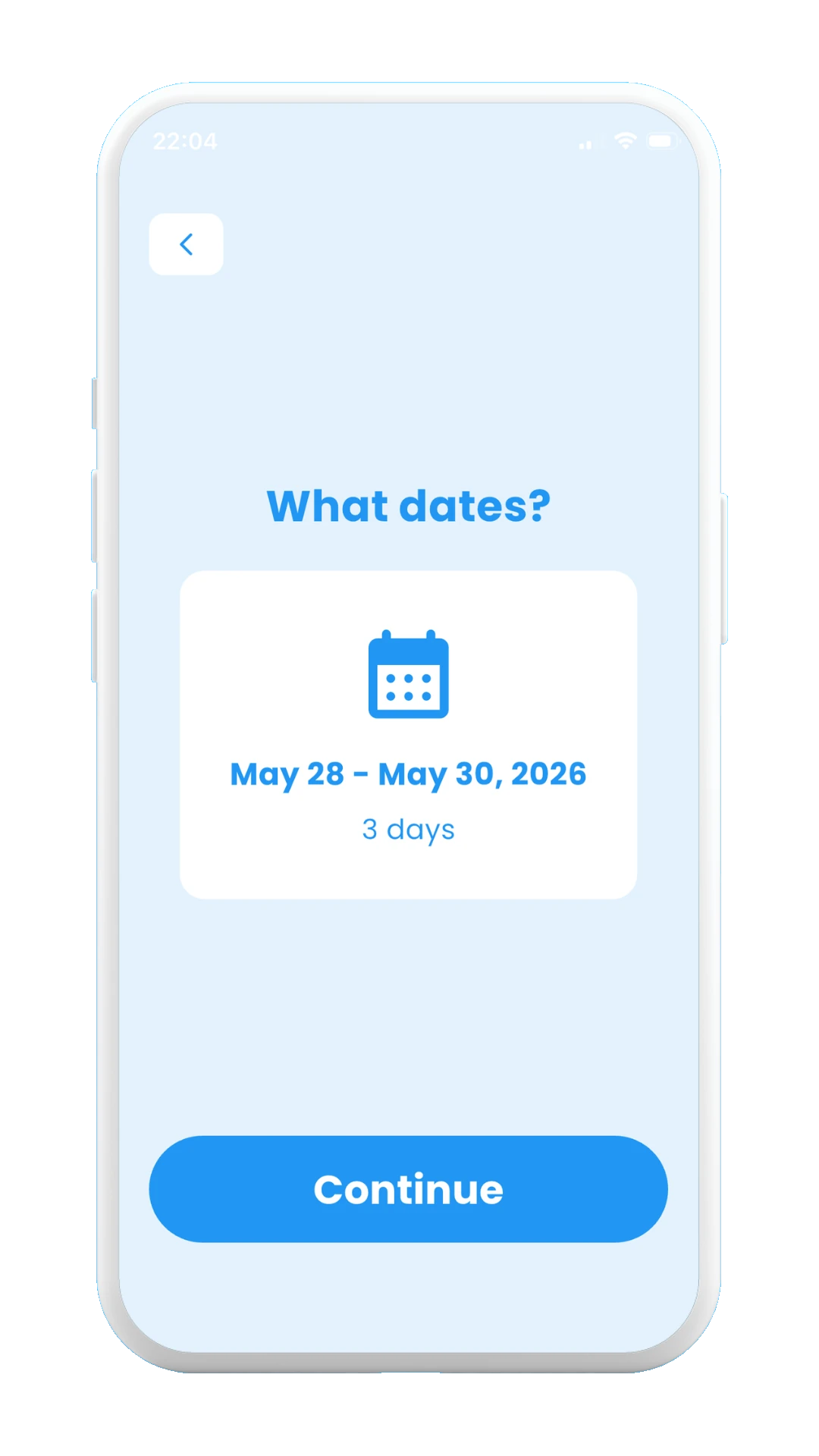
Tap on "Continue"
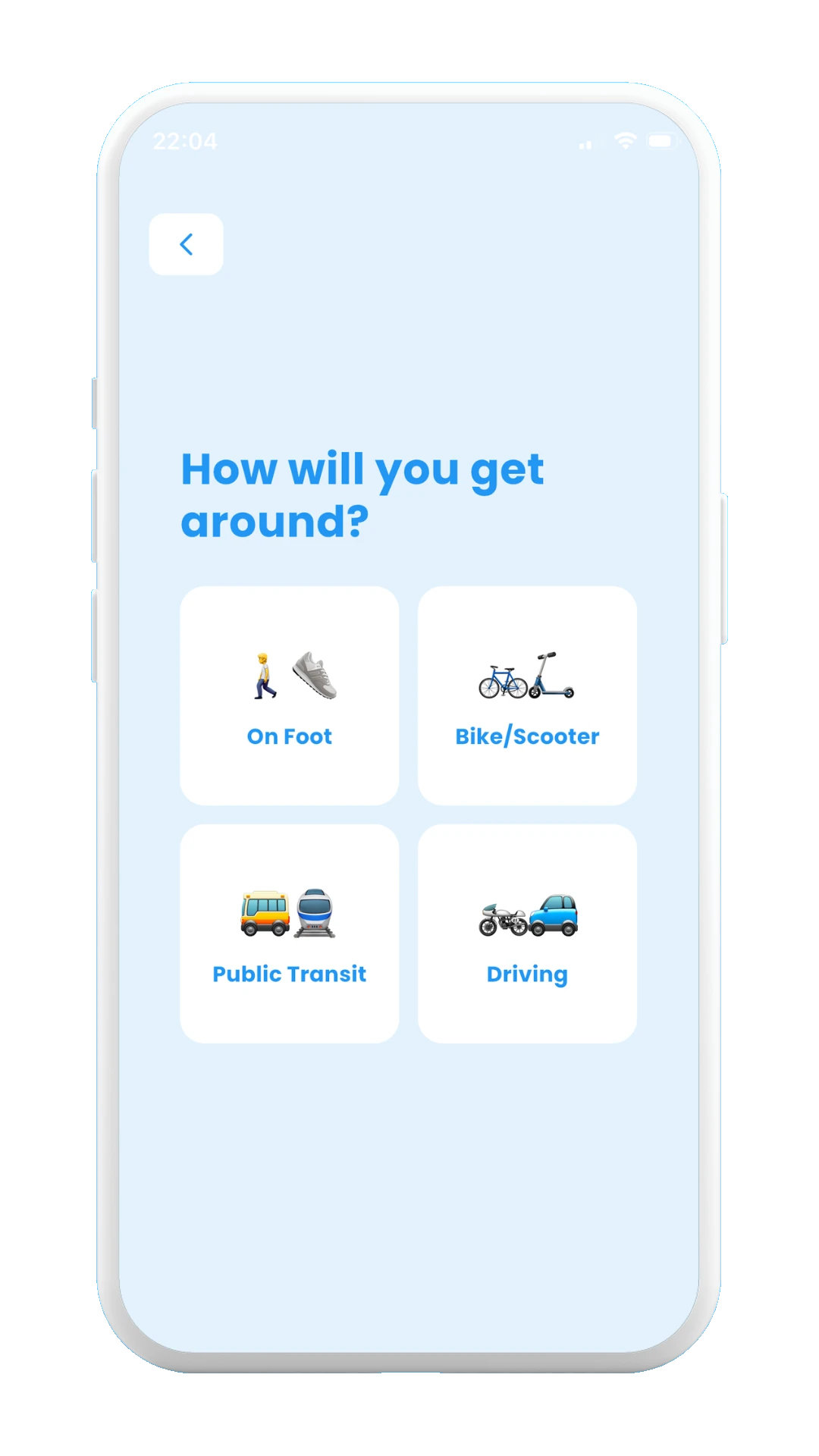
Choose the preferred transport for the trip
Once all the previous trip options have been selected, the next screen will ask to choose one of the three trip generation options, which are shown in the subsections below one by one.

Choose how to create your trip
1.1.1 Generate with AI
Choosing the first option, Generate with AI, will generate the trip itinerary automatically for you. When the trip is finished generating, the loader will disappear and the trip itinerary will be displayed on the map. Each color represents one day, and each day has several stops. See the pictures below.
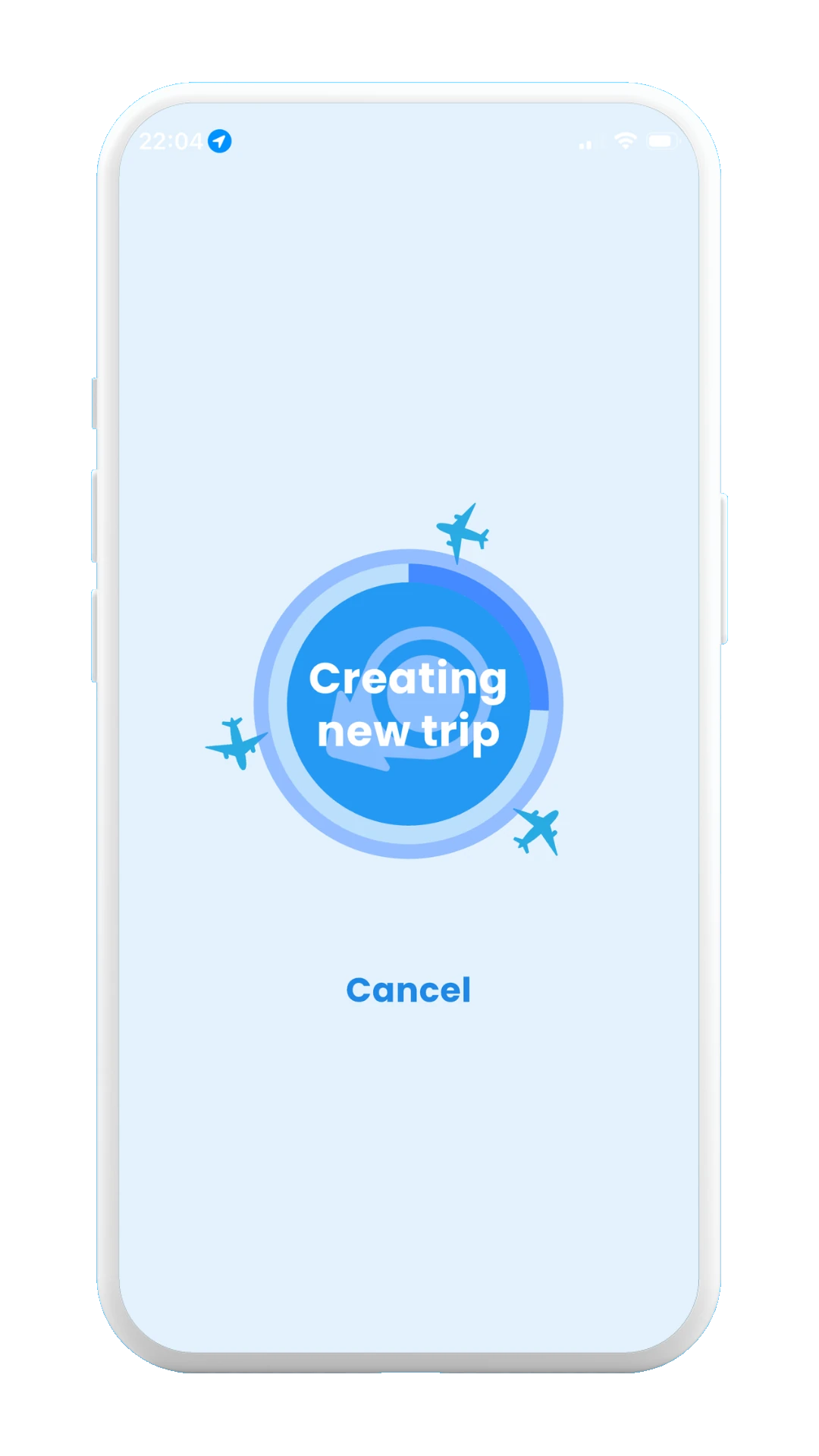
Creating trip loader
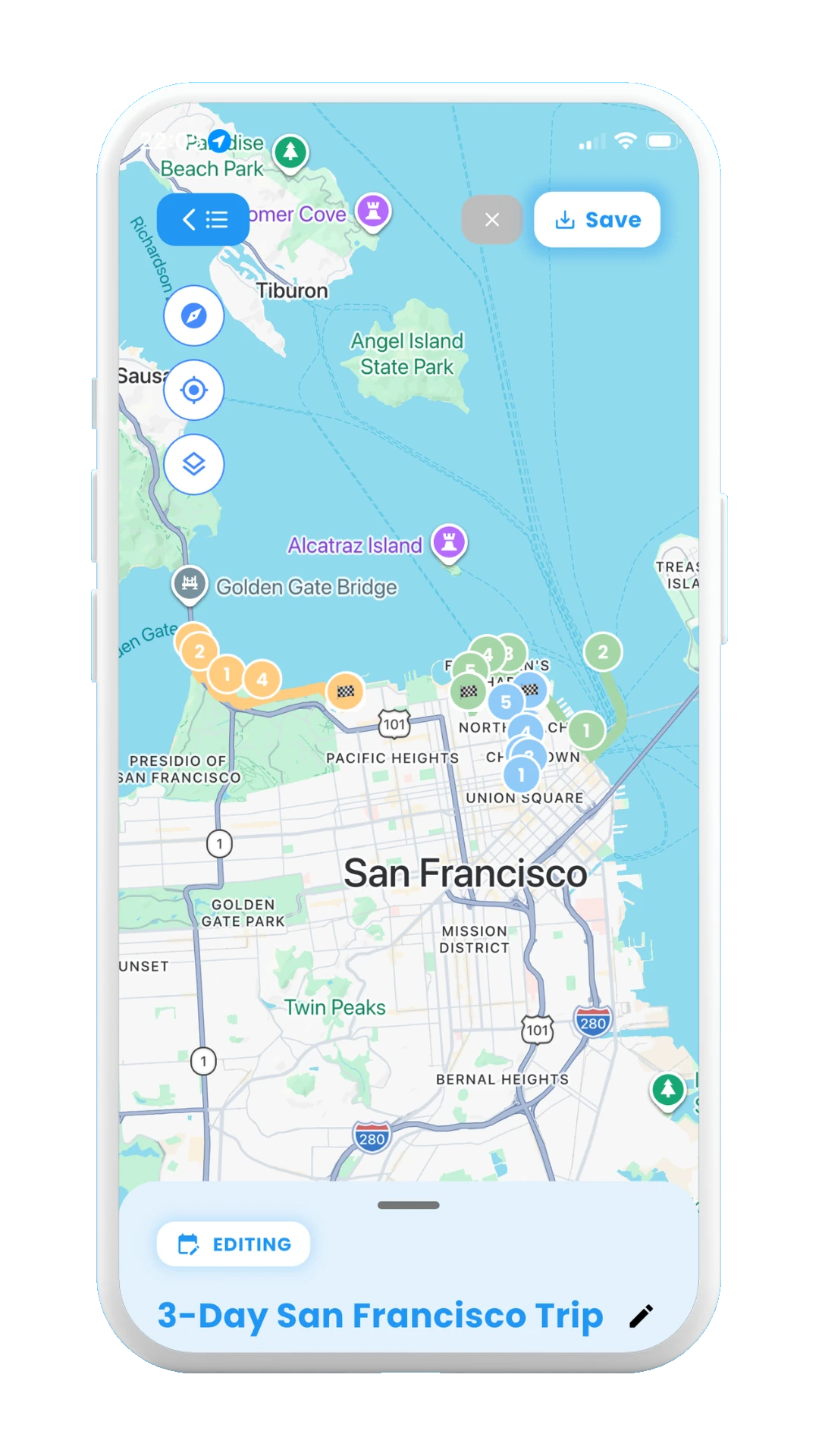
Generated itinerary on map
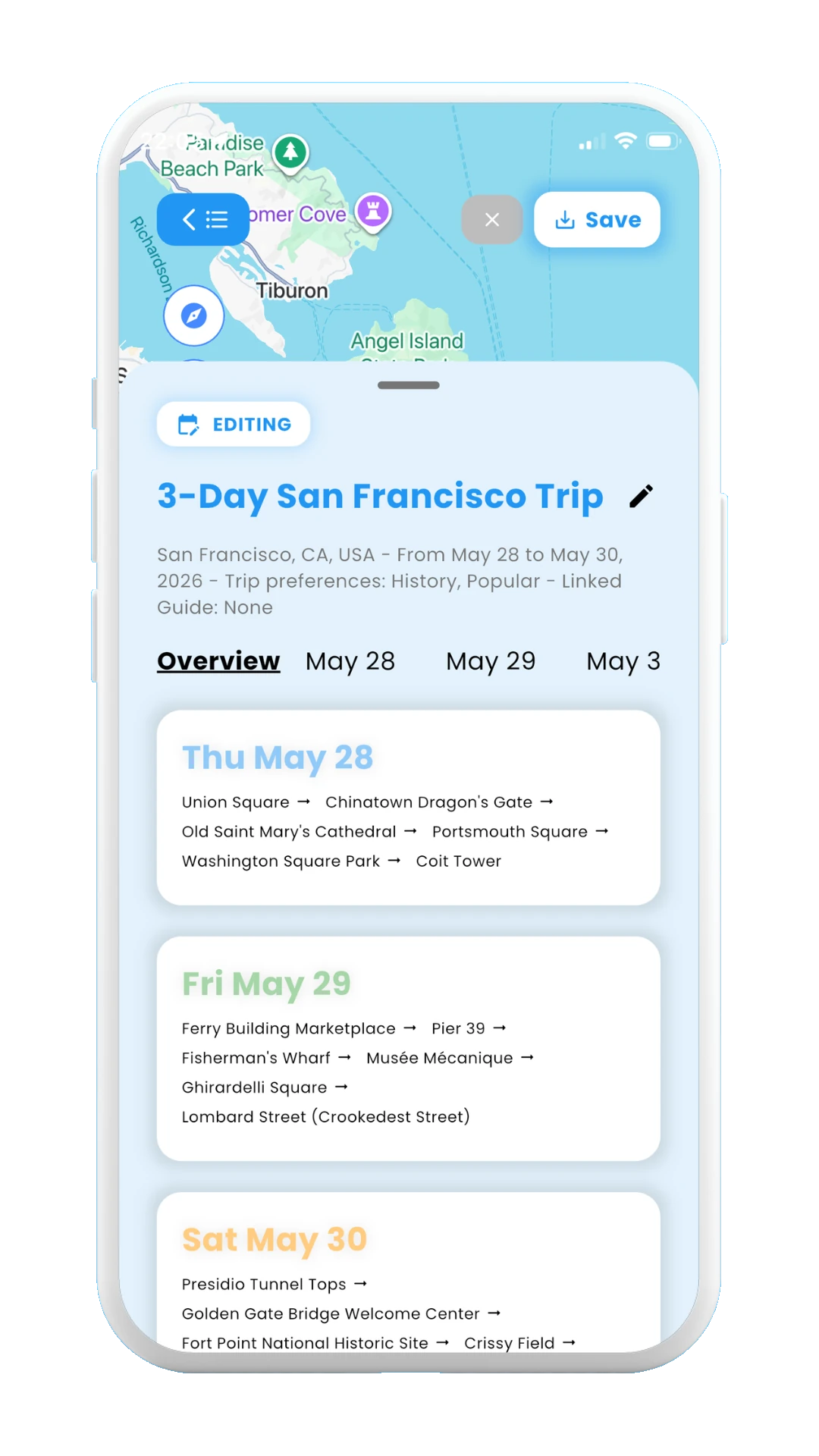
Generated days overview
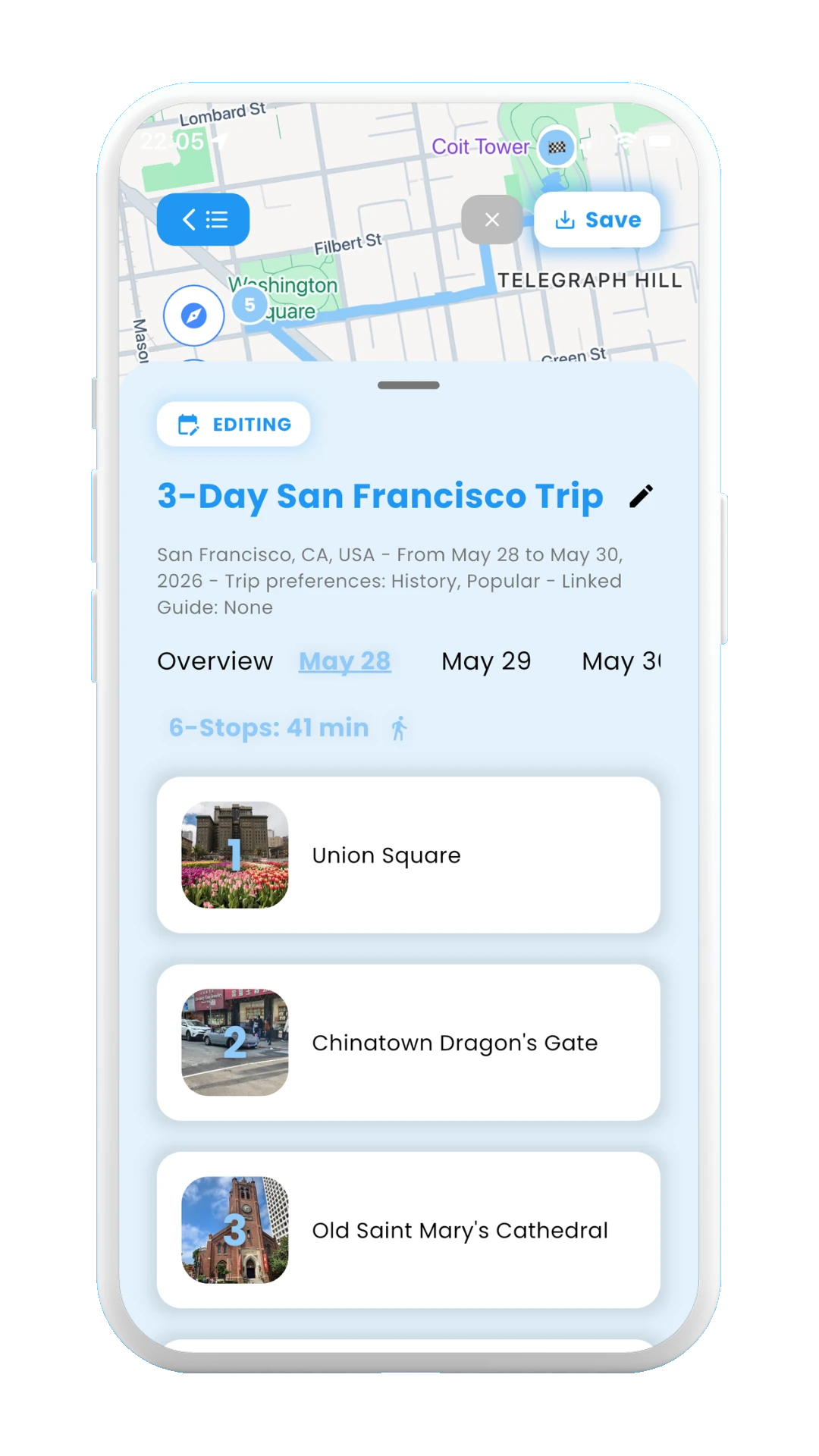
Generated stops inside first day
1.1.2 Scan my posts
The second option, Scan my posts, will let you choose from your scanned posts related to the chosen destination for the trip. If no posts have been previously scanned for the chosen destination, you can also directly paste the link of the post. This option will analyze the chosen posts (or pasted link), and will generate a trip itinerary taking into account the stops mentioned in the video. If the video fails to mention any relevant stop point in the chosen destination, Meily will also add them to the itinerary. For more details on how to scan posts and save them into the app, see section 2. Posts
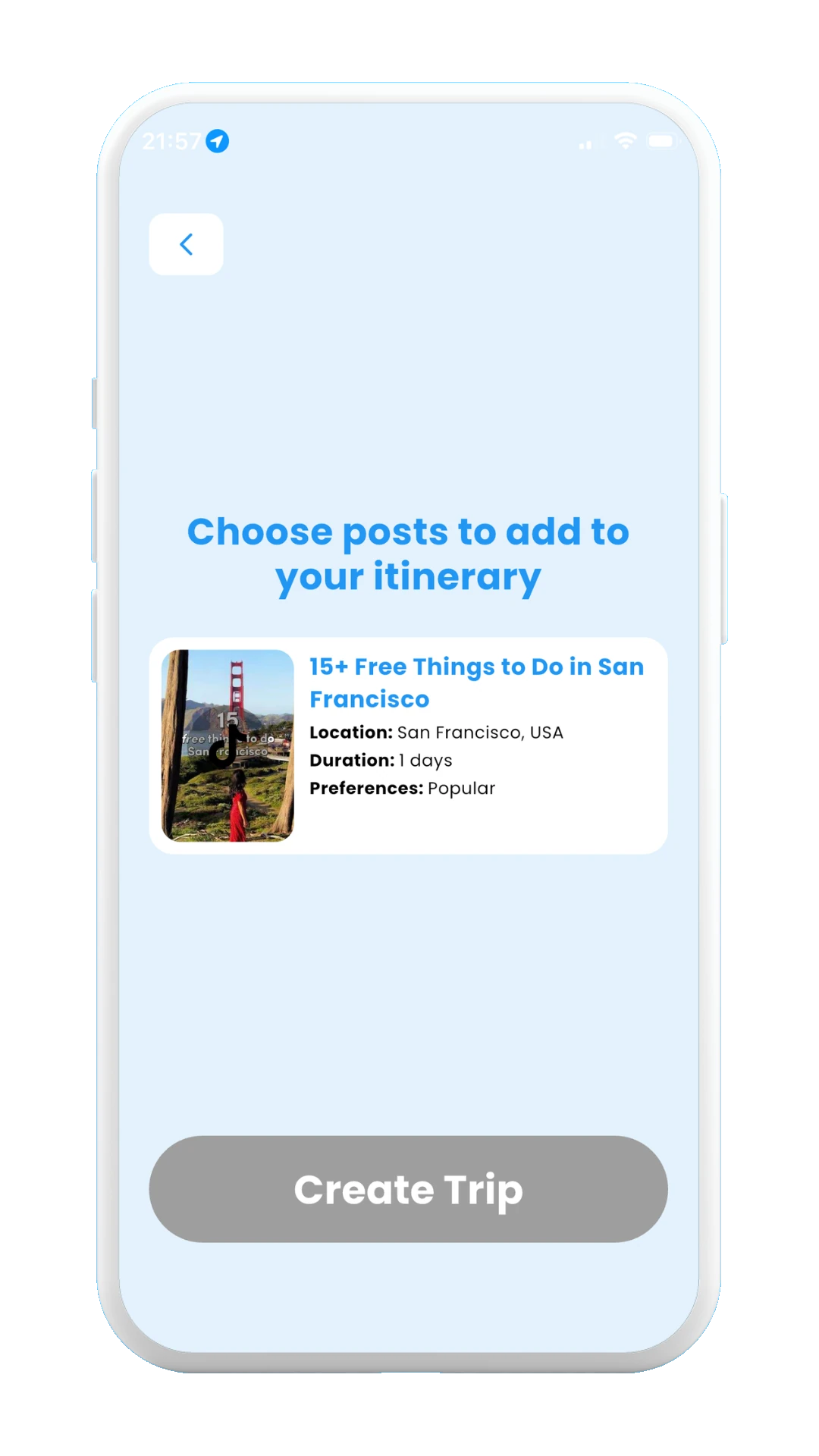
Choose post
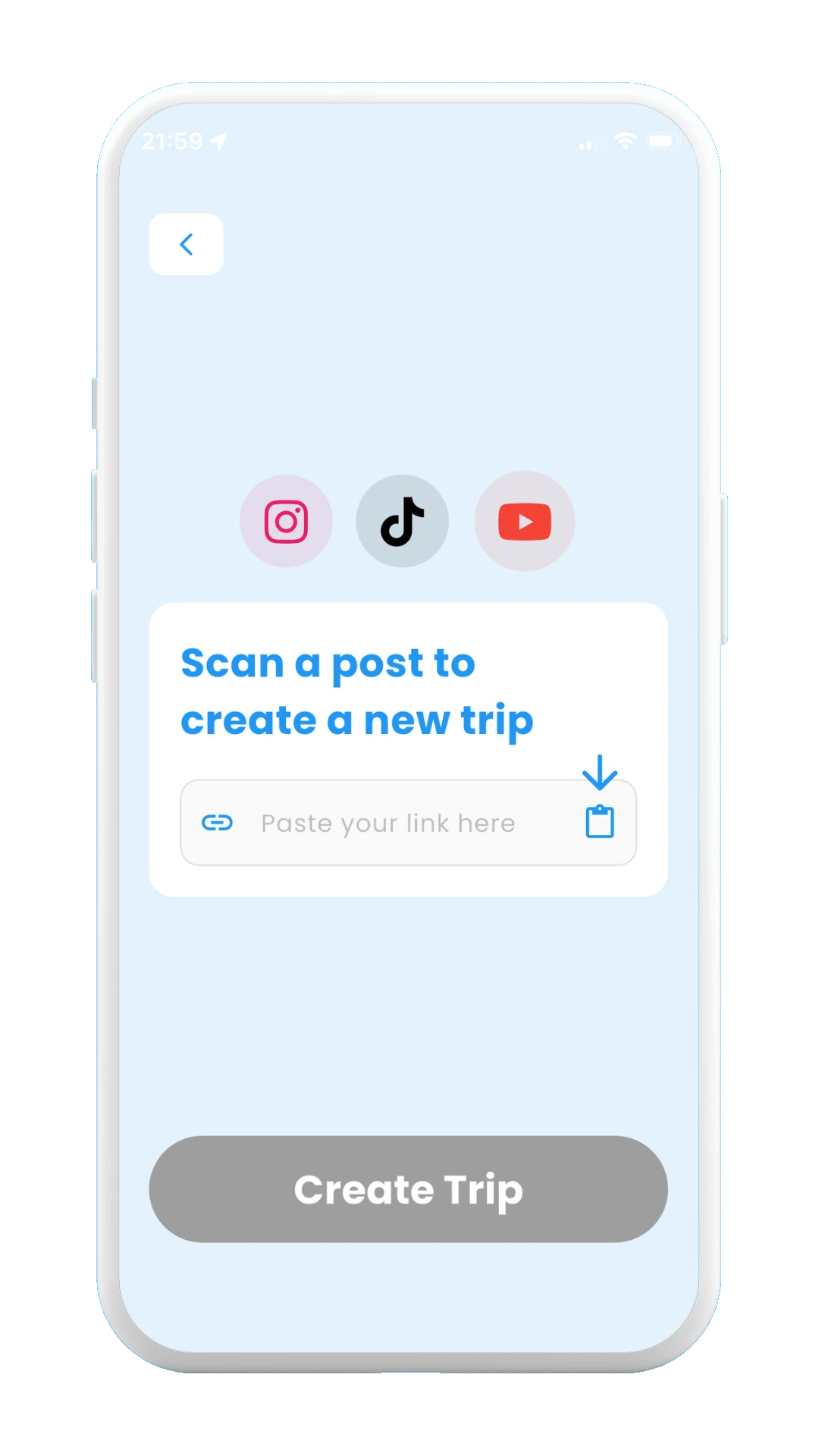
Paste post link
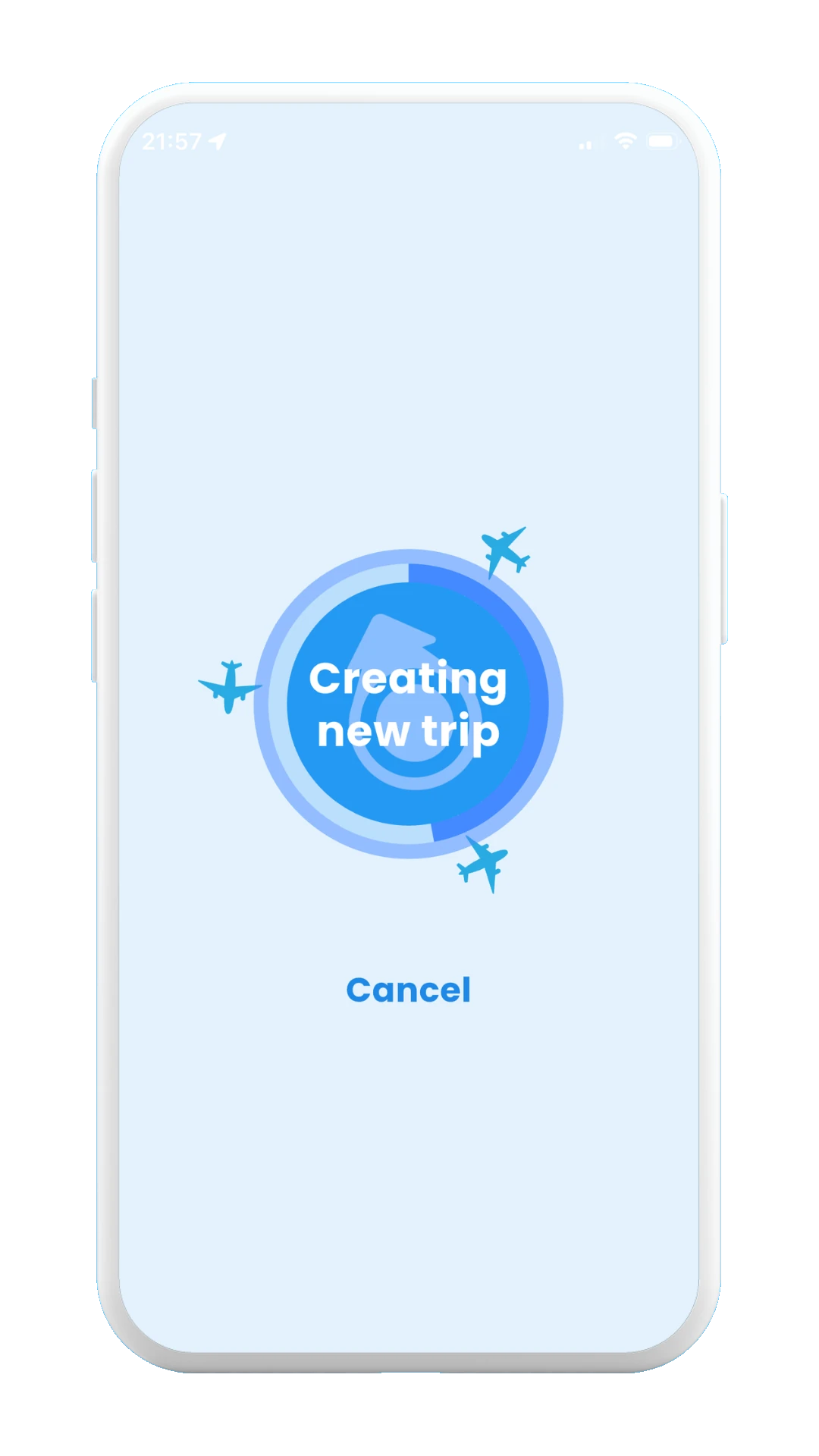
Generating trip
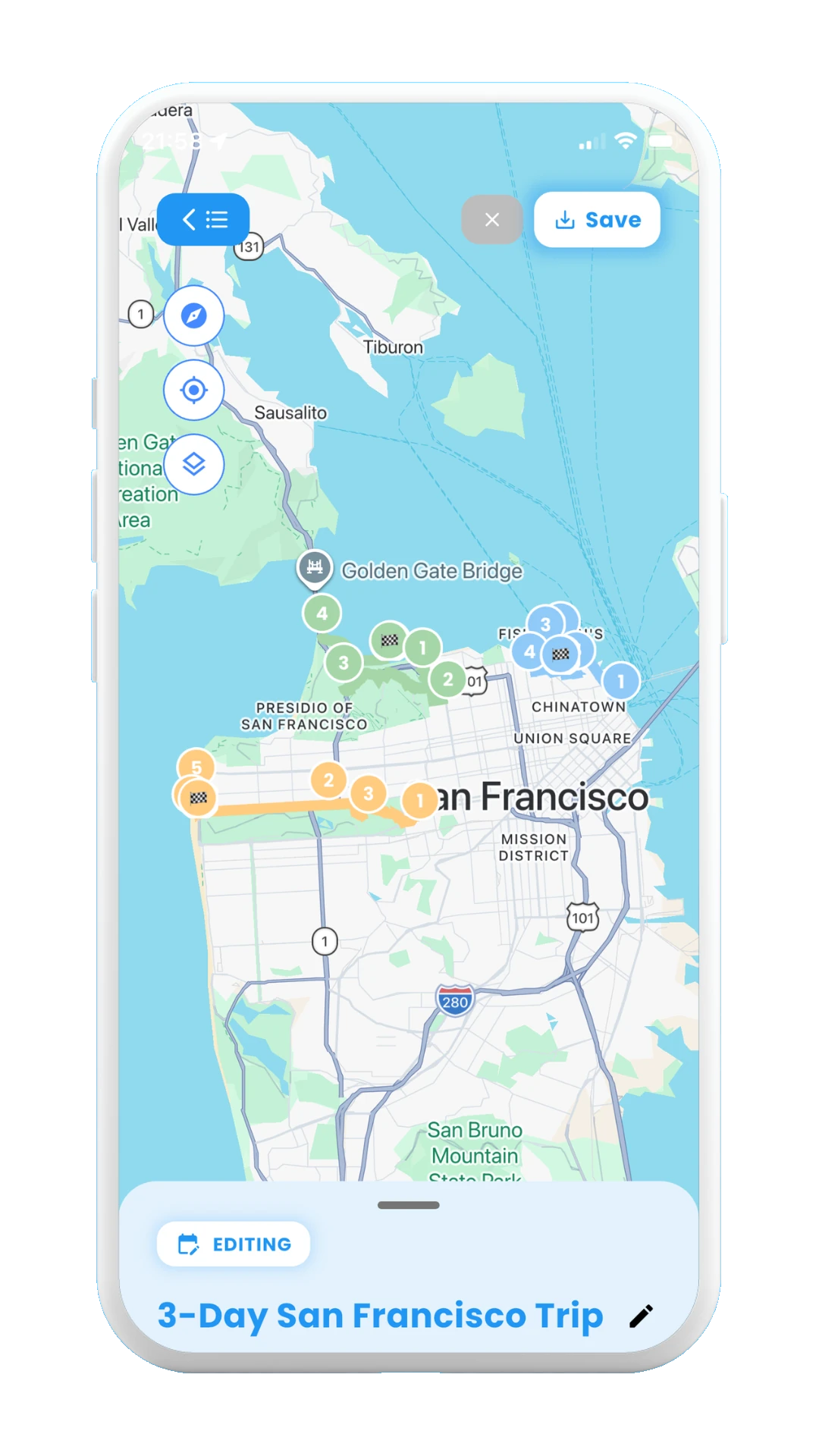
Generated itinerary on map
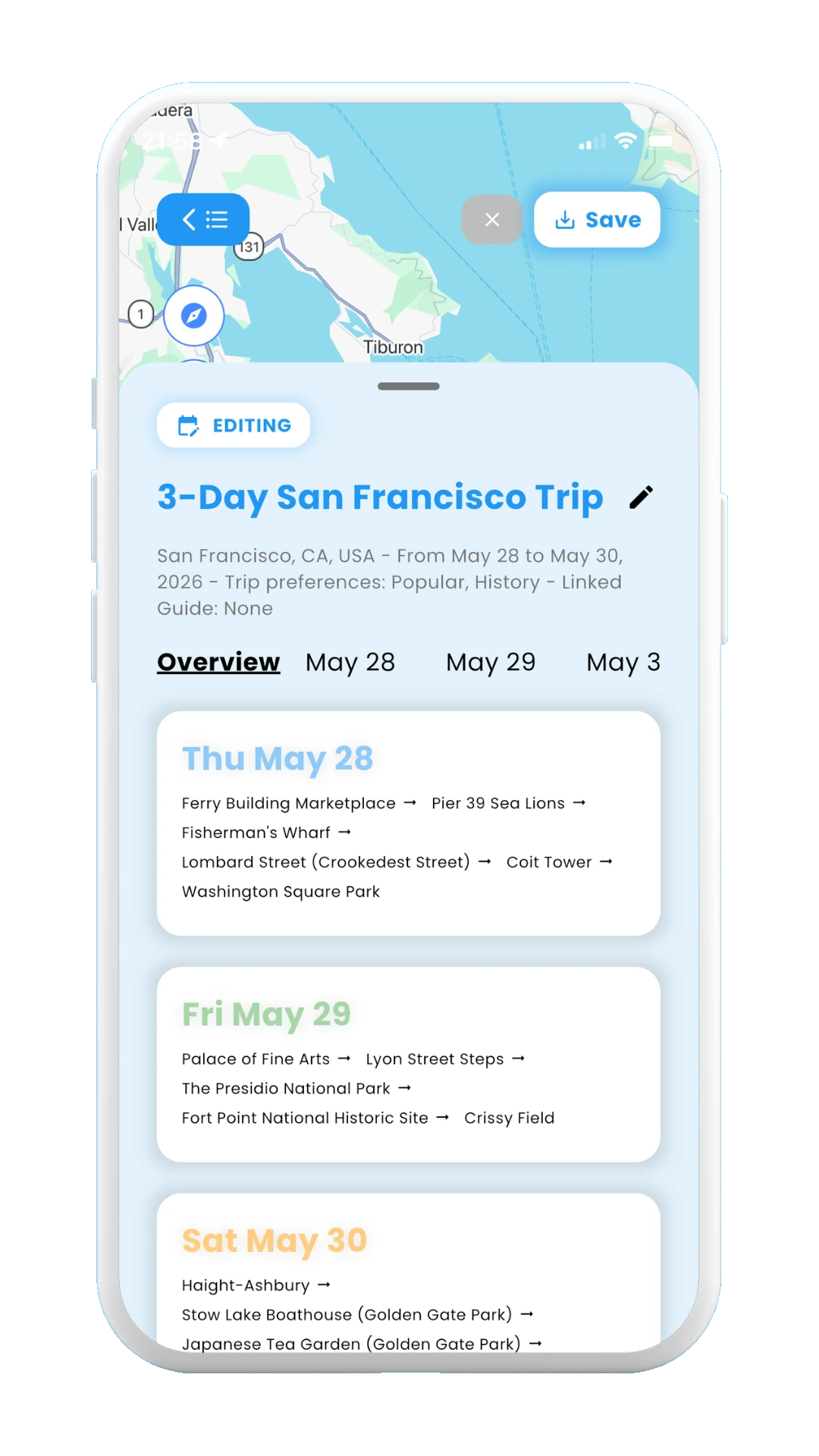
Trip itinerary days overview
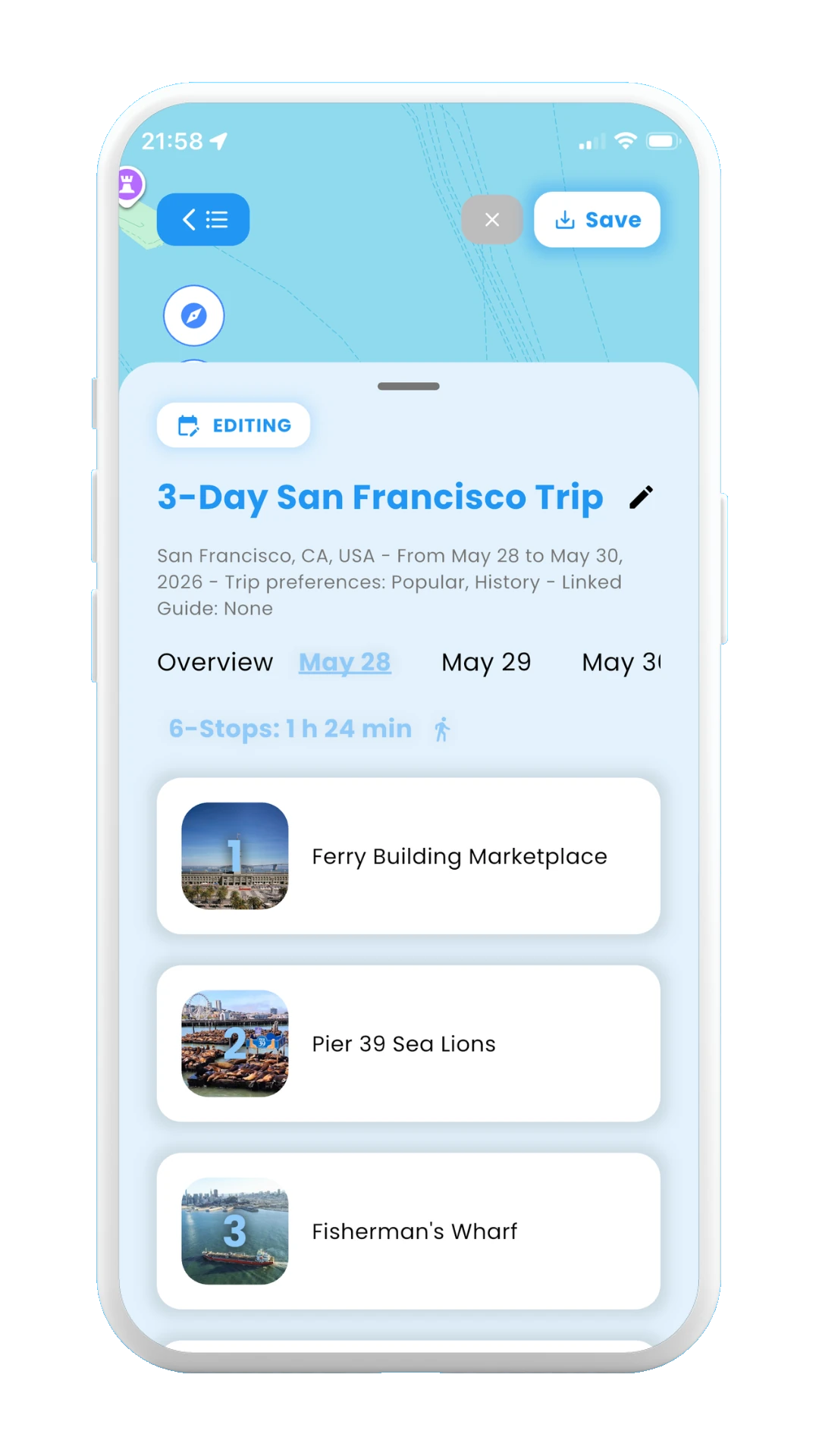
Generated stops inside first day
1.1.3 Pick spots myself
If choosing the third option, Pick spots myself, an empty trip itinerary will be created, so that you can manually add all the desired stops. See the generated empty trip itinerary in the images below.
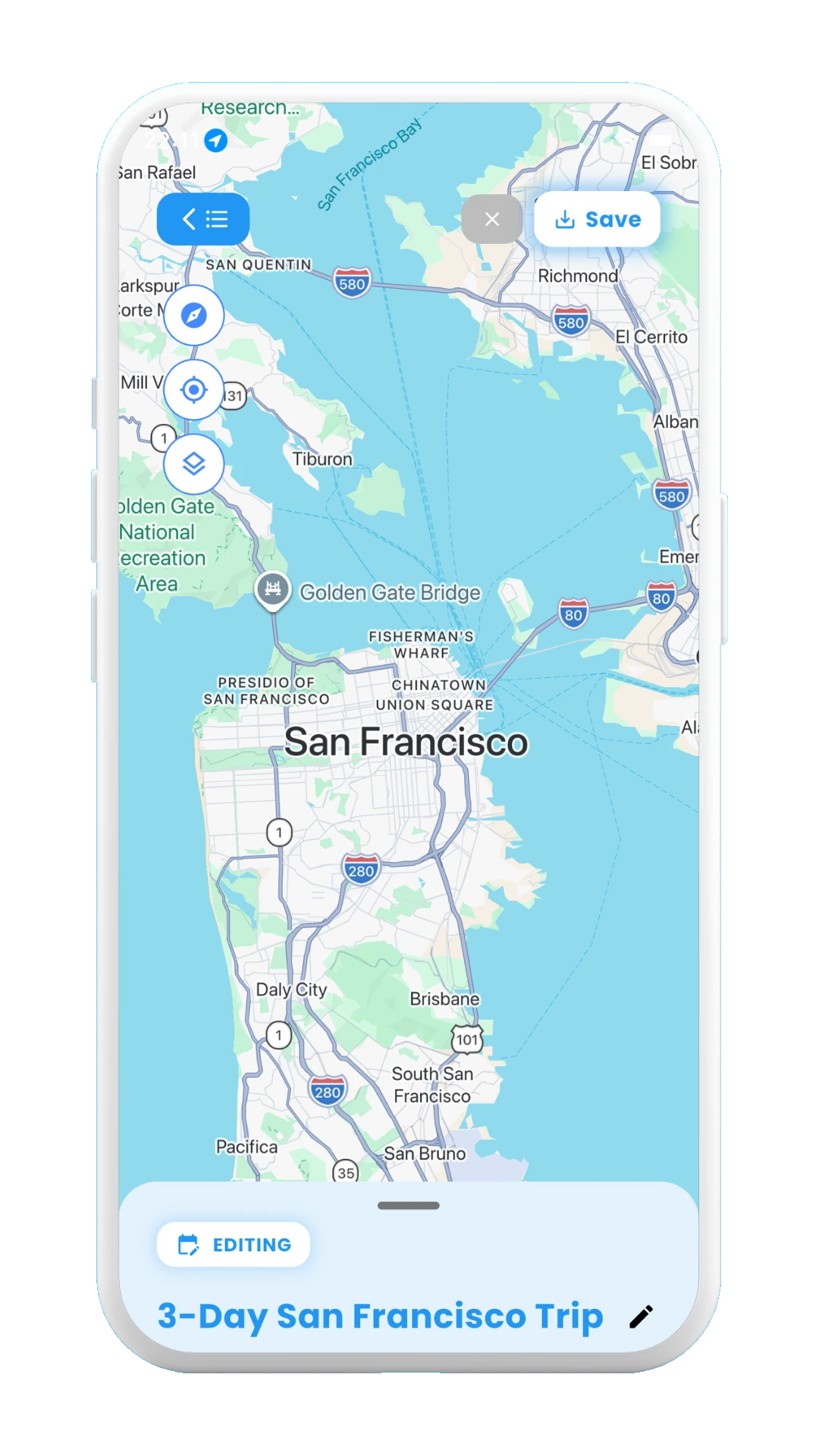
New Empty Trip
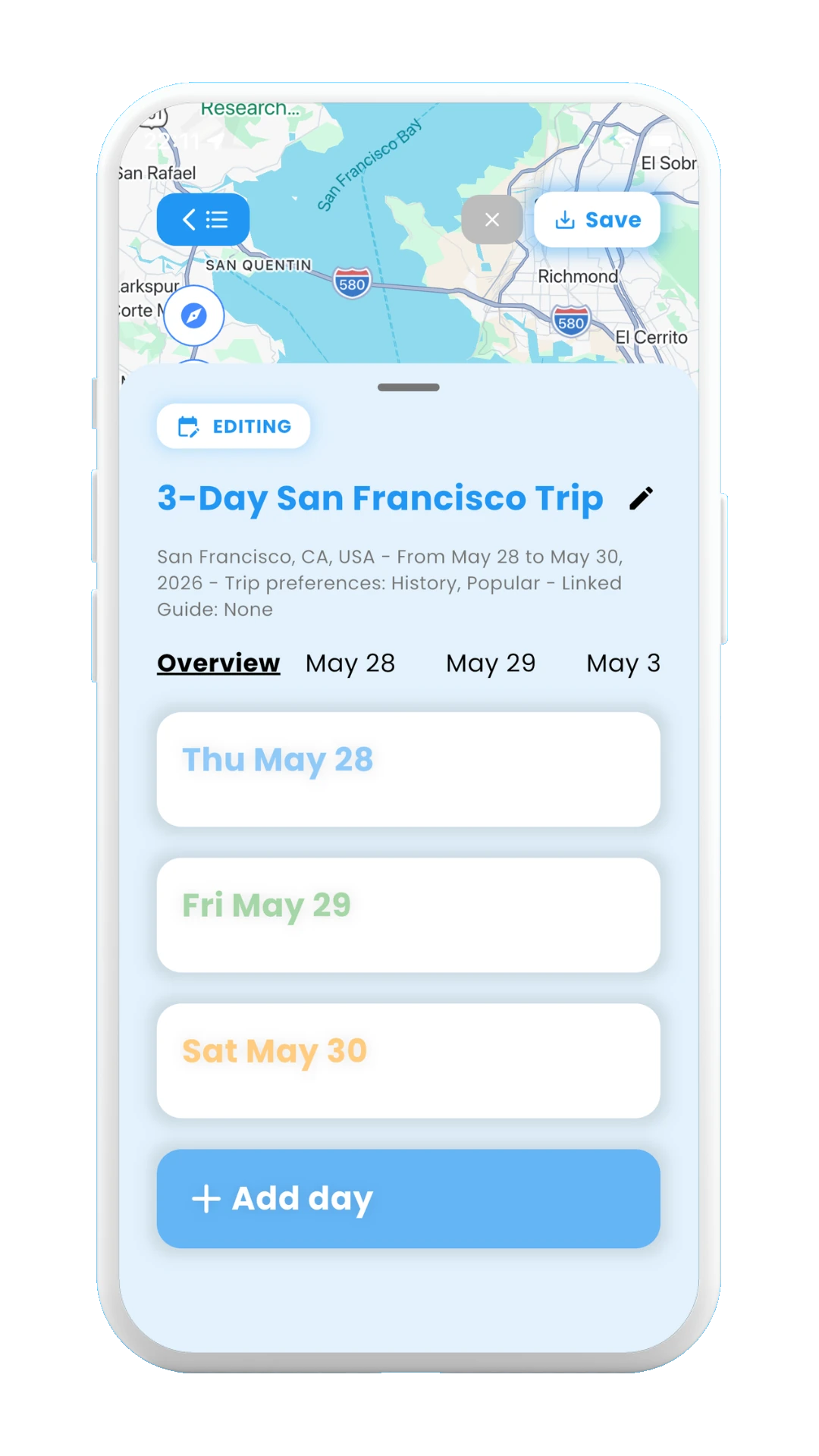
Trip with empty days
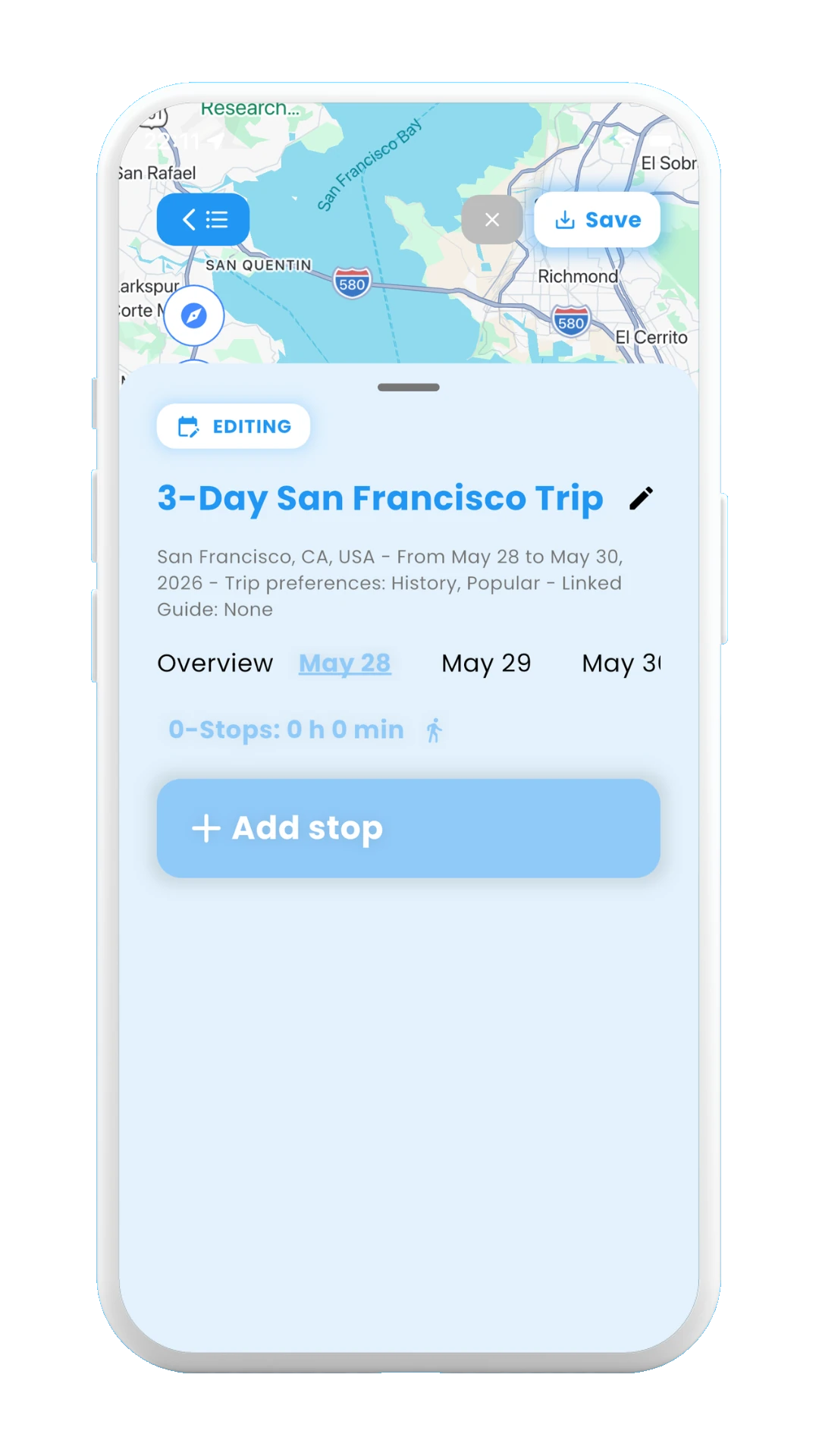
Trip with empty stops
The next section, 1.2. How to Use Trip Itineraries explains how to edit a trip itinerary (by adding, removing and reordering stops and days), as well as how to save or delete it.
Continue with 1.2 How to Use Trip Itineraries →