 Meily Trips
 Android
 iOS
iOS
1.2 How to use a trip itinerary
Once you have created your trip itinerary, as shown in 1.1. How to Create Trip Itineraries, you will be able to edit it and use it. This section shows how you can add/remove/reorder days and stops from your trip, how you can save your trip, and finally, how you can remove old trips. Ready? Let's get started
Edit and save
Once you are inside your trip itinerary page, notice that the background will be either blue or white (see images below).
If the background is blue, it means that you are in Edit Mode, so that you can modify the days and stops of the trip (shown in the next subsection). When you are in edit mode, the buttons at the top rigth of the screen allow you to discard/save the changes for your trip itinerary.
If the background is white, it means that you are not in edit mode, so you cannot edit the itinerary. In this case, the button at the top right of the screen enables you to enter edit mode.
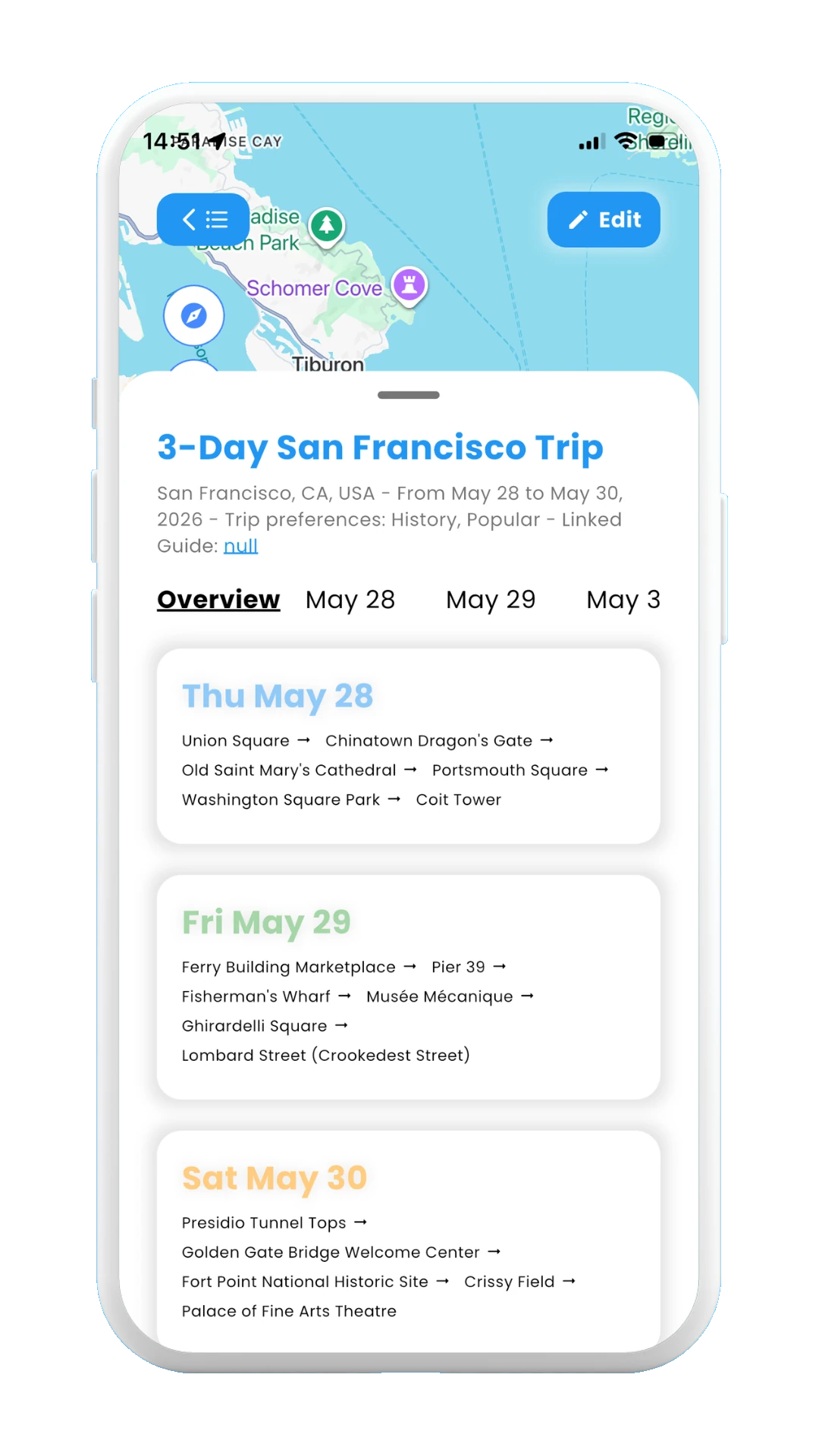
Not in edit mode
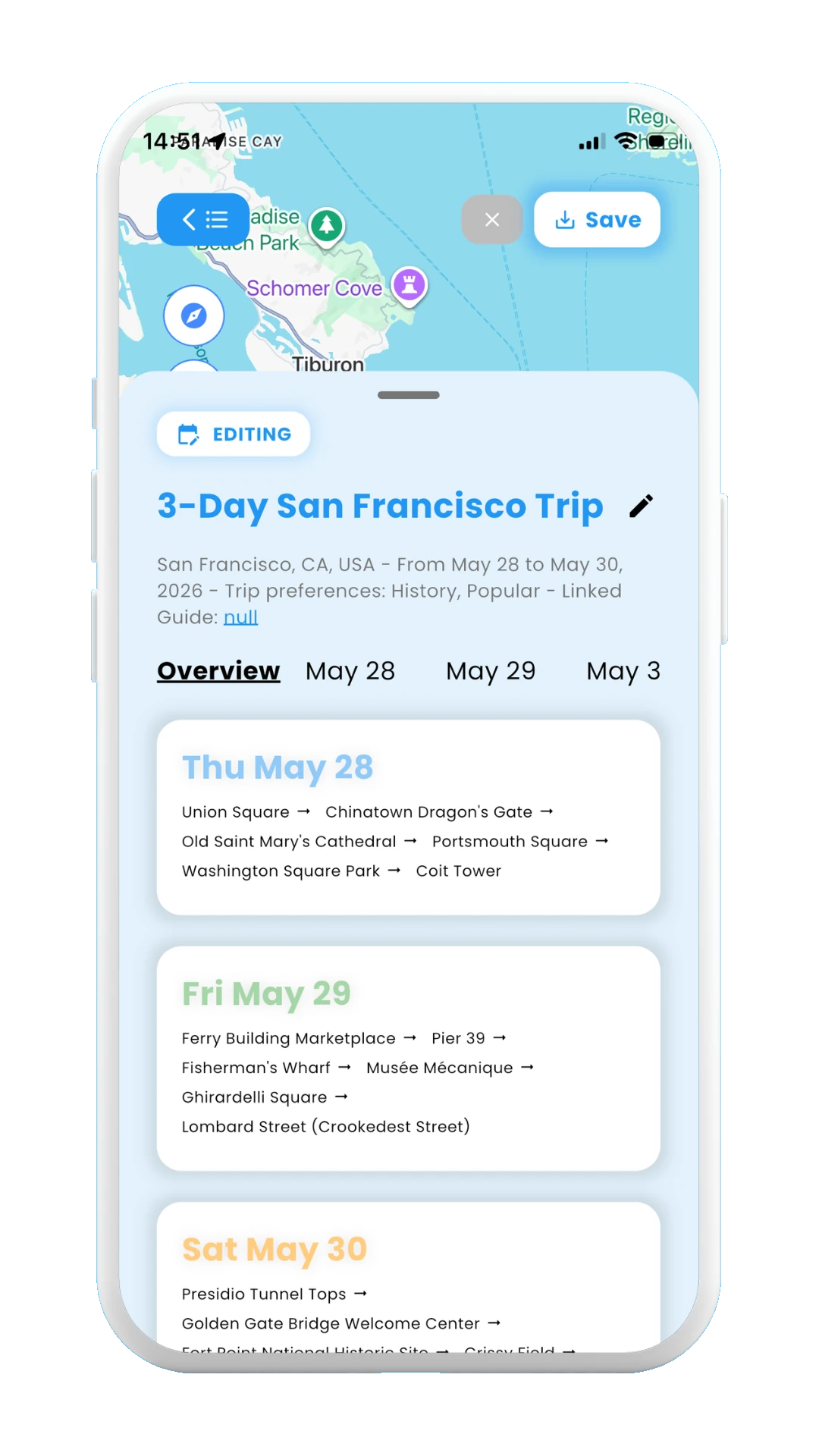
Edit mode
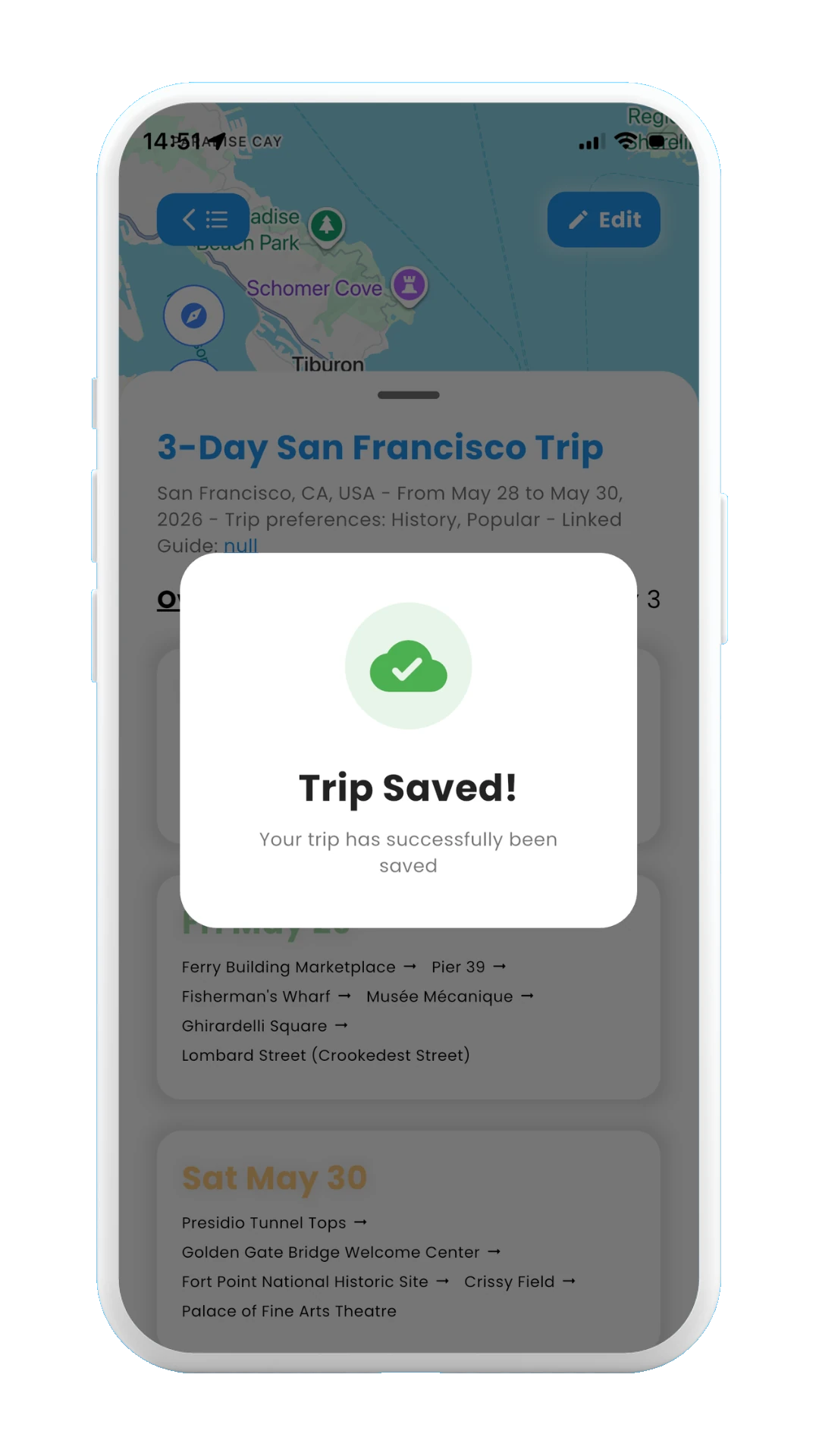
Saved trip
Add new days
Once you are in edit mode, you can add new days to your trip.
For this, you just need to tap in the + Add day button at the bottom of the "Overview" page of the trip itinerary. The next three options will be shown:
- ✓ Add day with AI
- ✓ Scan from posts
- ✓ Create empty day
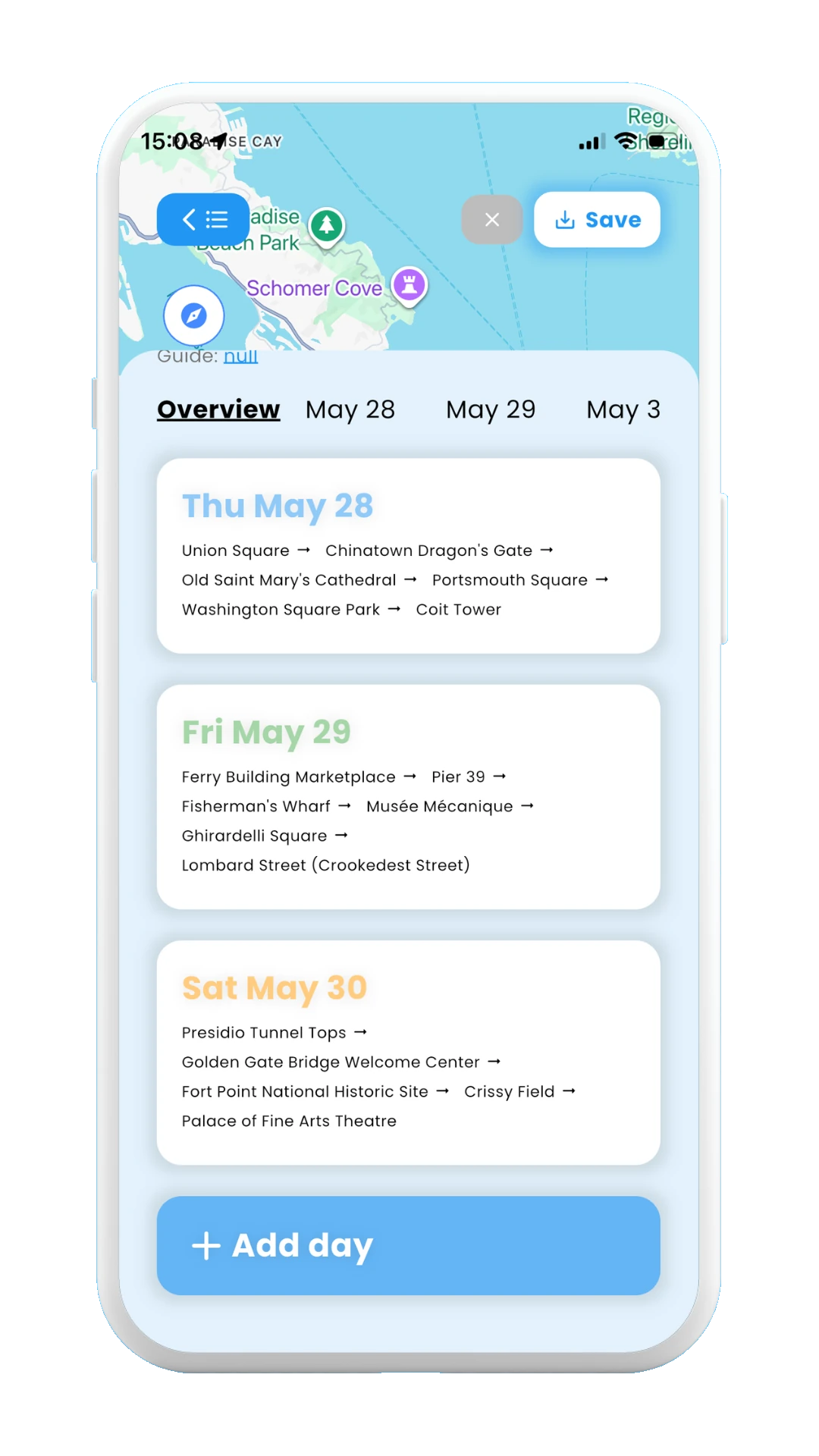
Select the + Add day button
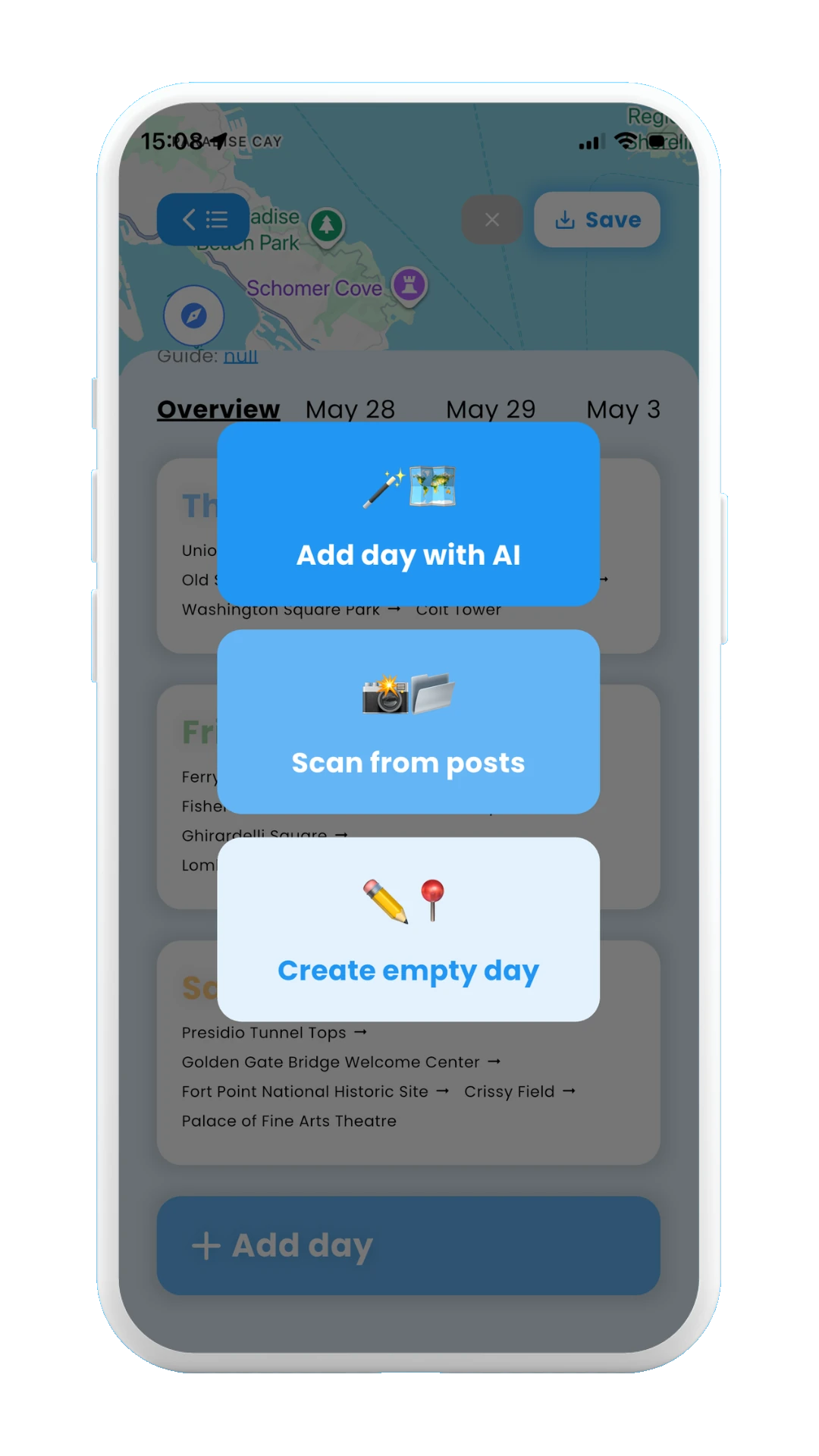
Three options for adding a new day
✓ Adding days with AI
If choosing this option, Meily will analyze your current trip itinerary, looking at your preferences, dates, and planned days/stops. Based on that, it will generate the stops that best fit for an additional day in your current plan, avoiding already visited destinations. Once it finishes loading you will be able to see the recommended stops for the new day.
The images below show how to add a new day with AI:
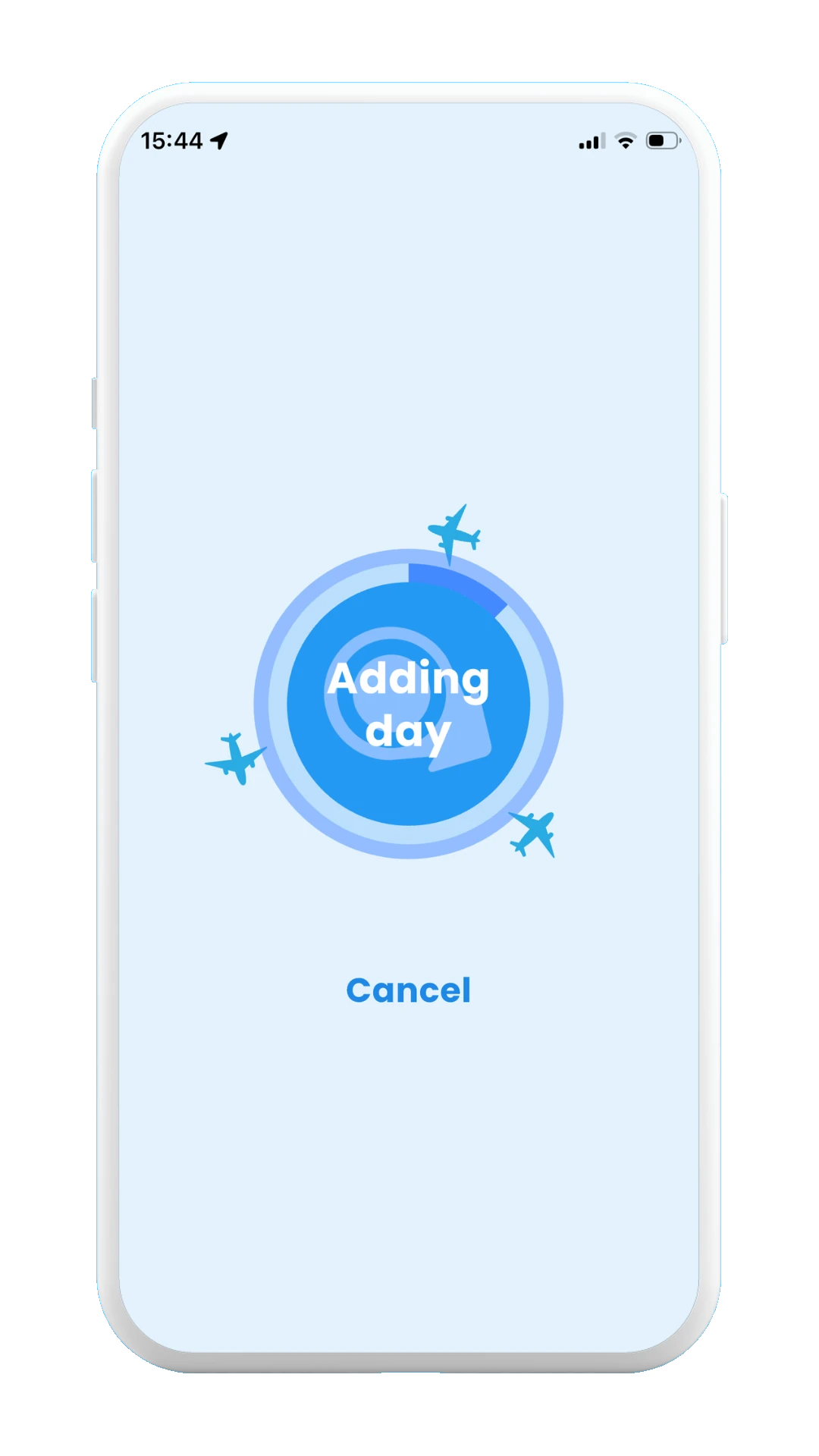
Loading
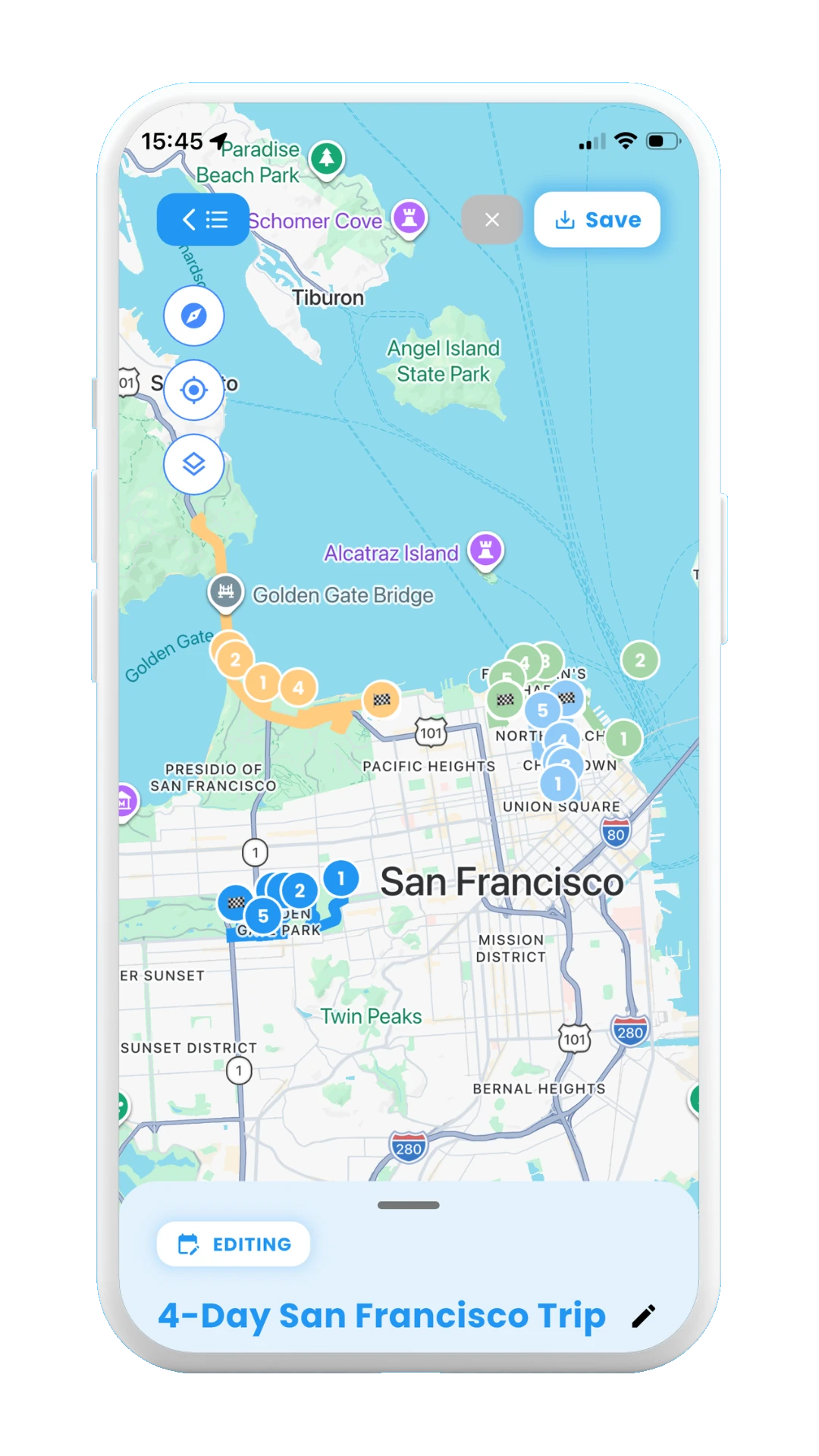
New day on map
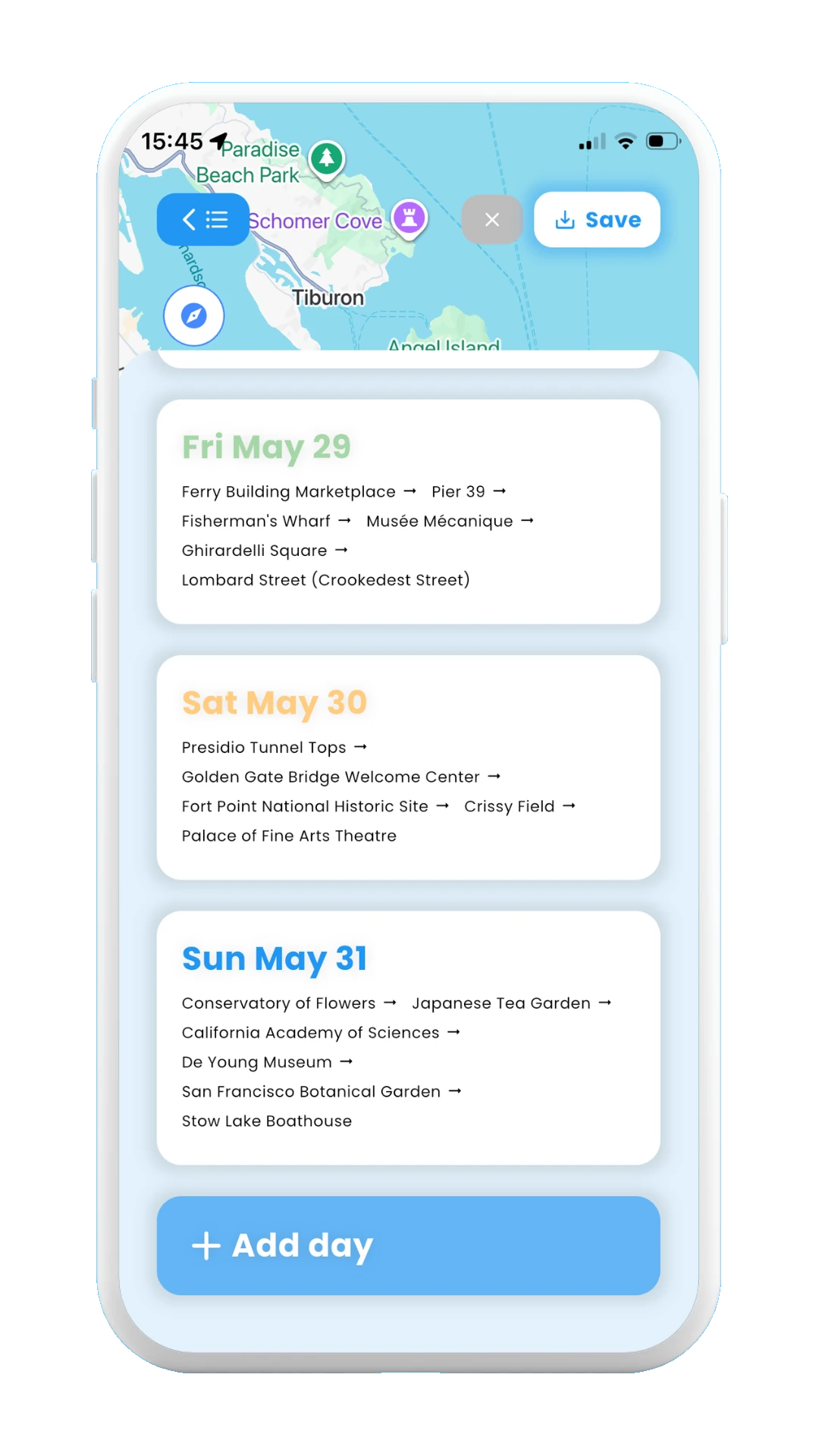
New day overview
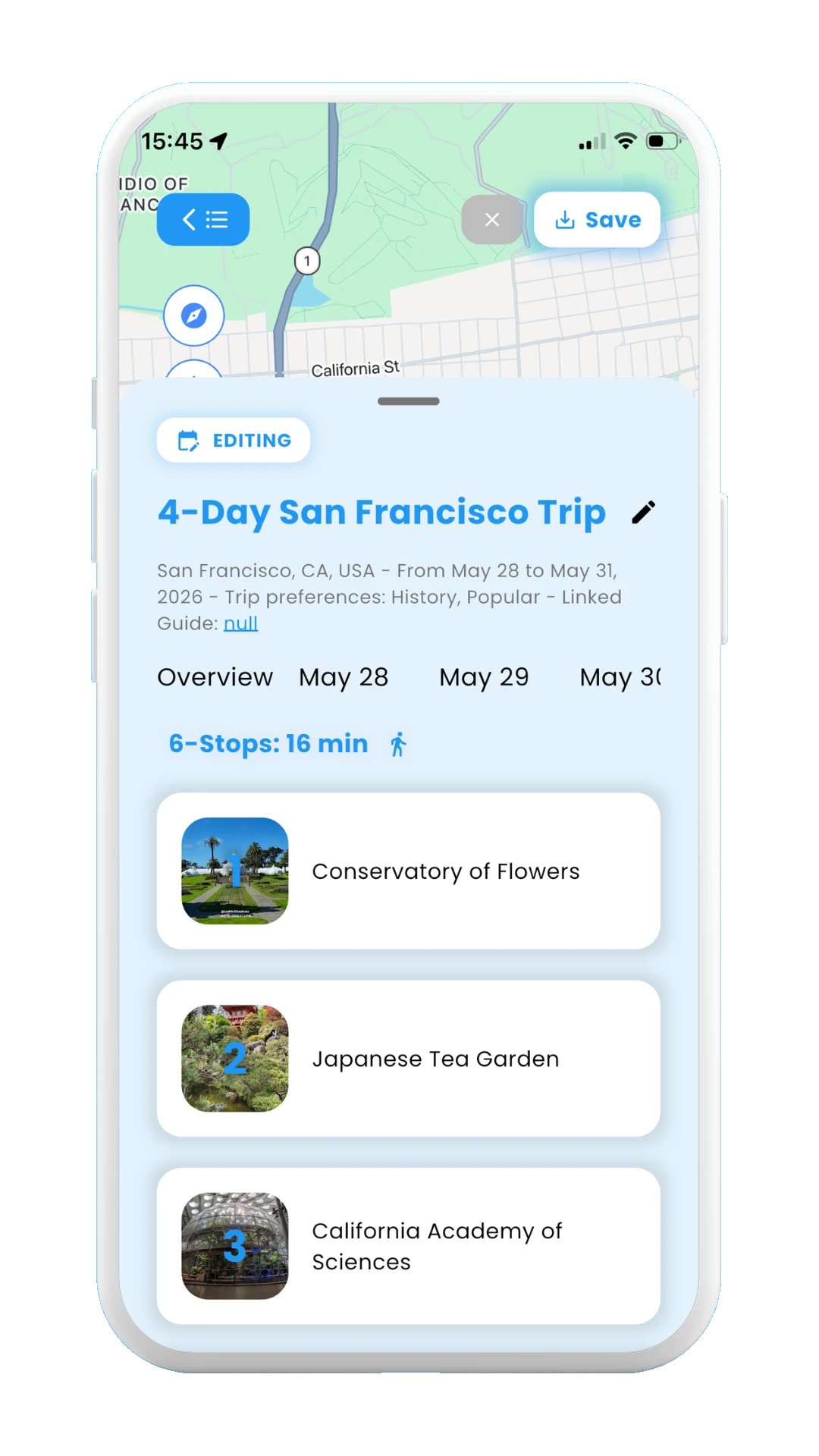
Generated stops
✓ Adding days from scanned posts
If choosing this option, you can use scanned social media posts from Instagram/TikTok/Youtube to generate your next day in the itinerary. The stops mentioned in the video will be analyzed and organized in order into the next day for your trip.
Check section 2. Posts to learn how to scan posts from social media with Meily. If you haven't scanned any posts for the destination of your current itinerary, the "paste post link" window will be shown, so you can paste the link of the post you want to include.
The images below show how to add a new day from scanned posts:
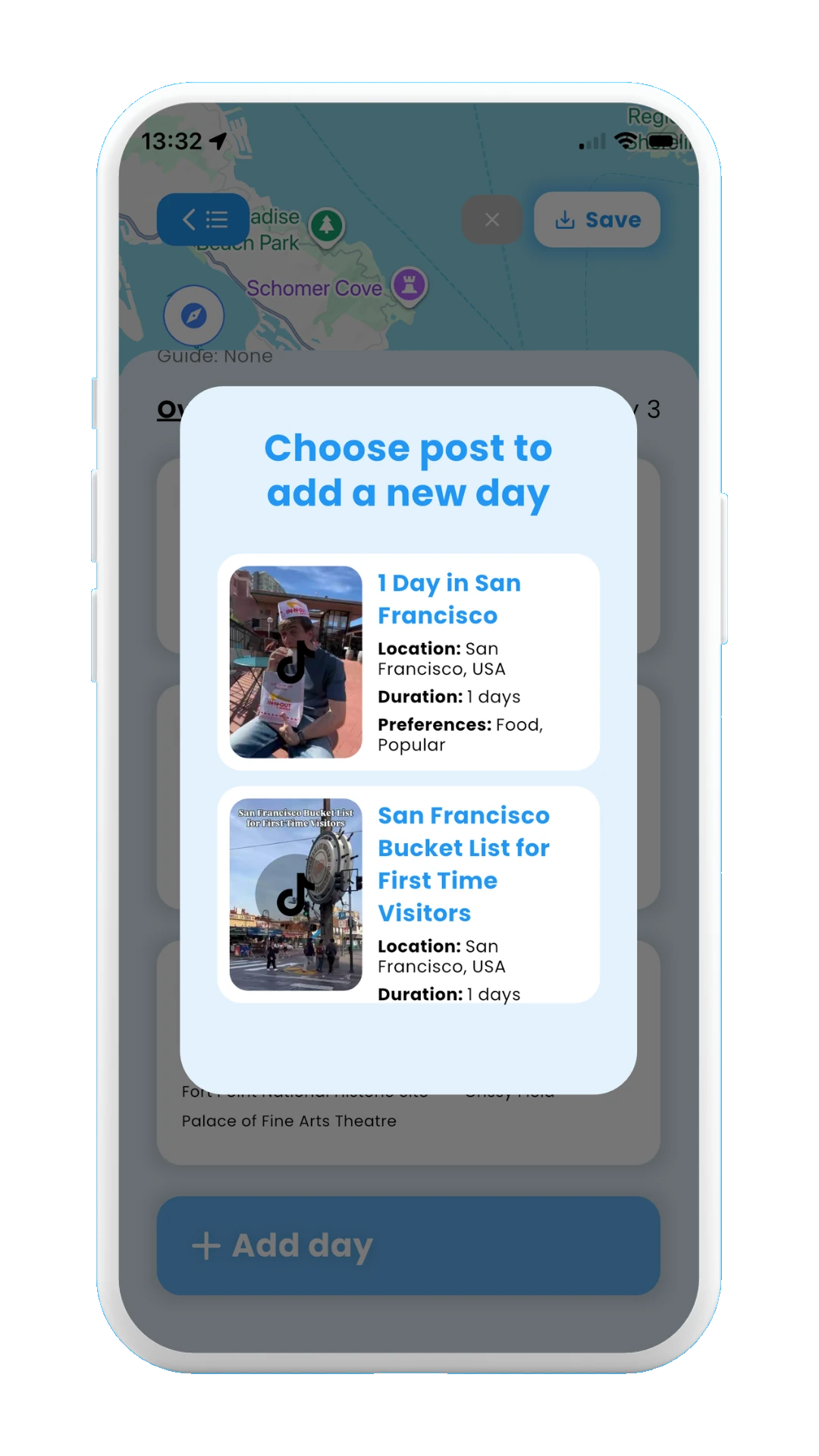
Choose a scanned post
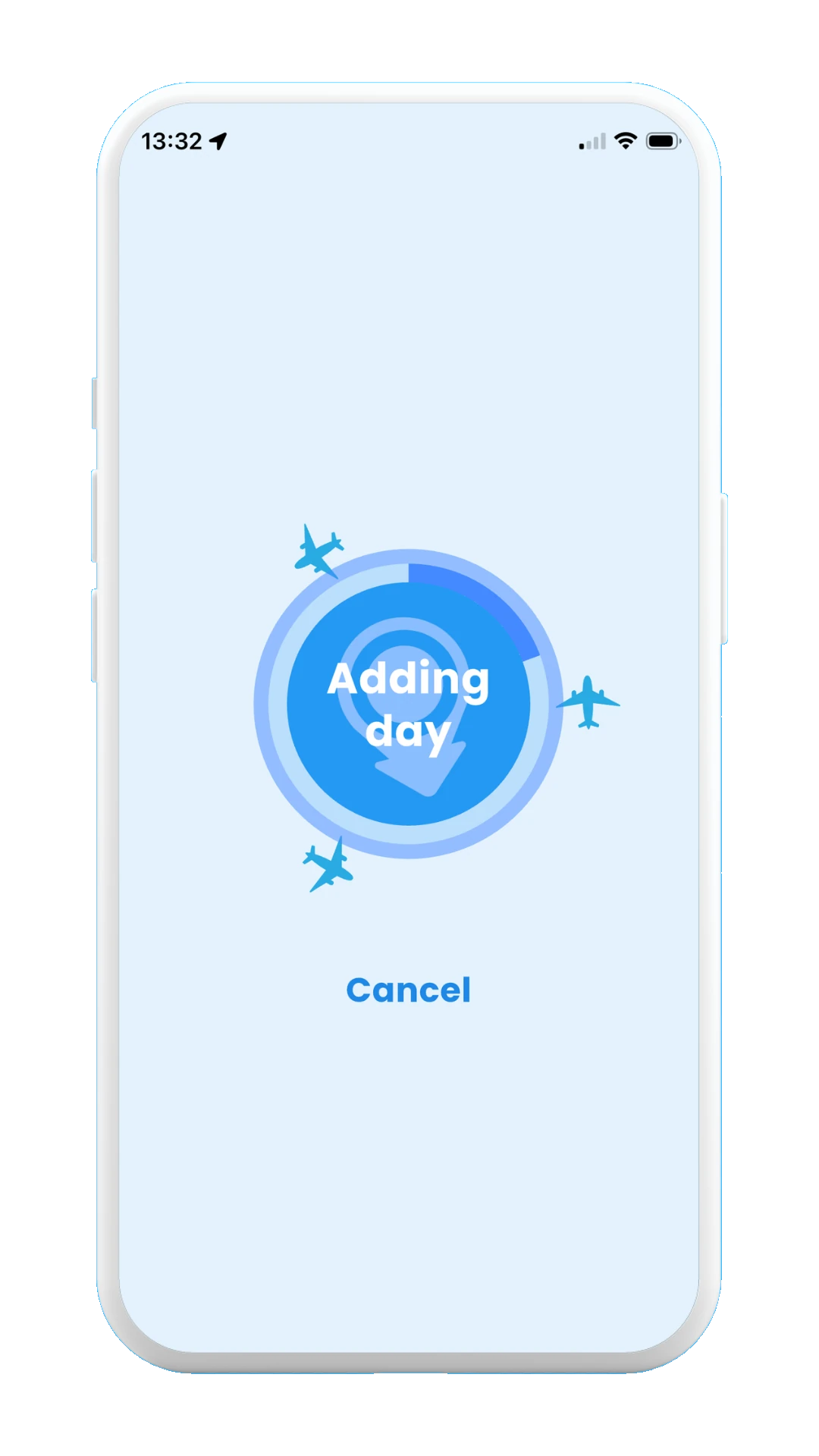
Adding day
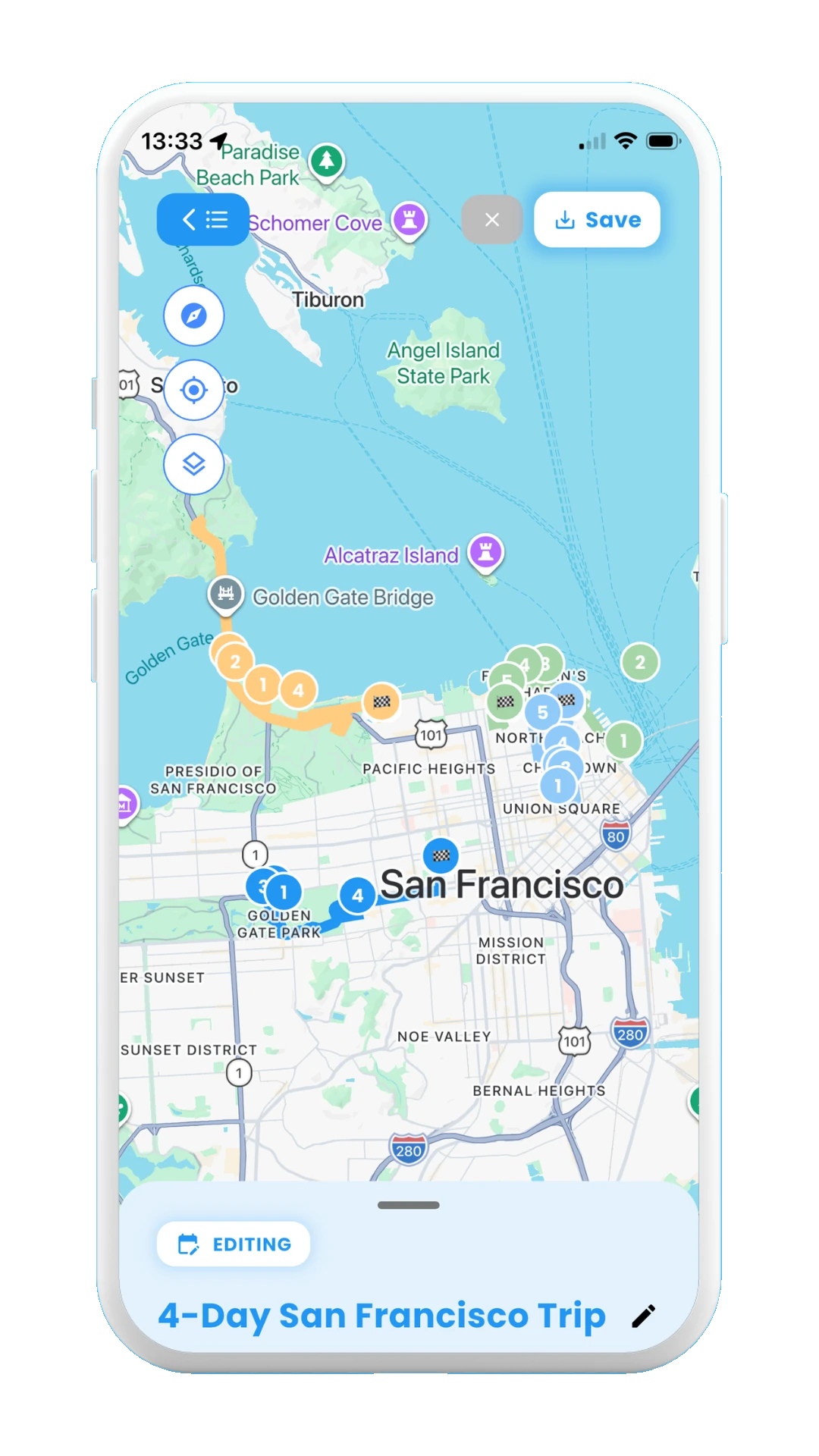
New day on map
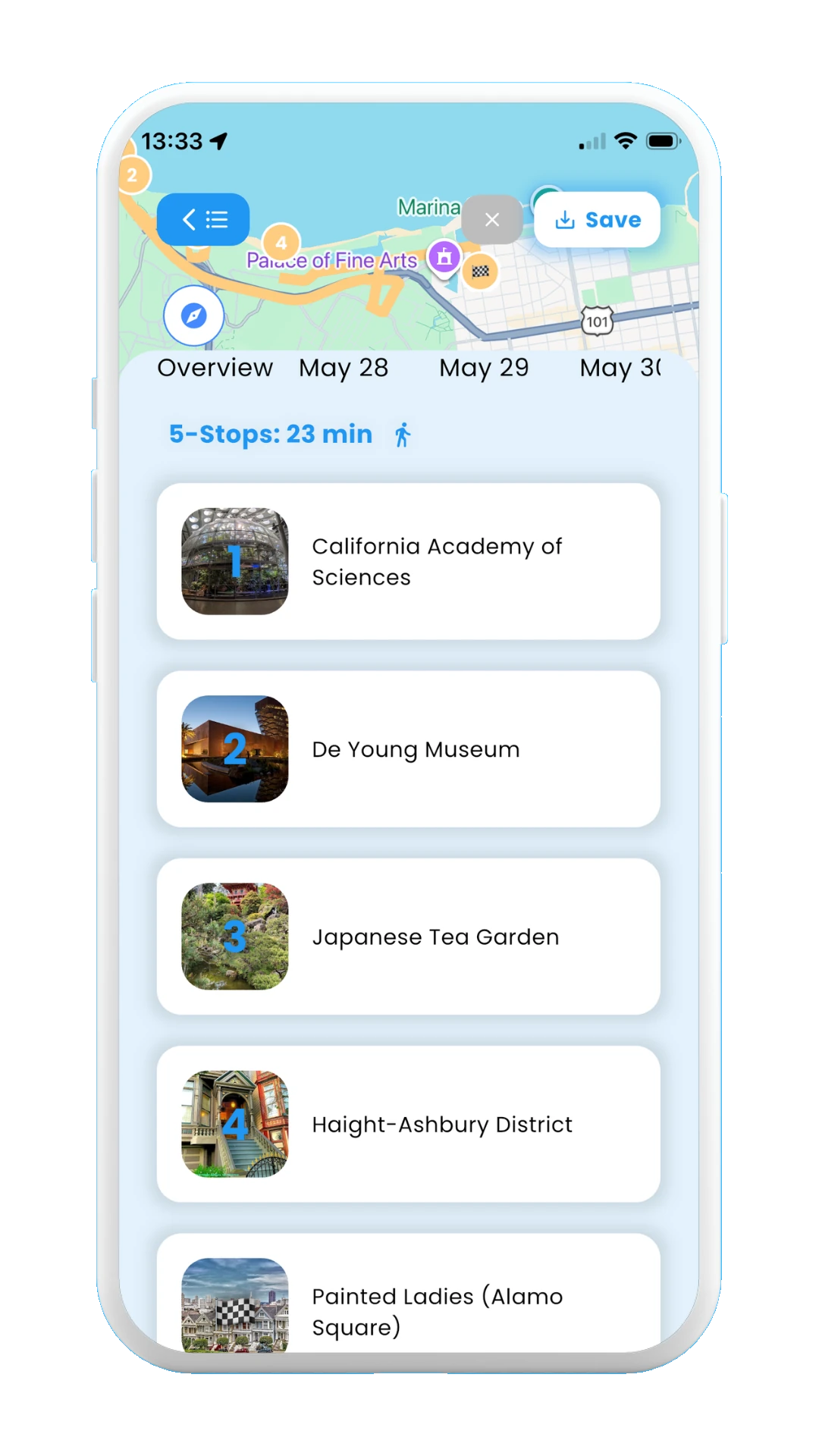
Stops for added day
✓ Adding empty days
Choosing this third option will generate an empty day in your trip itinerary, so you can manually add stops. See the next subsection for learning how to add new stops to your plan.
The images below show how to add a new empty day:
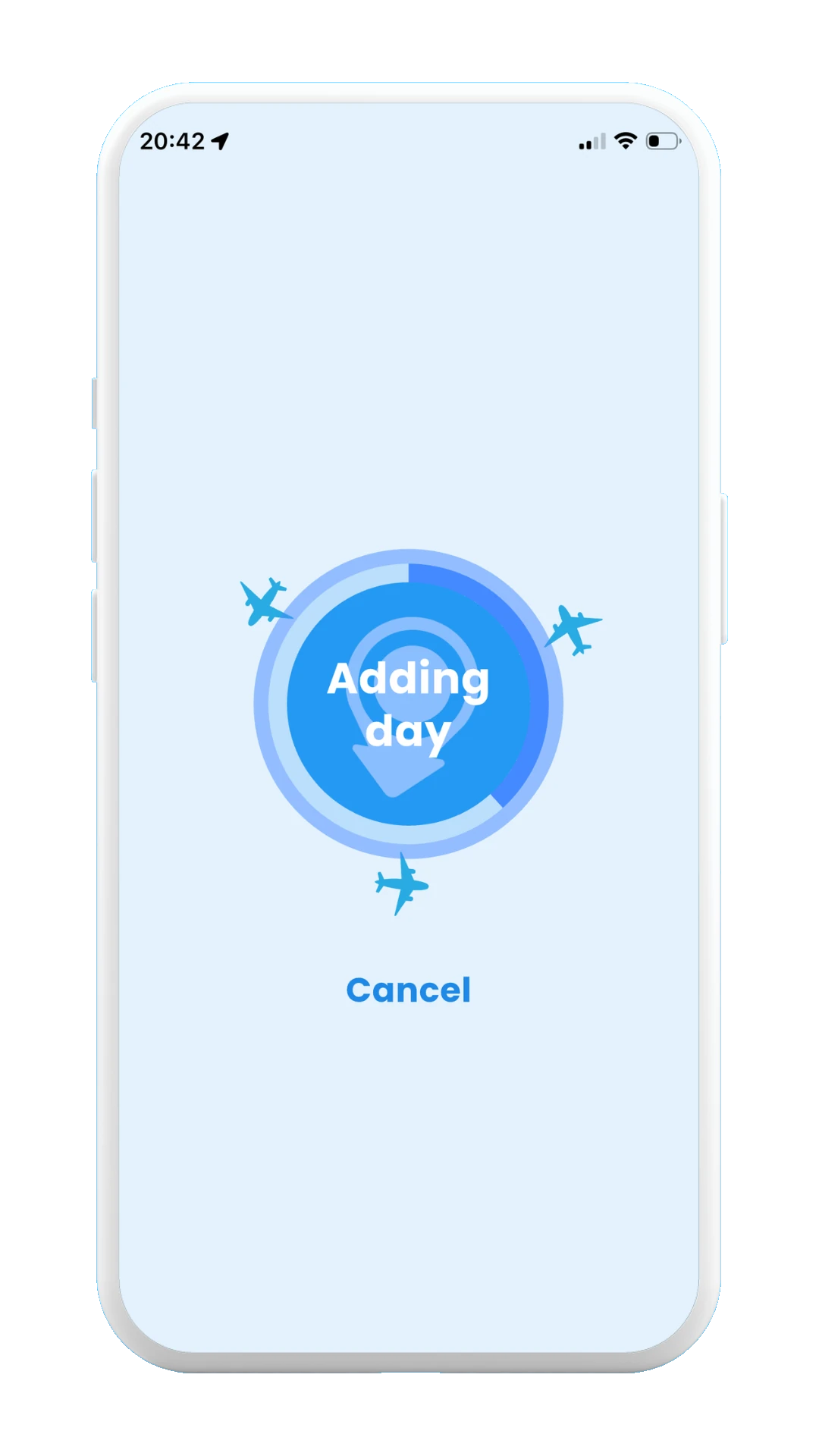
Loading
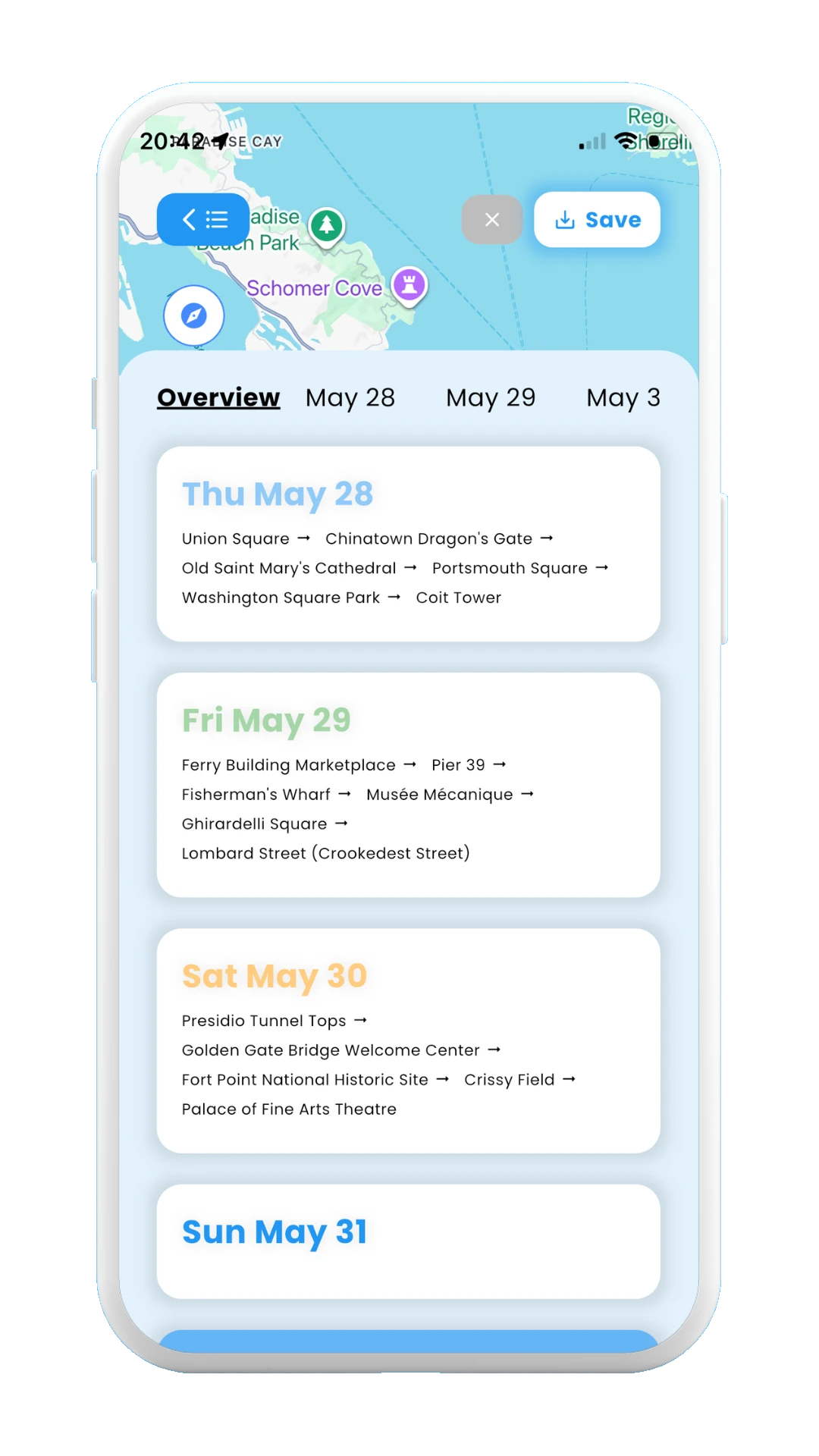
Empty day overview
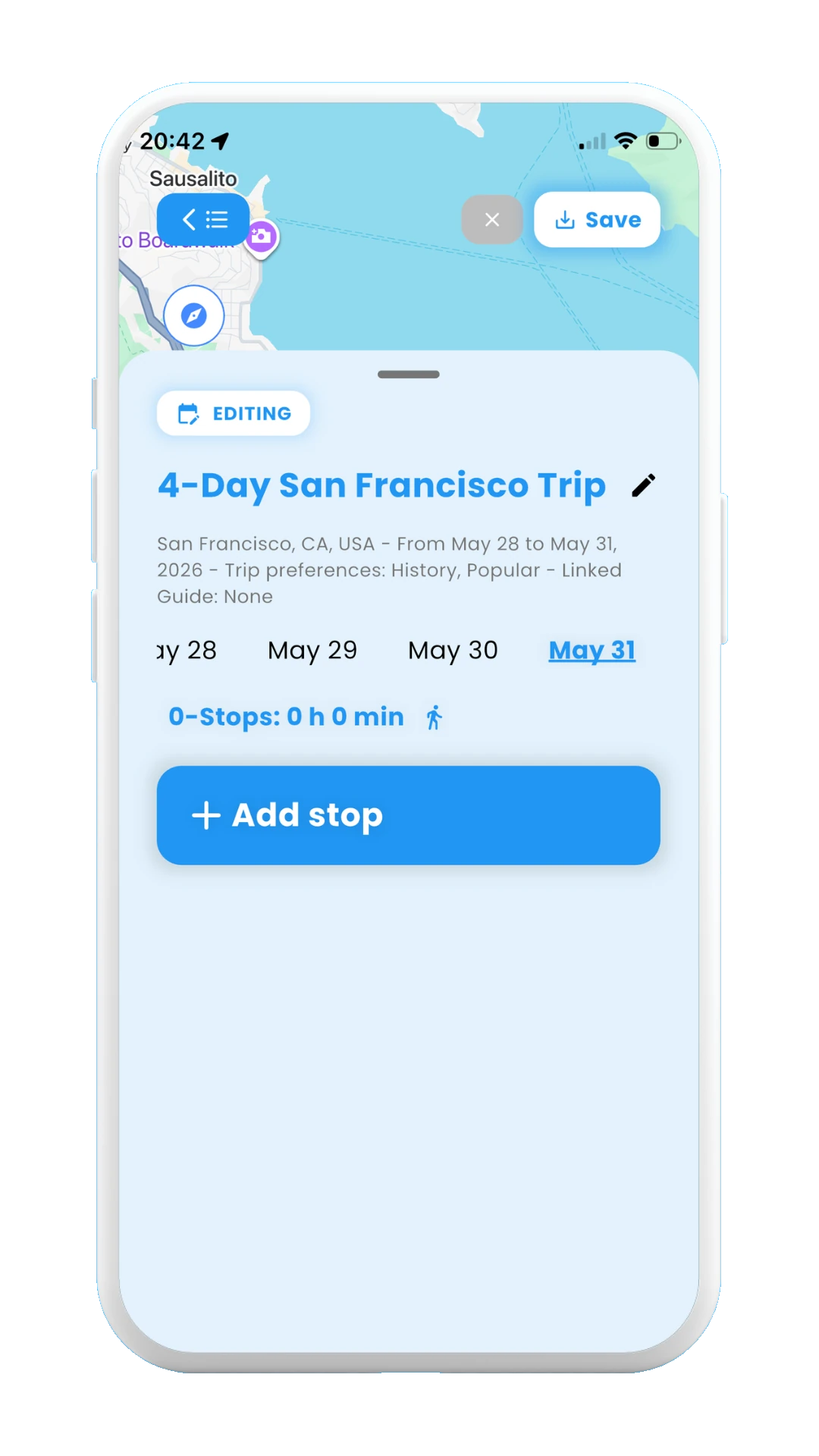
Empty day stops
Add new stops
If you are edit mode, you can also add new stops to the day of your trip itinerary.
For this, you just need to tap in the + Add stop button at the bottom of the day page. The next three options will be shown:
- ✓ Add stop with AI
- ✓ Scan from posts
- ✓ Pick stop myself
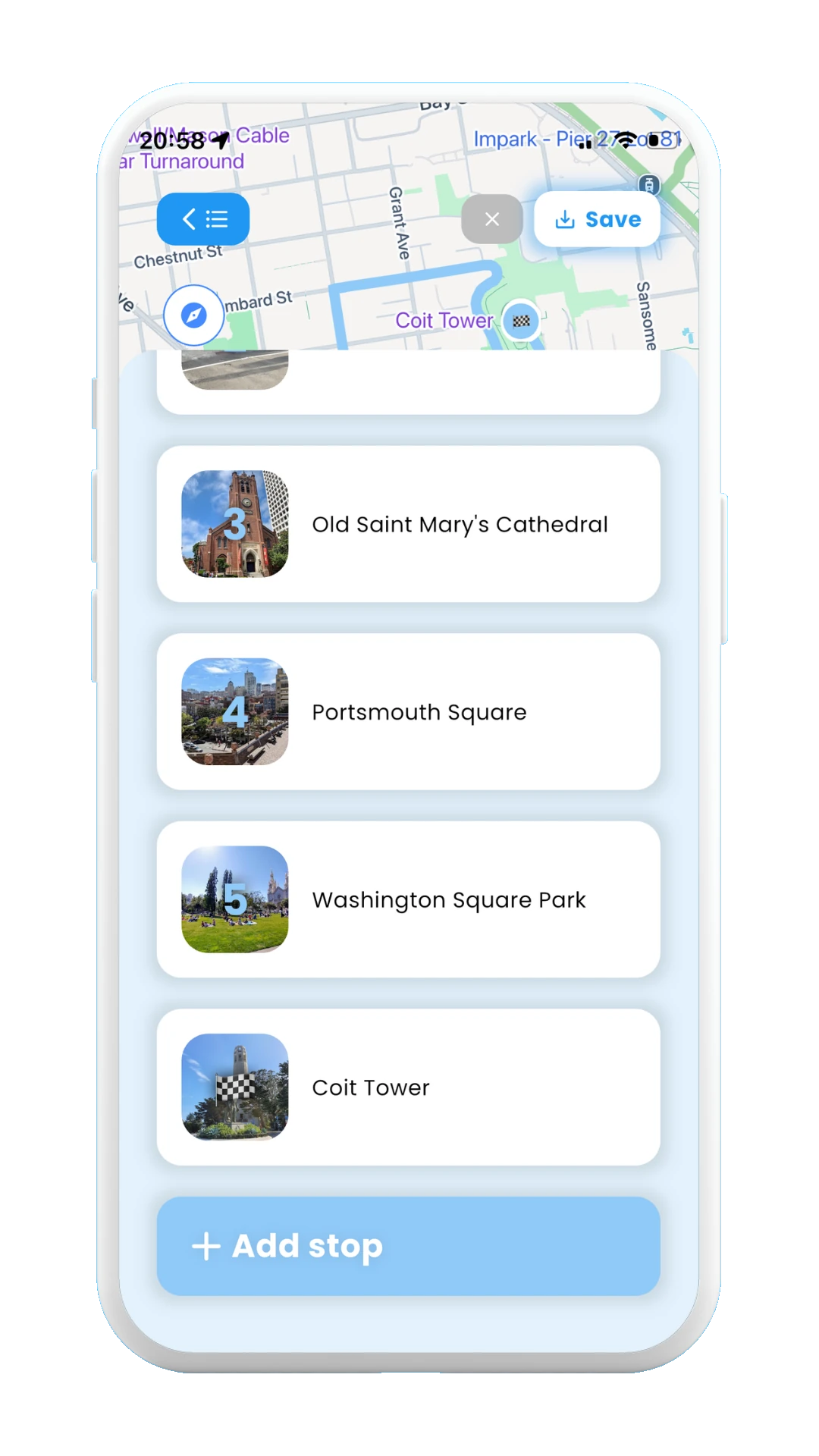
Select the + Add stop button
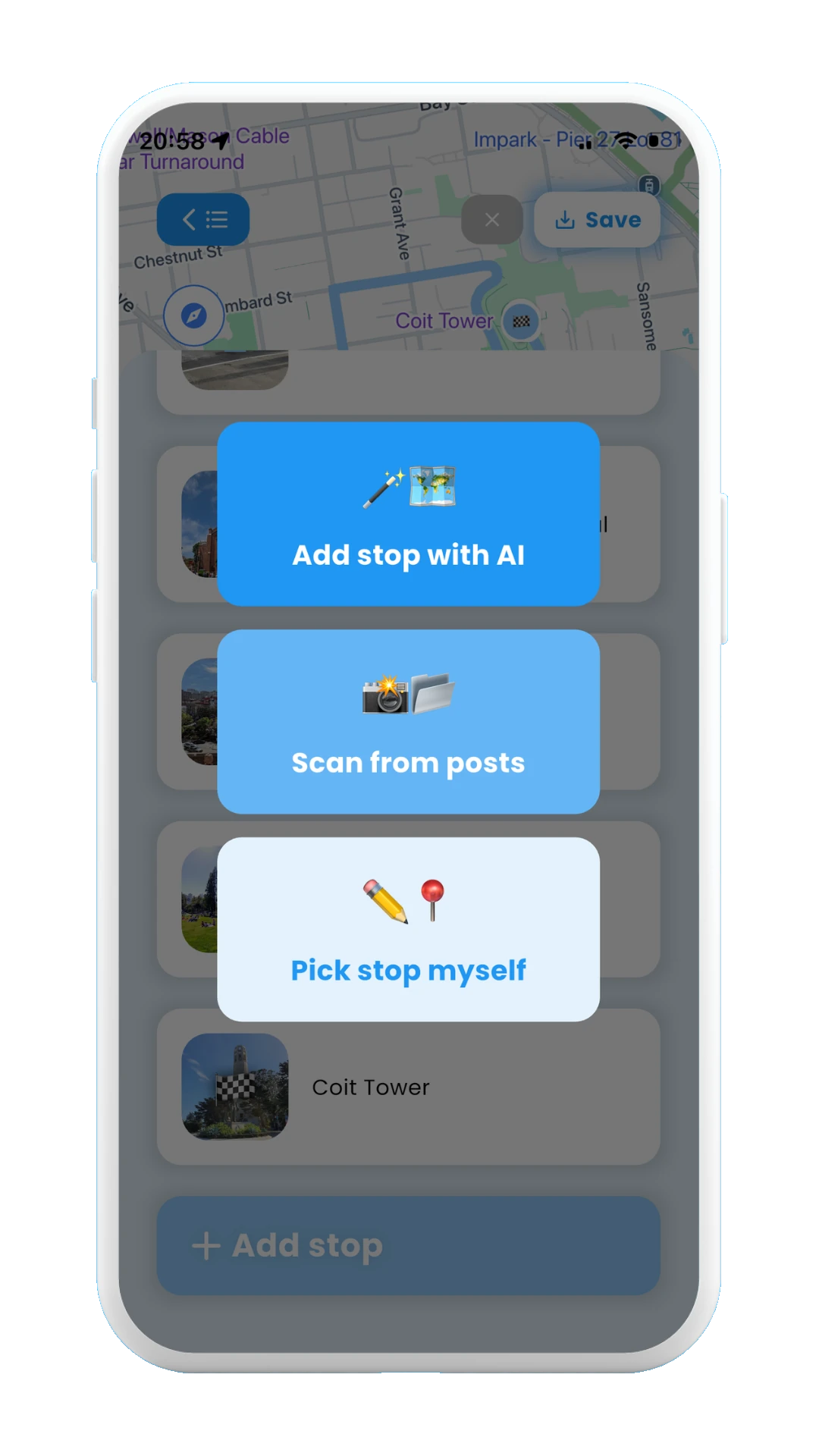
Three options for adding a new stop
✓ Add stop with AI
If choosing this option, Meily will analyze your current trip itinerary, looking at your preferences, dates, and planned days/stops. Based on that, it will generate the next stops that best fits your day, avoiding already existing stops in your plan. Once it finishes loading you will be able to see the recommended stop.
The images below show how to add a new stop with AI:
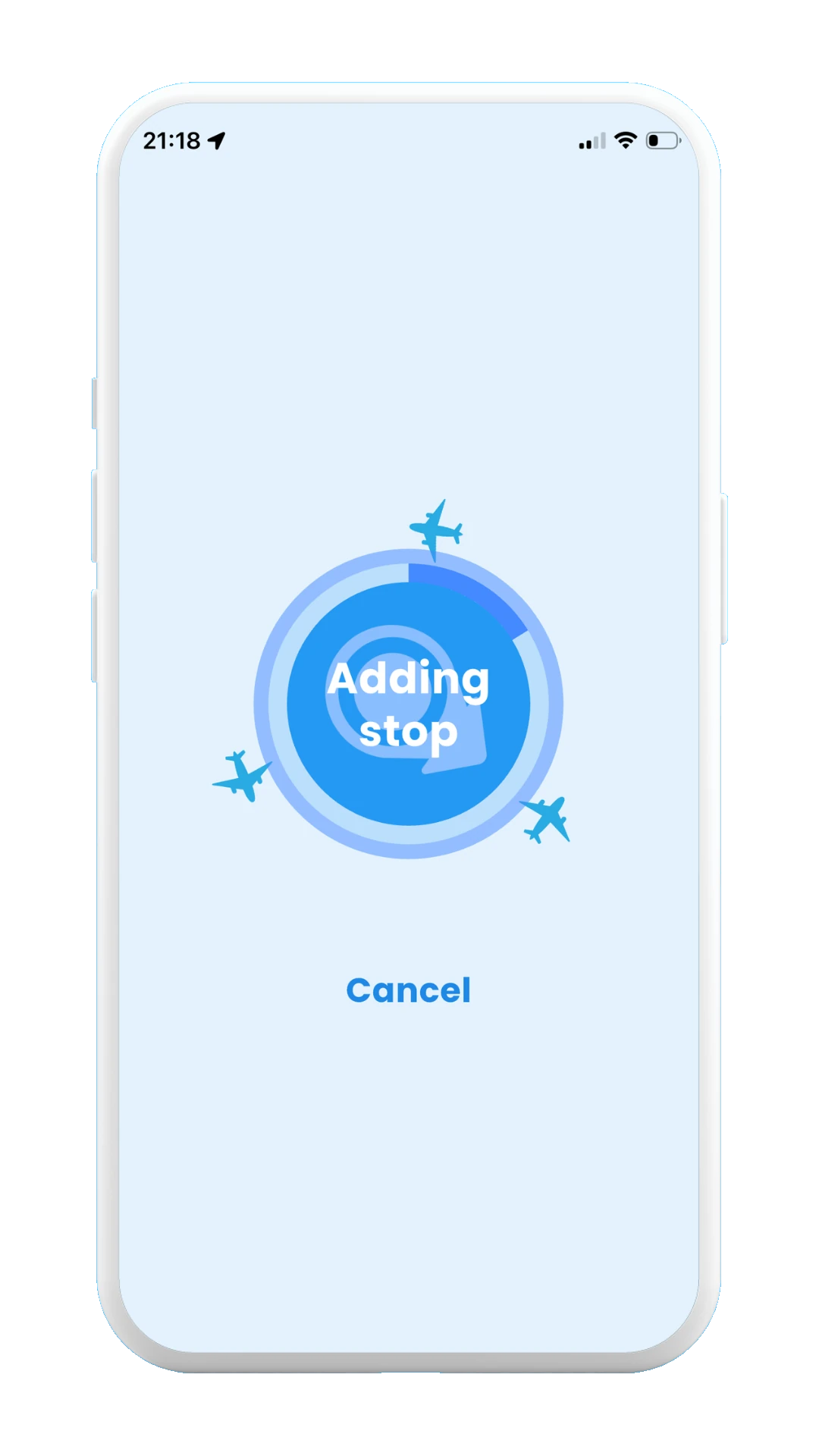
Loading
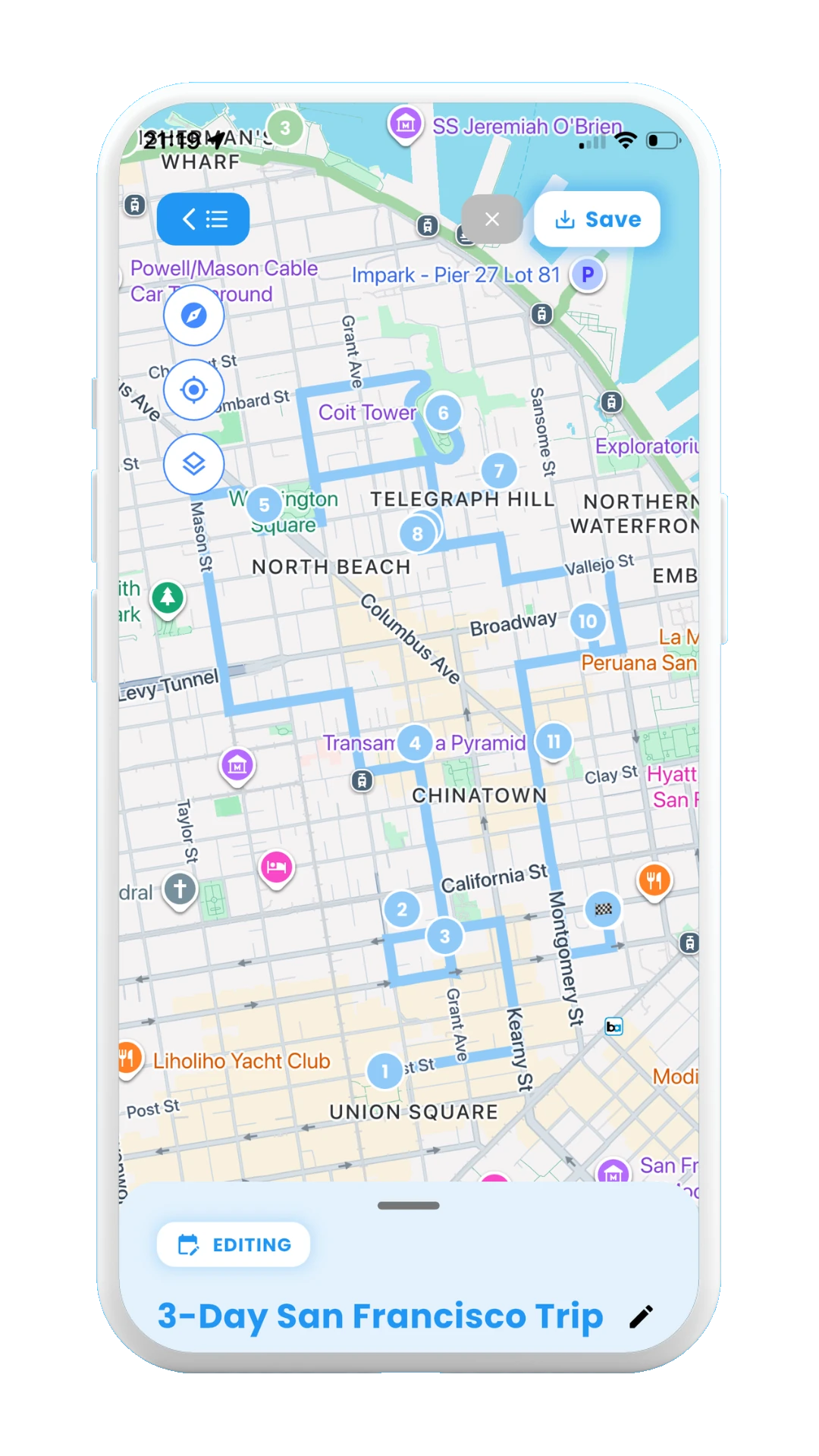
New stops on map
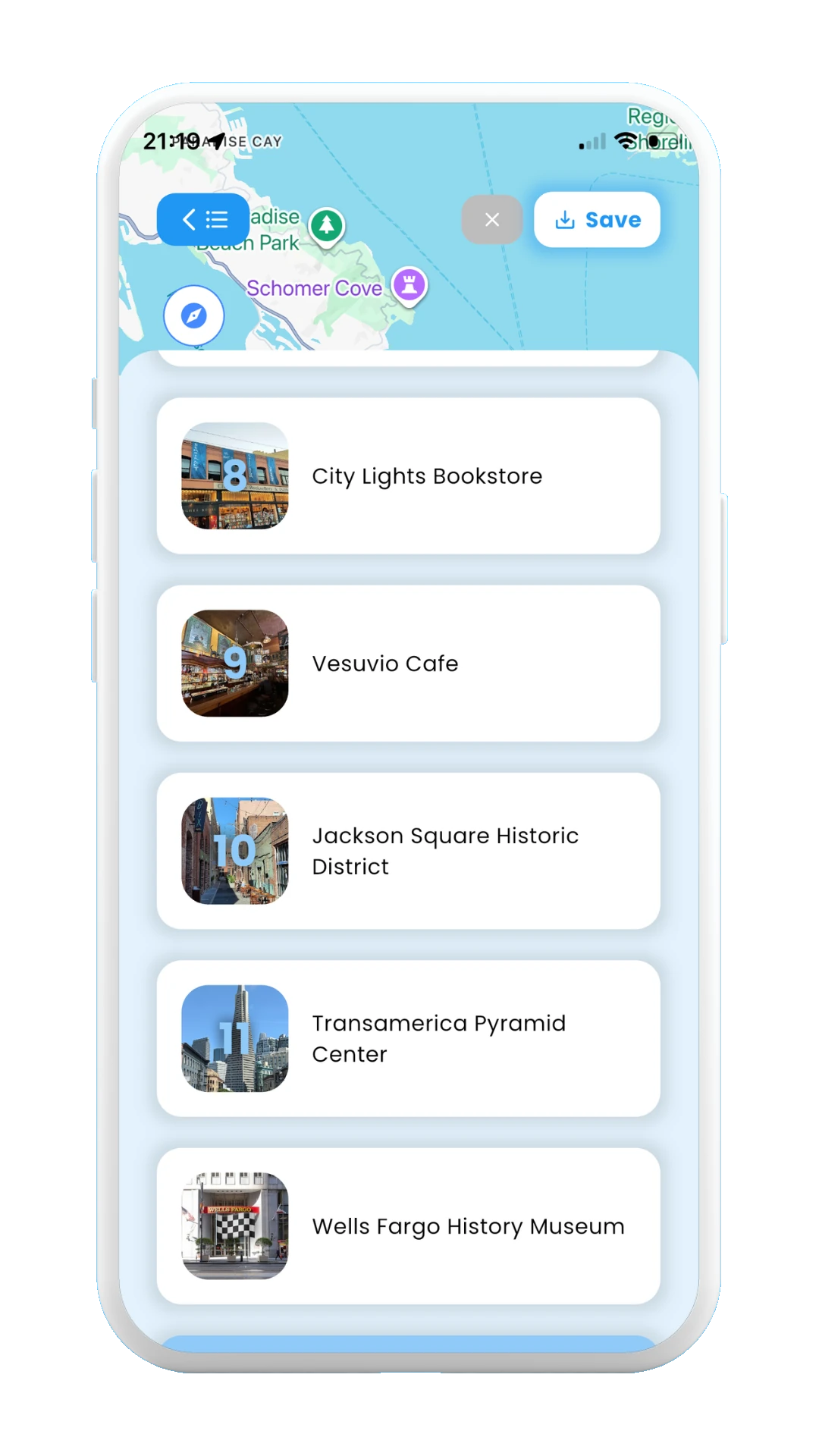
Generated stops
✓ Add stop by scanning from posts
If choosing this option, you can use scanned social media posts from Instagram/TikTok/Youtube to create the next stop in your chosen day. The stops mentioned in the video will be analyzed, and the best fit will be added to your itinerary at the end of the chosen day.
Check section 2. Posts to learn how to scan posts from social media with Meily. If you haven't scanned any posts for the destination of your current itinerary, the "paste post link" window will be shown, so you can paste the link of the post you want to scan.
The images below show how to add a new stop from scanned posts:
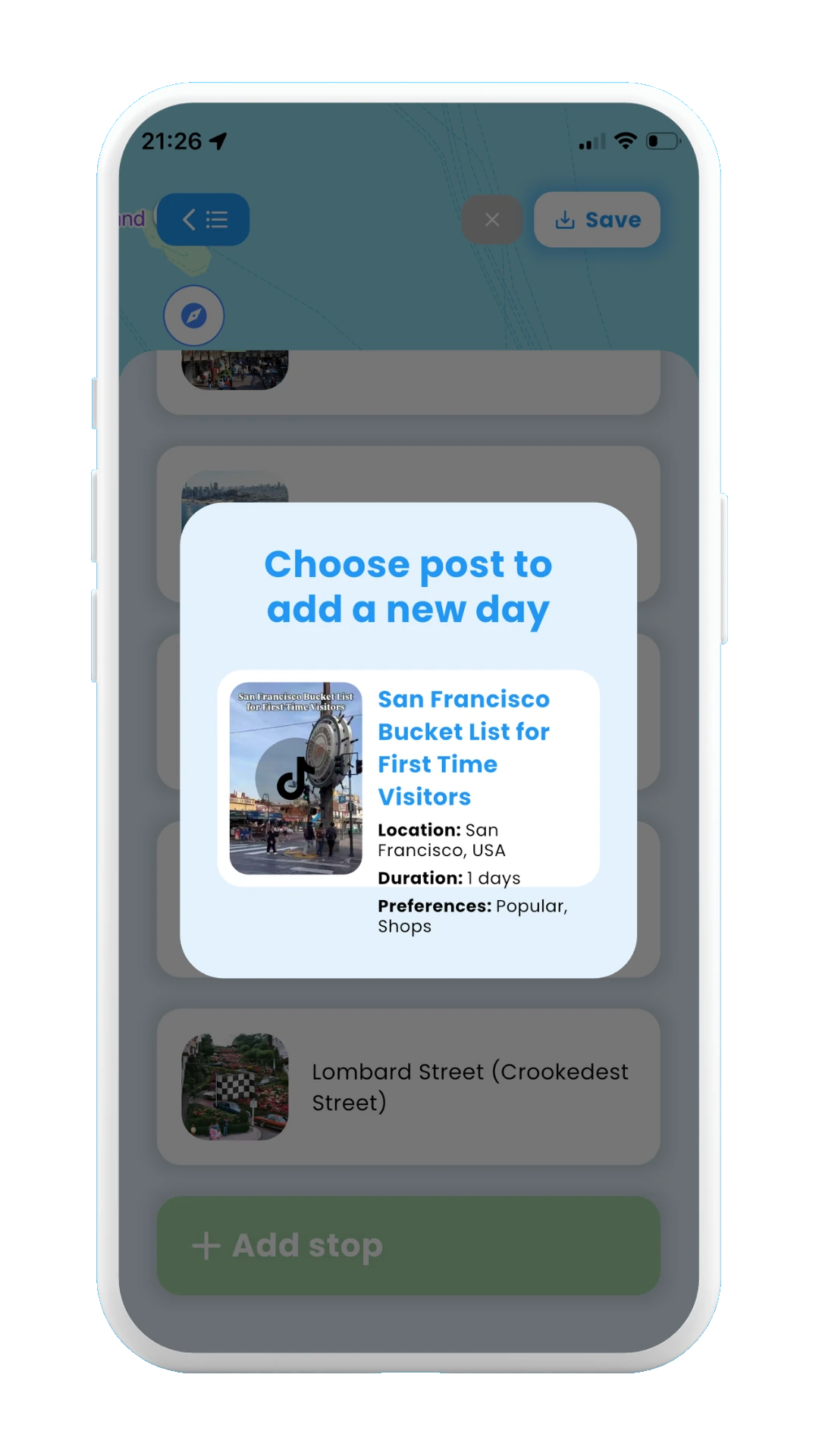
Choose post
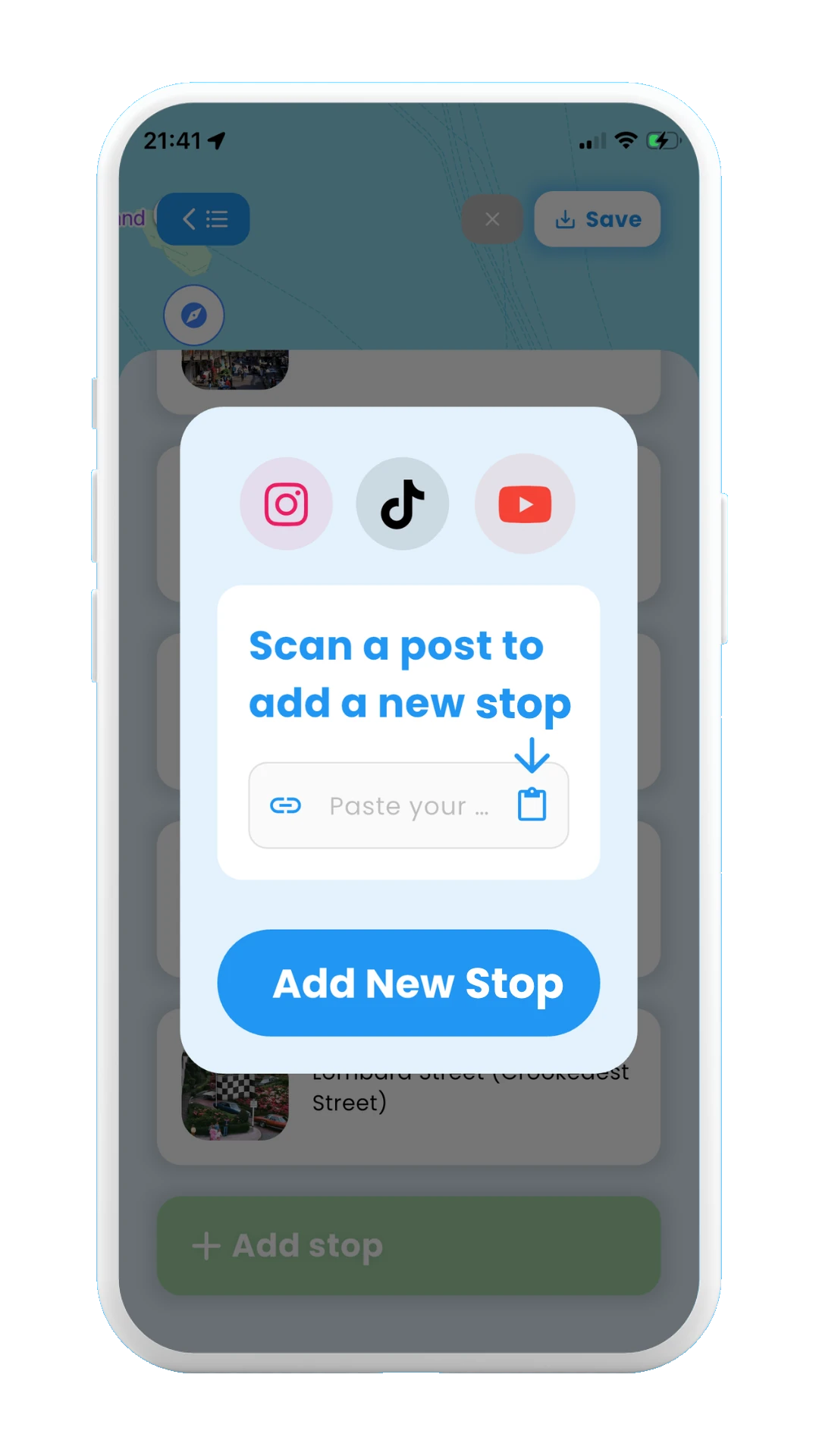
Paste post link
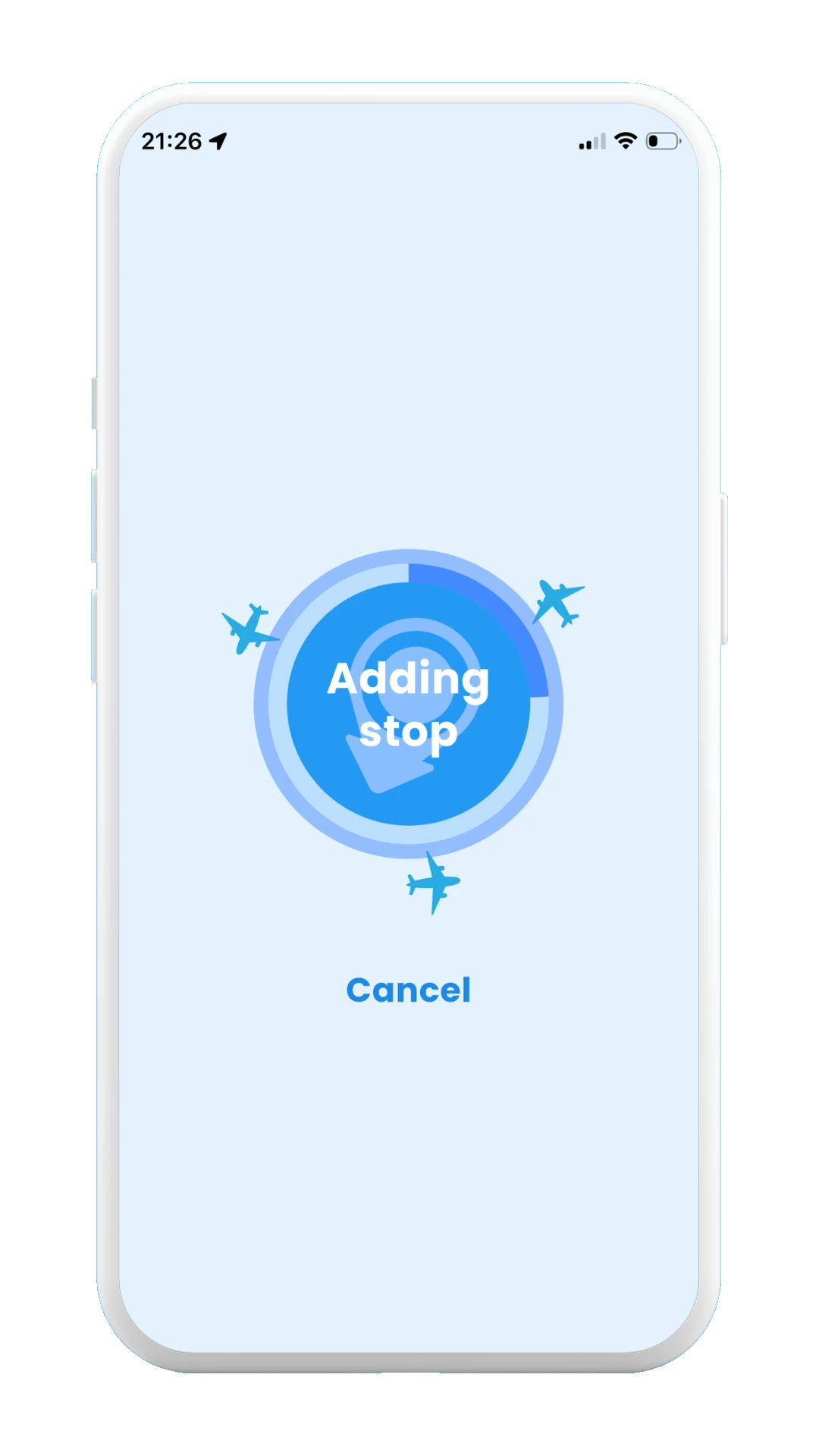
Adding stops
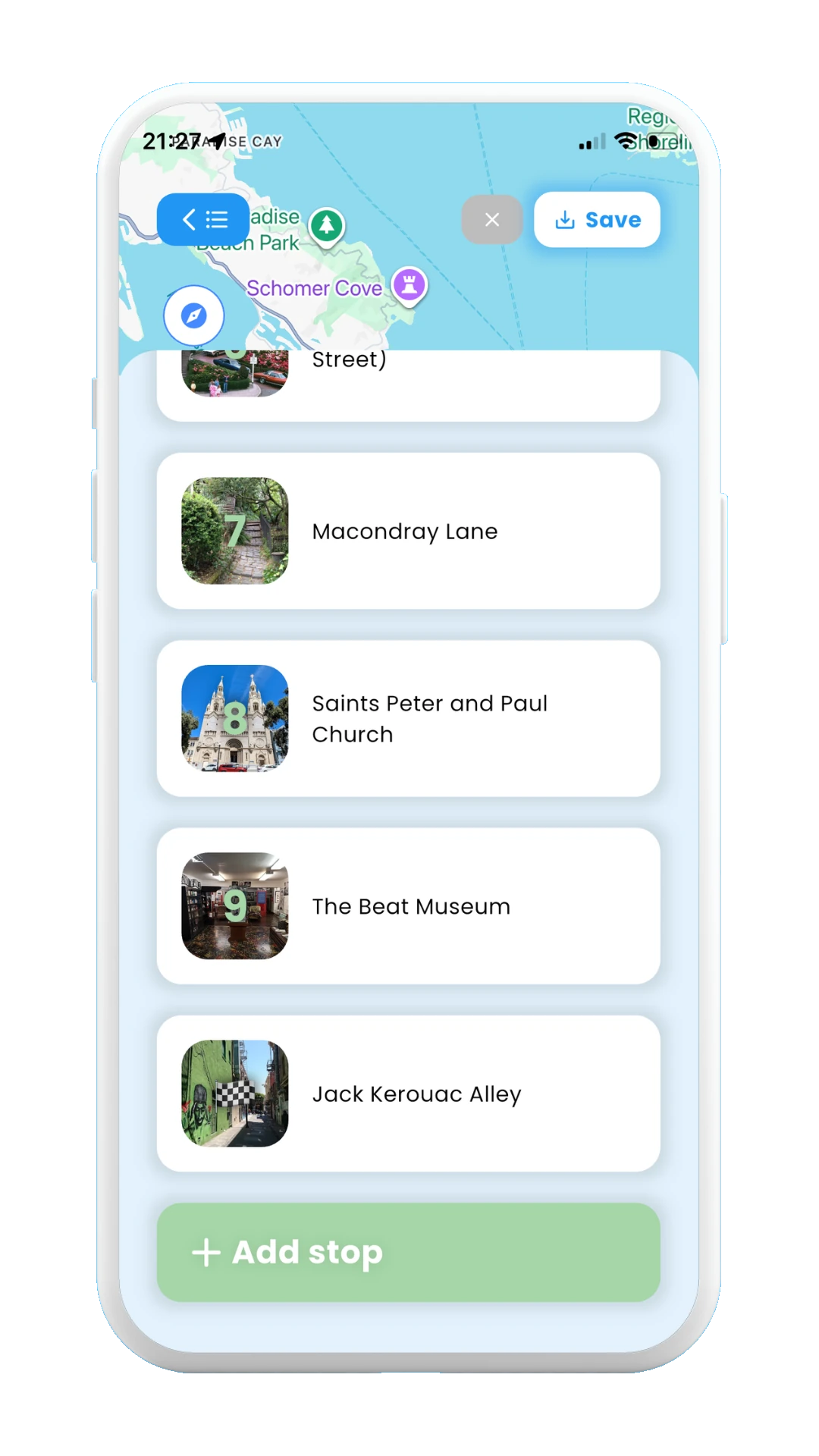
Generated stops
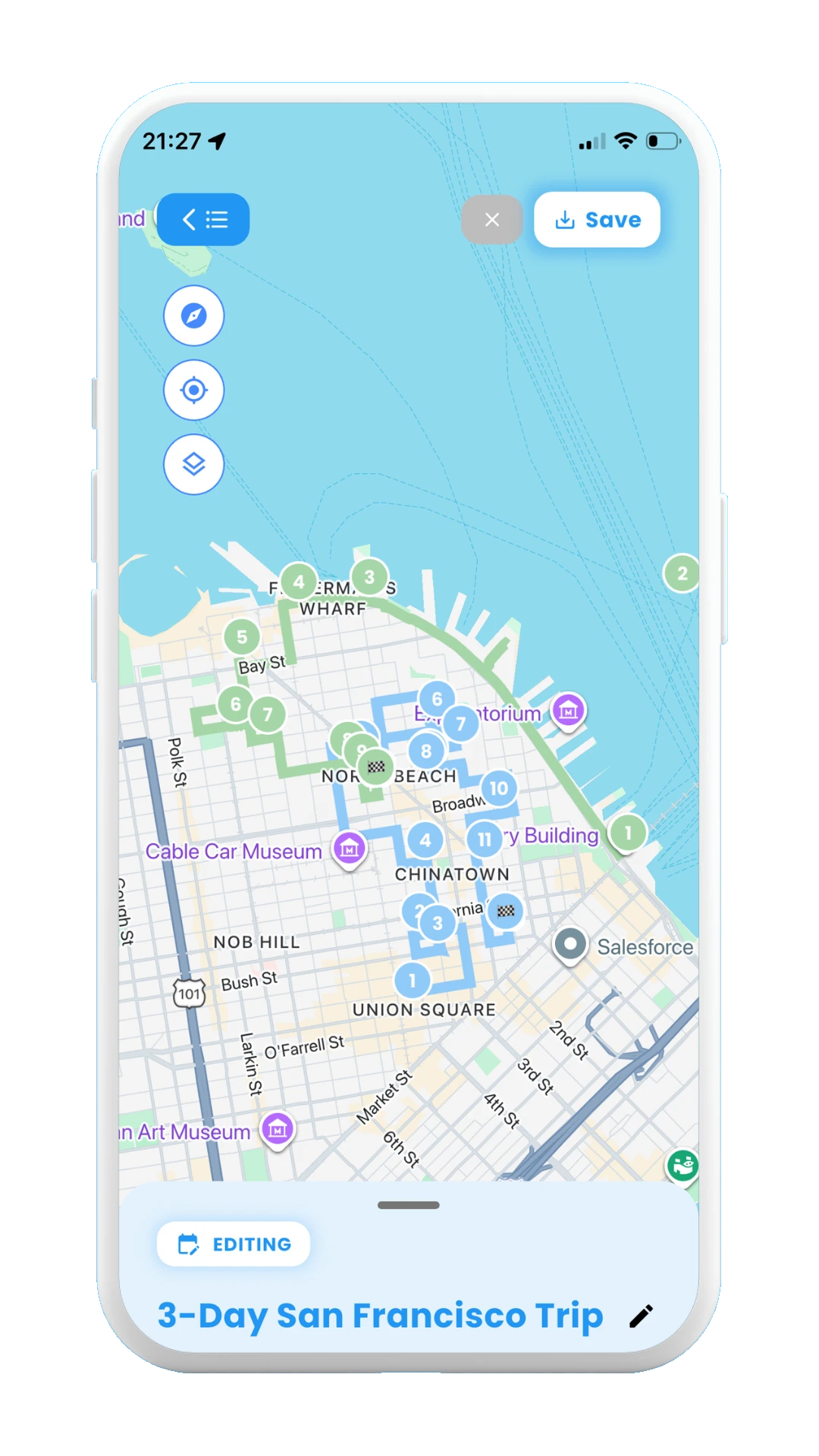
Stops on map
✓ Pick stop myself
Choosing this third option will let you manually choose the stop you want to add to your trip itinerary. A window will be opened with a search bar on it, where you can introduce the name of the stop. Only available stops around the trip's destination will be shown as stops to be added.
The images below show how to add a new stop manually:
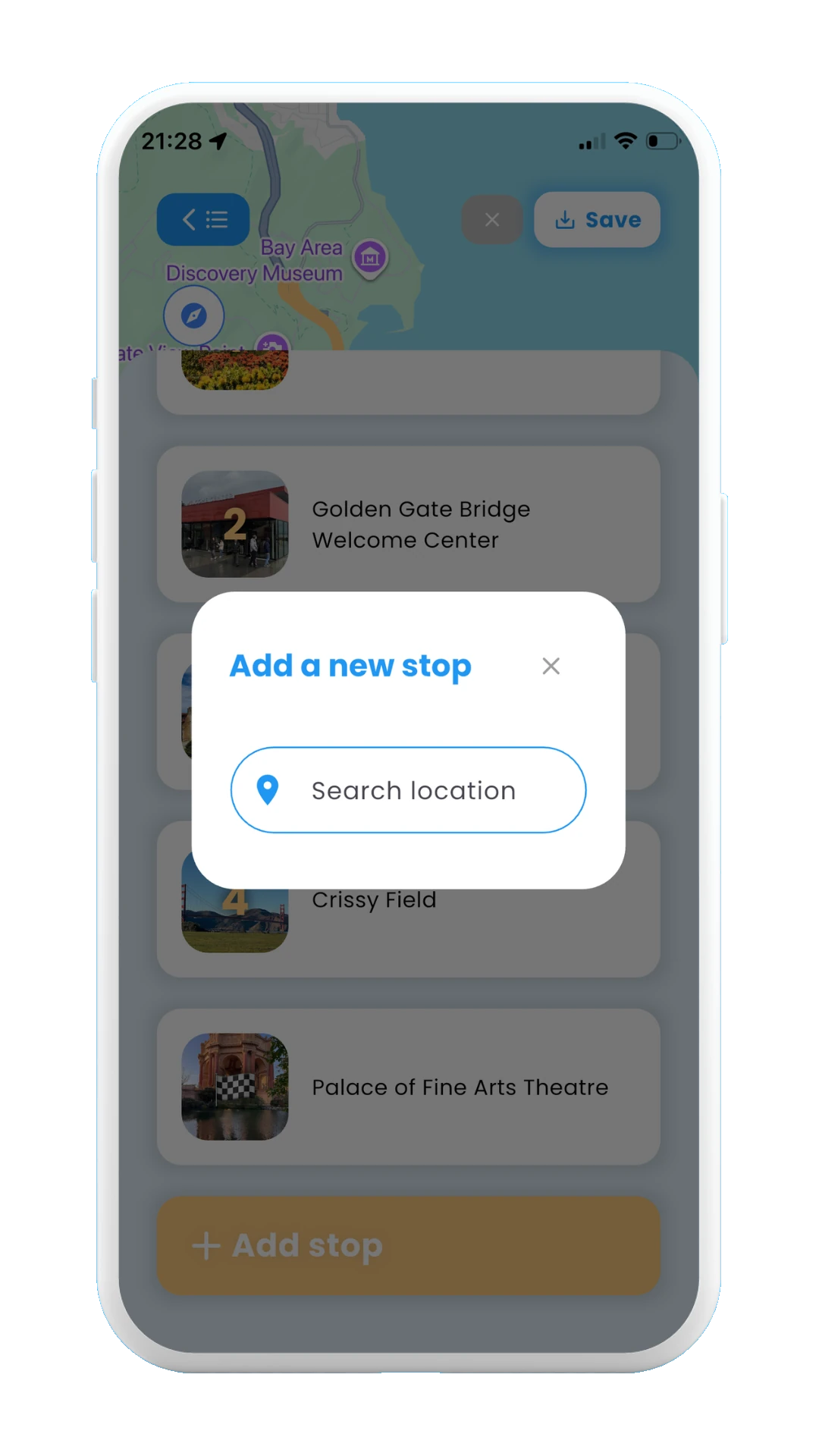
Choose post
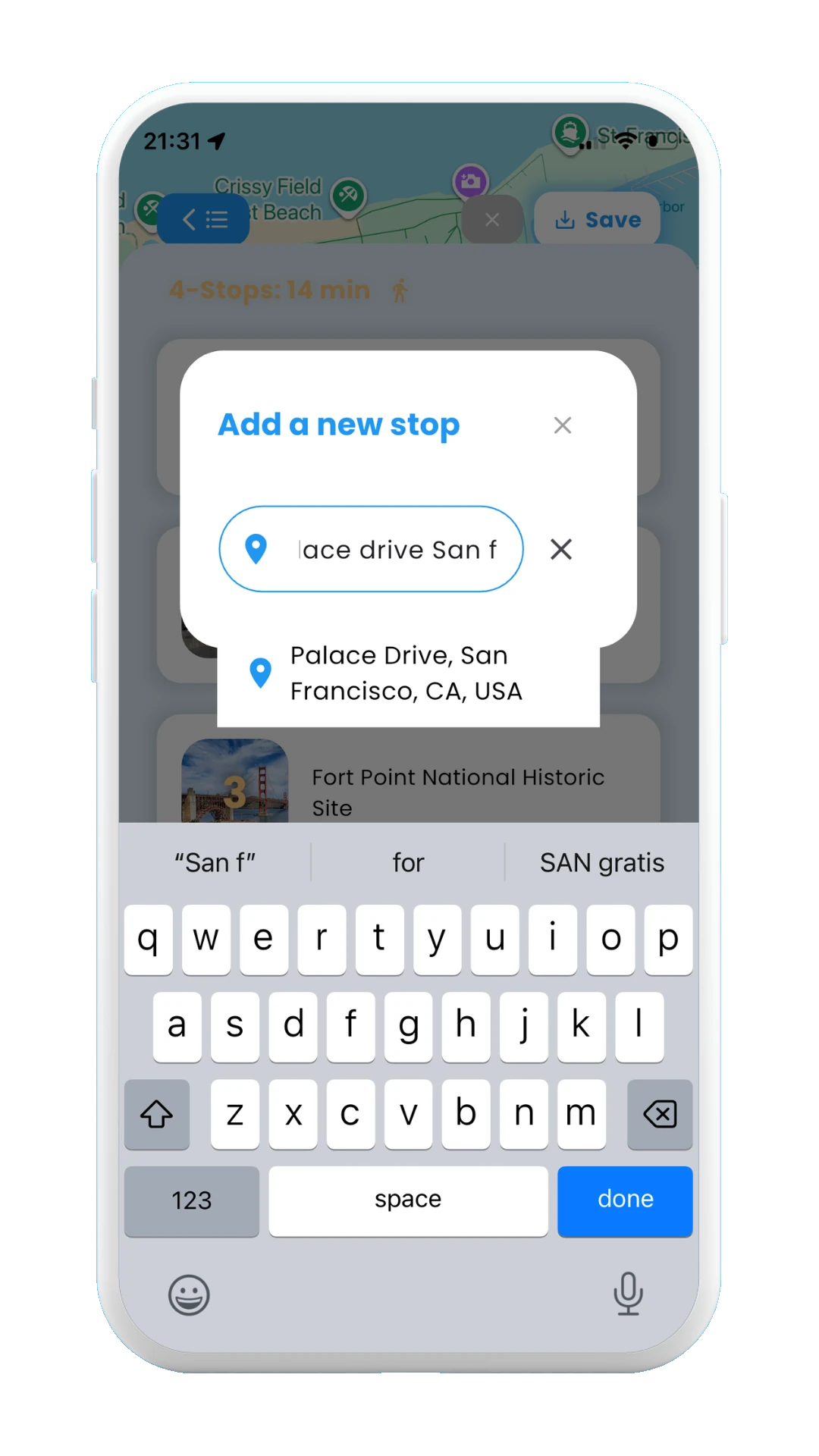
Write your stop
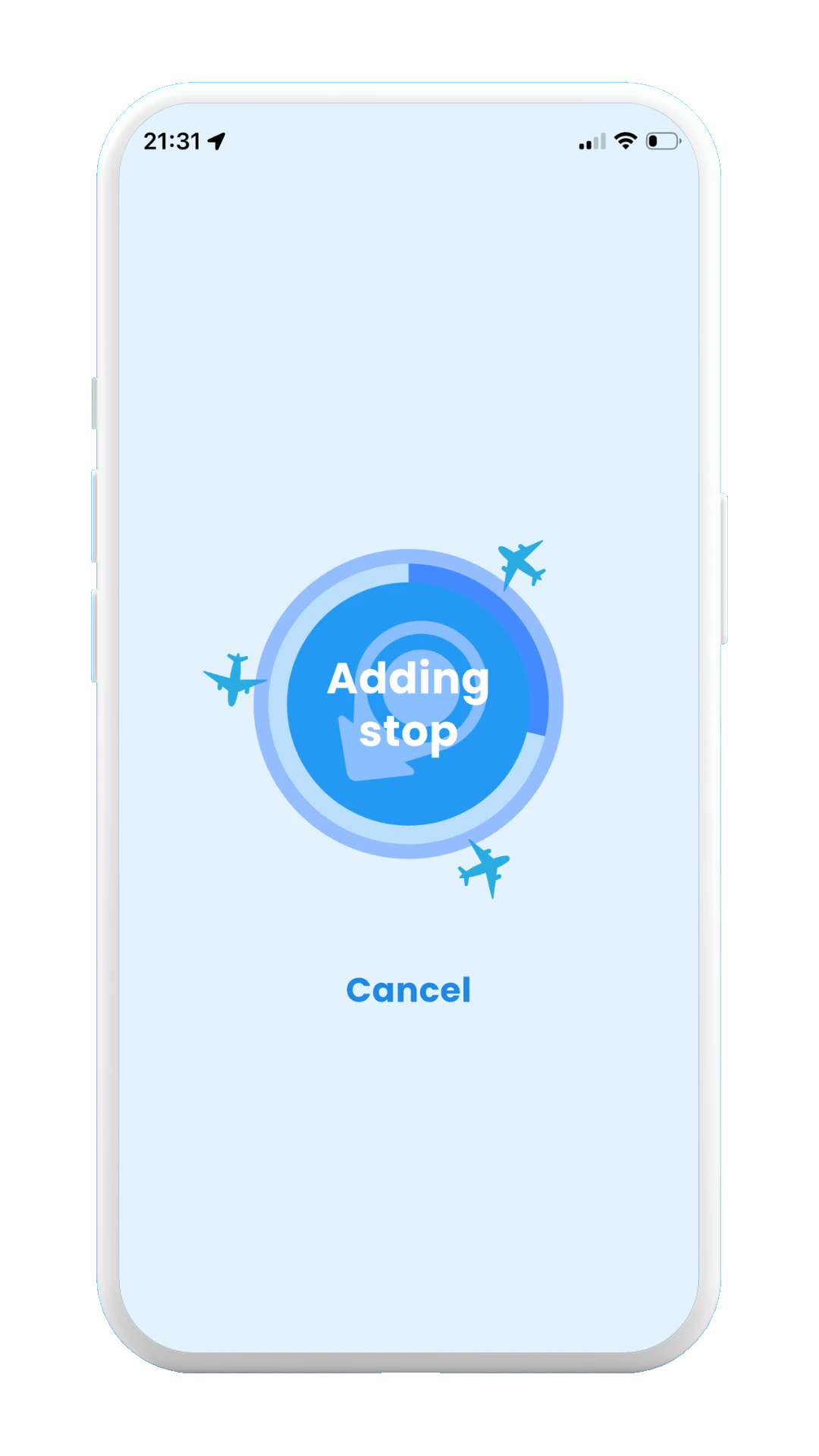
Writing
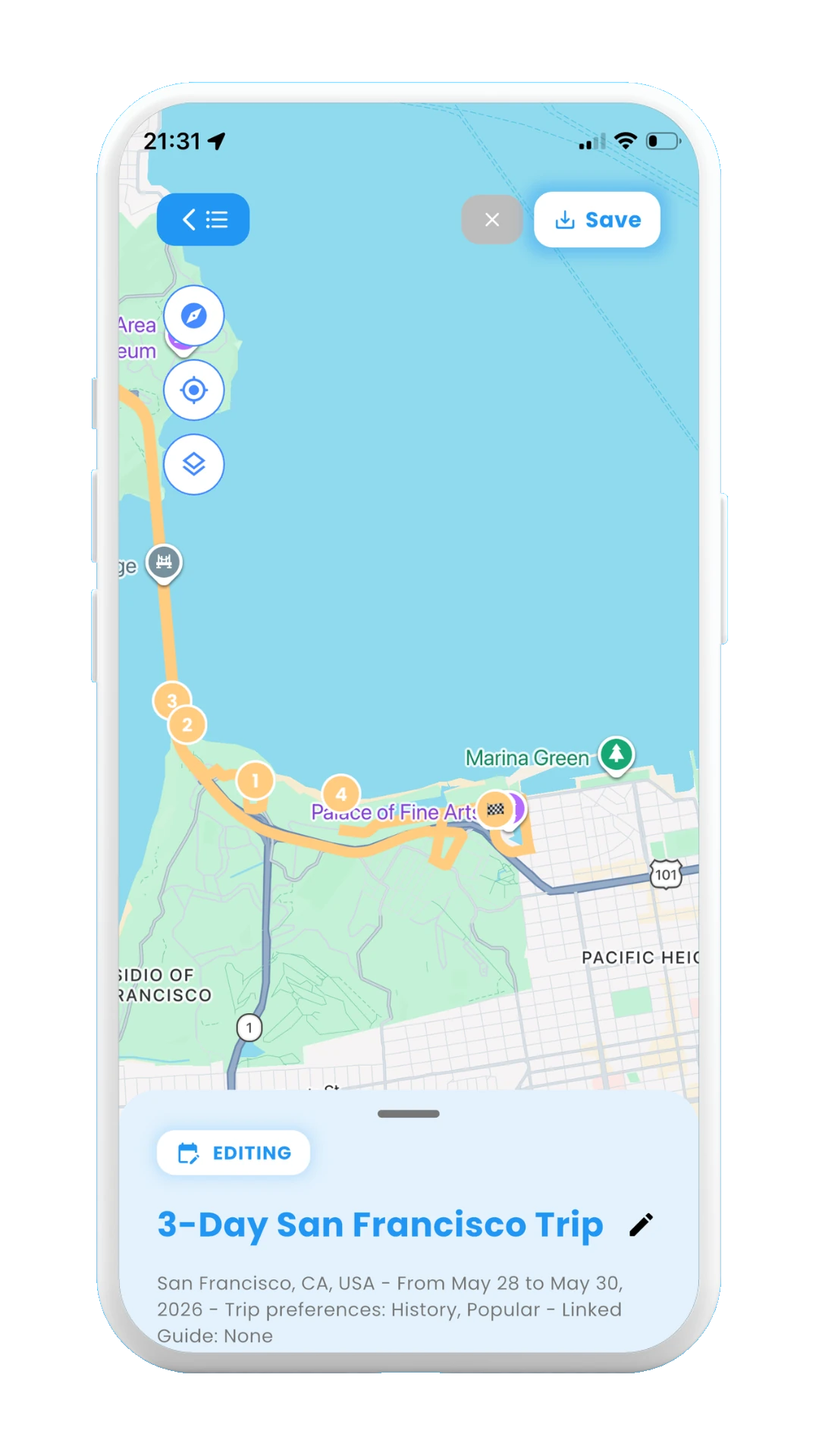
New stop on map
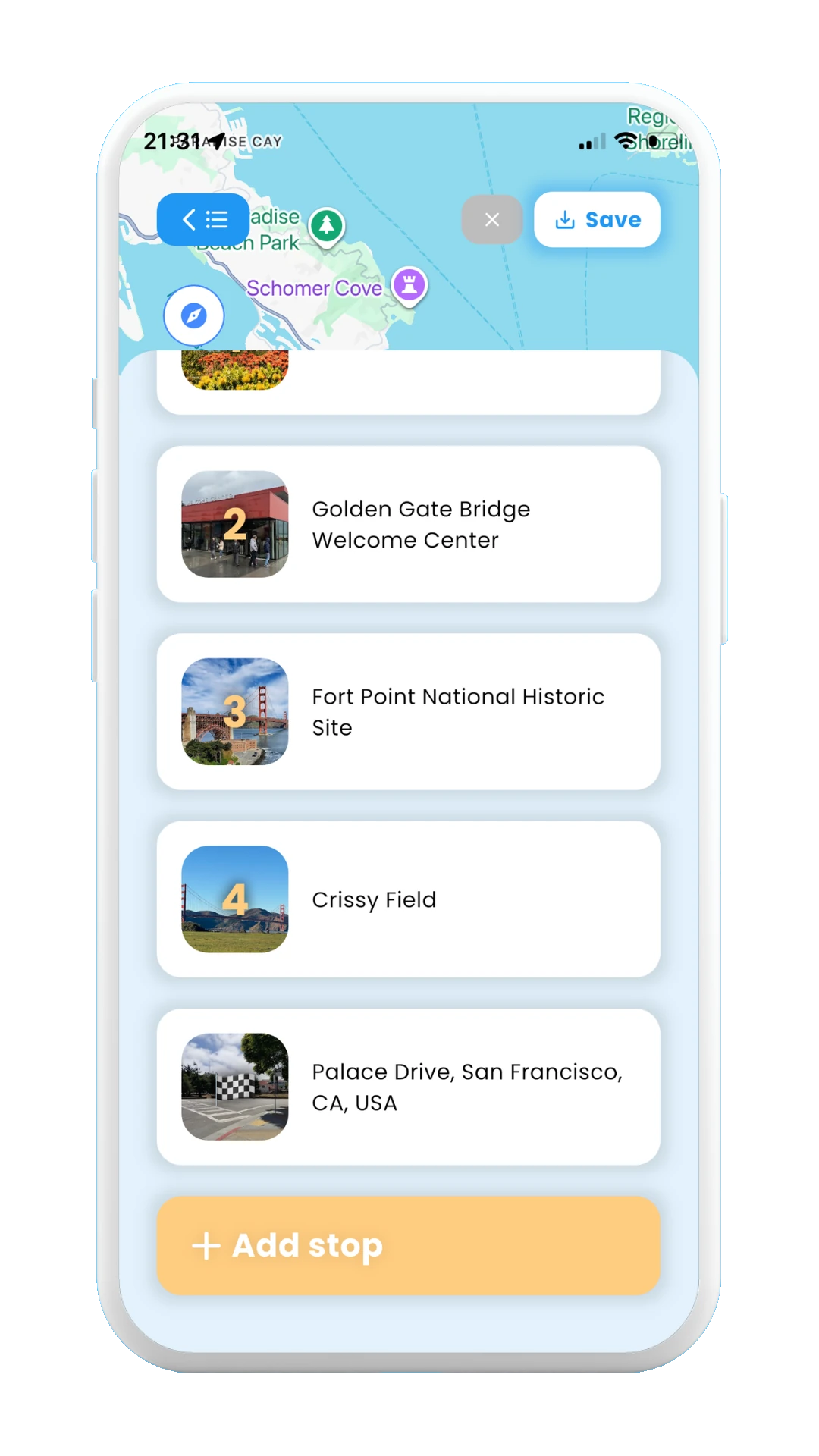
Added stop
Reorder and delete days/stops
Finally, you can can also reorder and delete the days/stops of your trip itinerary, so you can organize yourself better.
For reordering days and stops, drag them up and down through the itinerary. To delete them, swipe them to the left, and the confirm the deletion.
Remember that for this you need to be in edit mode. If for some reason you want to discard the change you have made to the trip and recover your last itinerary version, you can discard changes by clickin in the x in the top-right corner of the screen.
See the images below, which show how to reorder and delete days/stops:
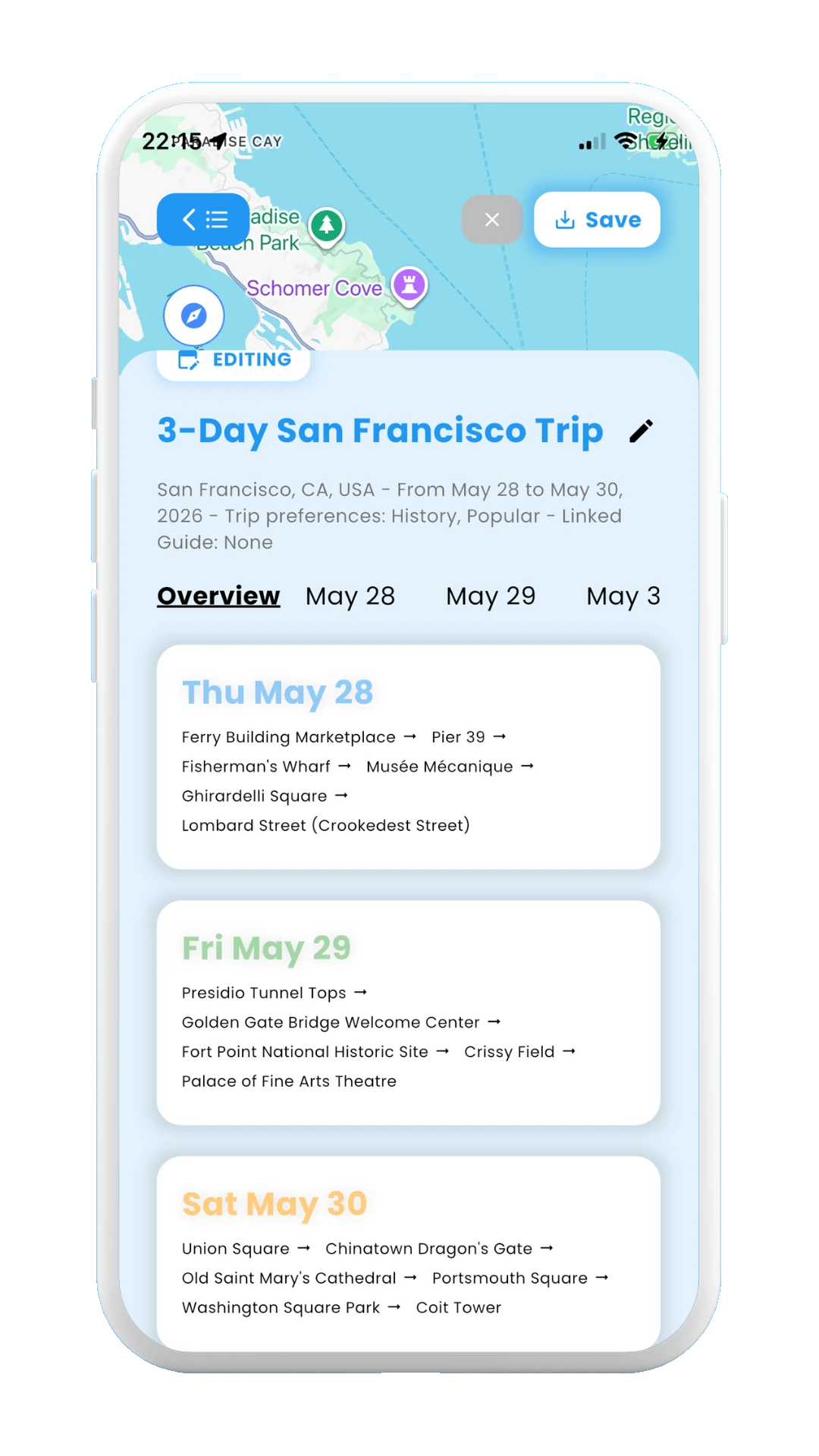
Before moving day
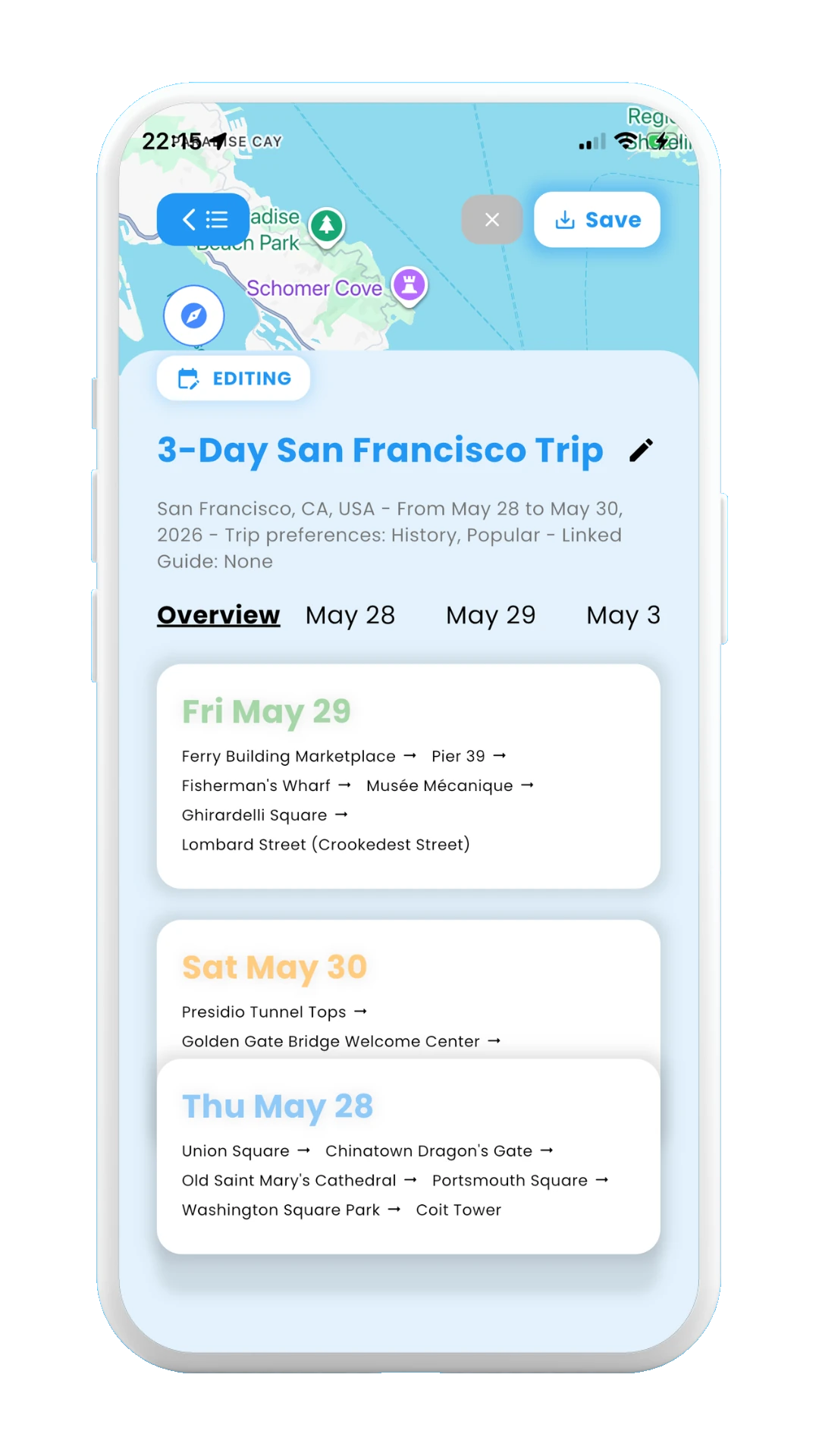
Moving day
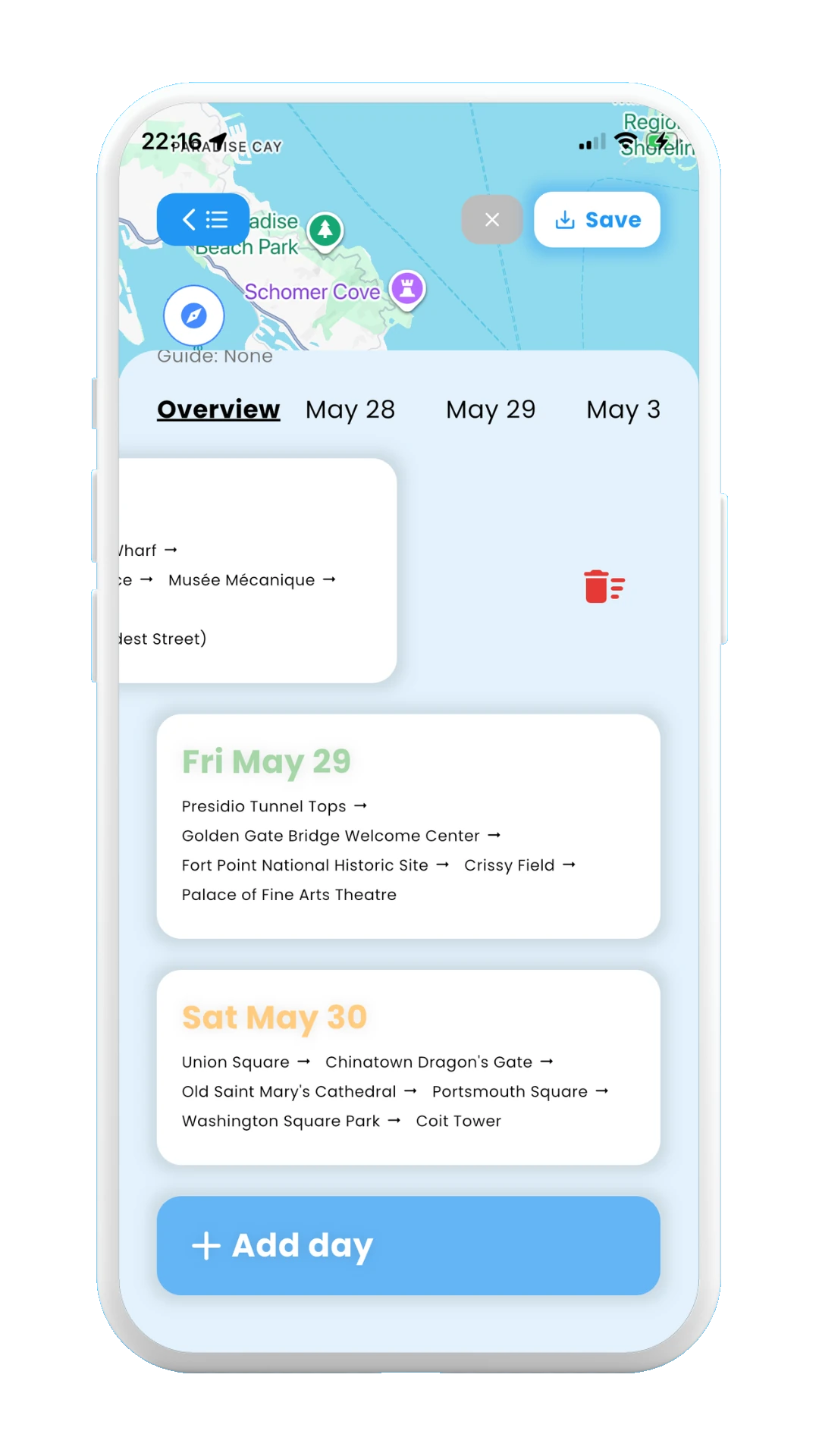
Delete day
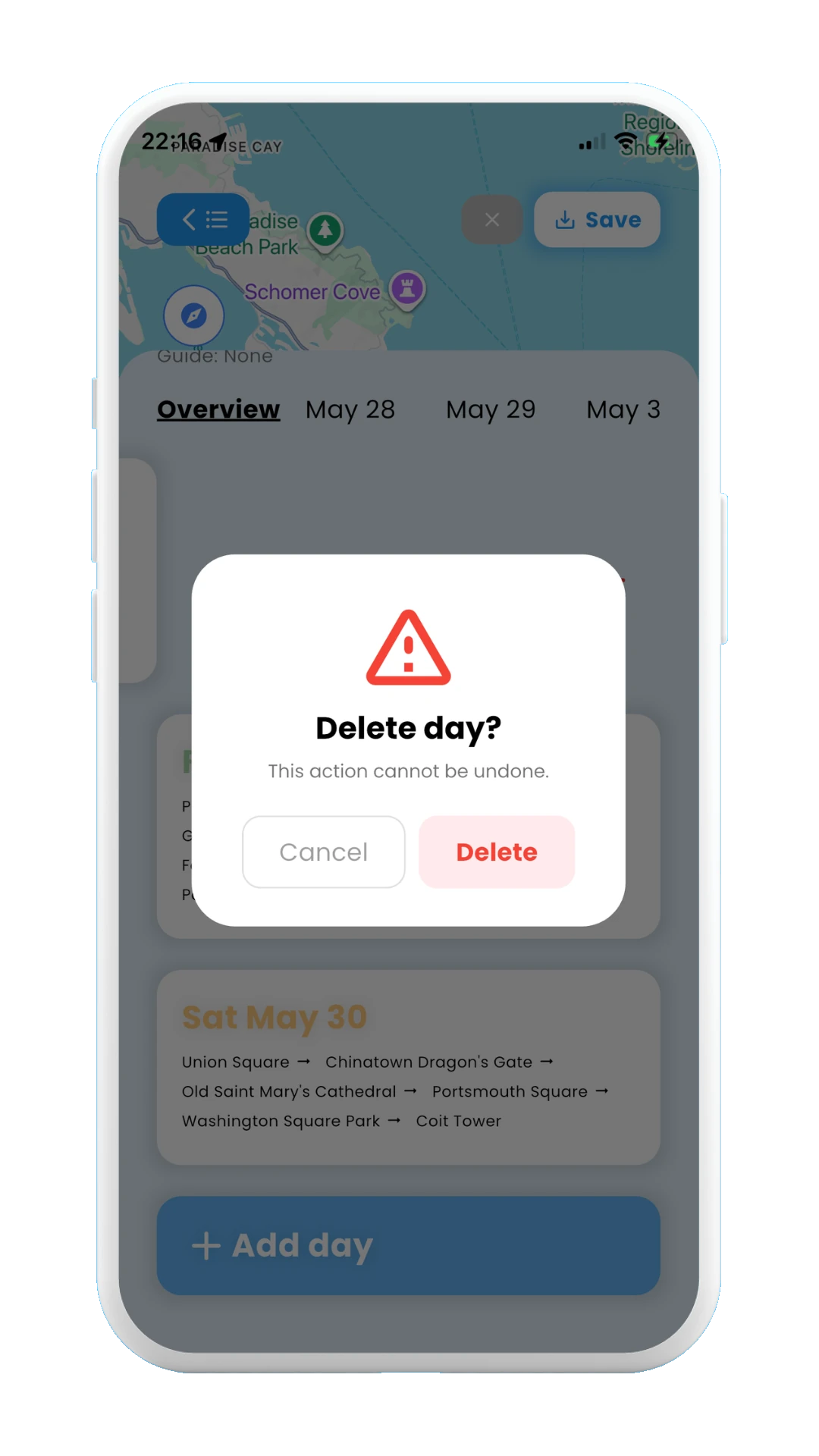
Confirm day deletion
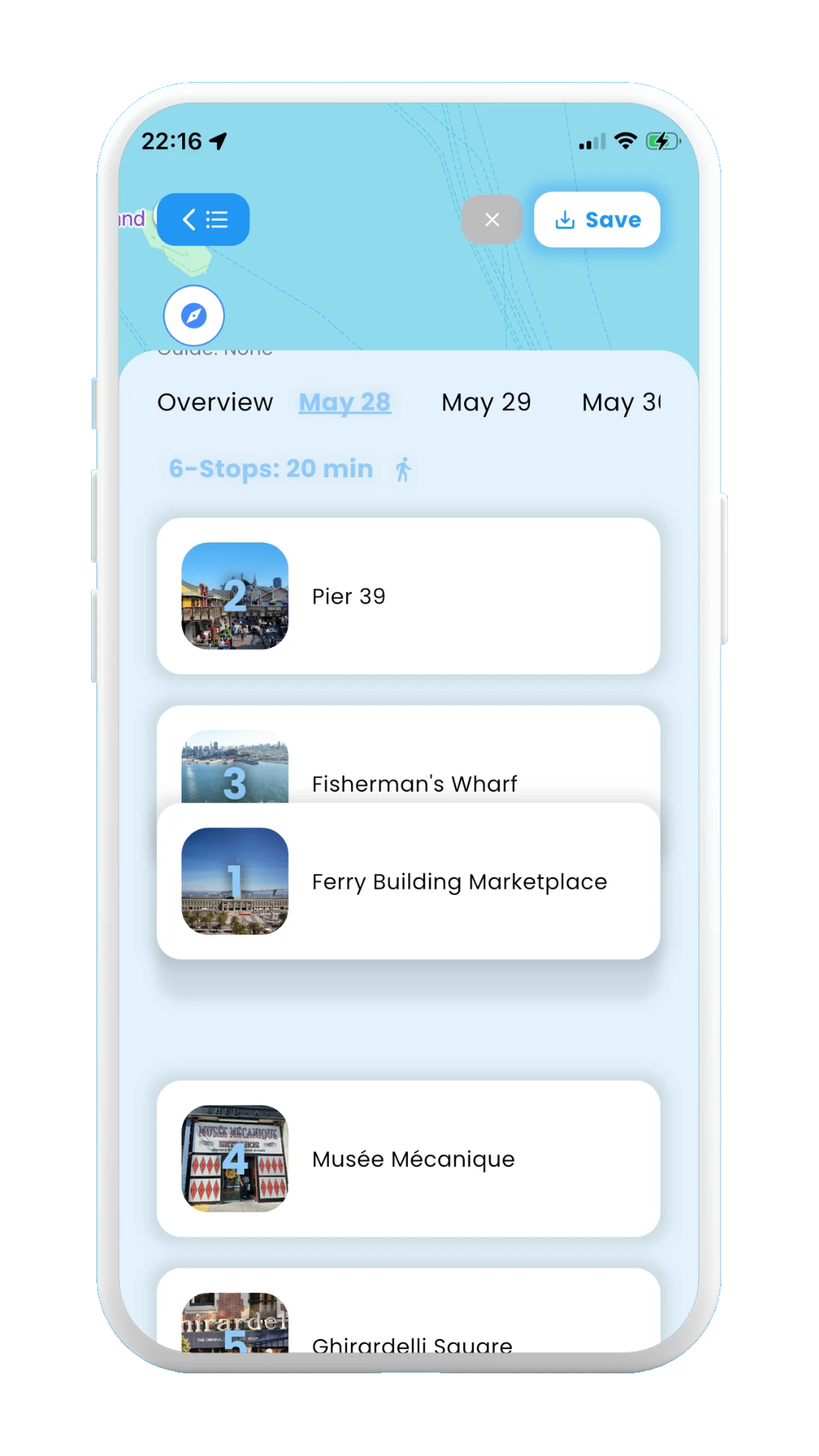
Reorder stops
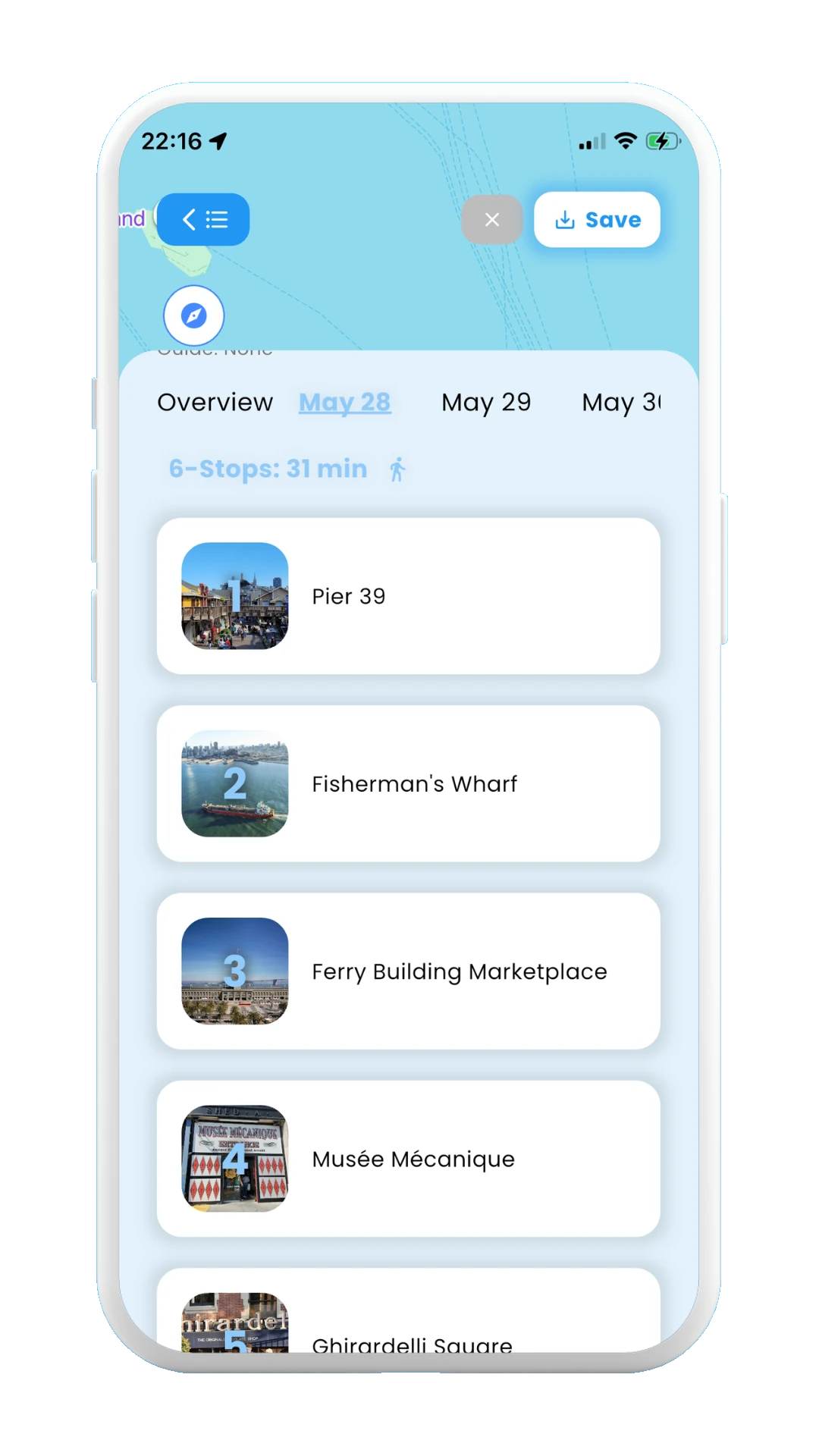
Moved stop
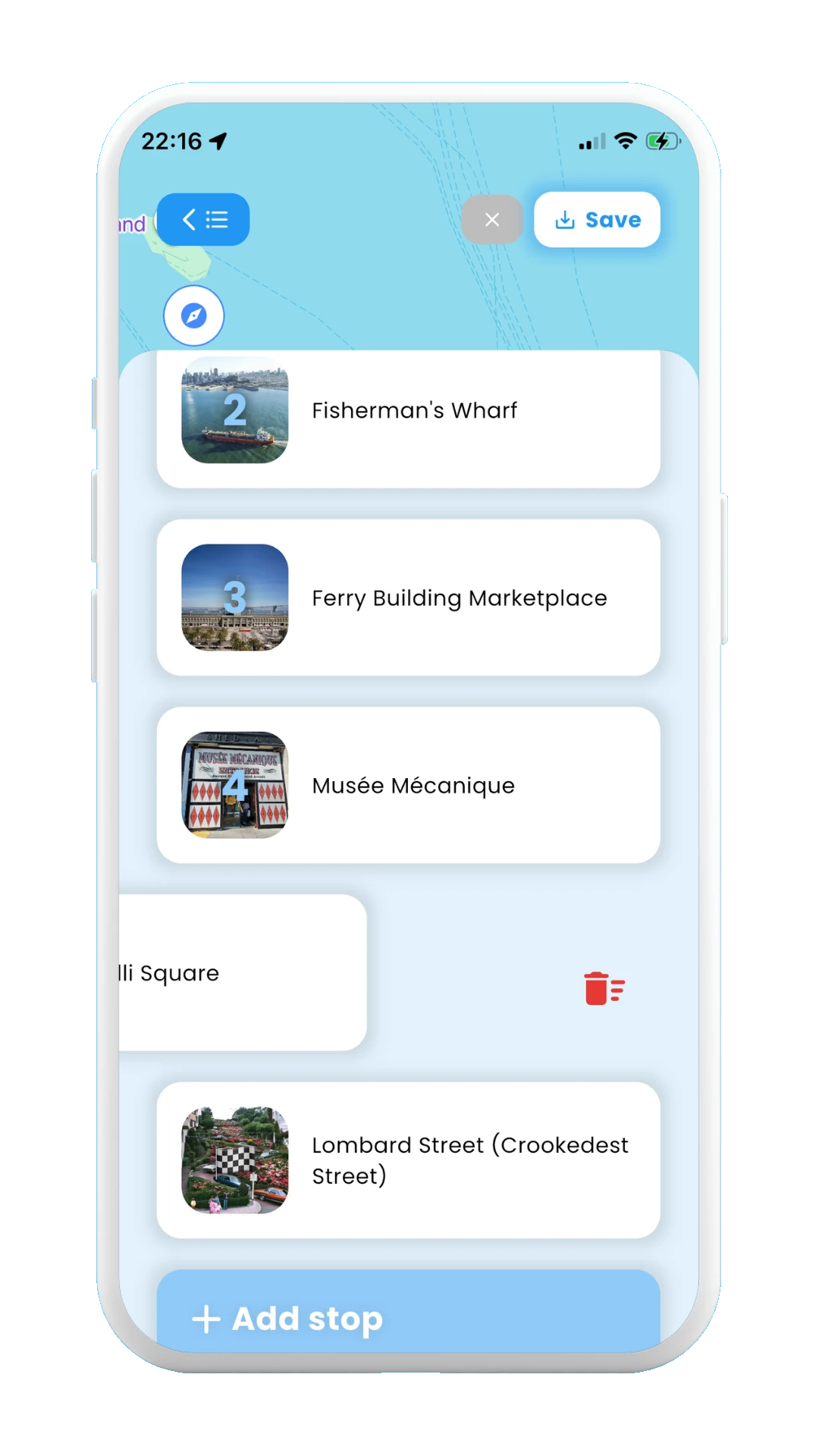
Delete stop
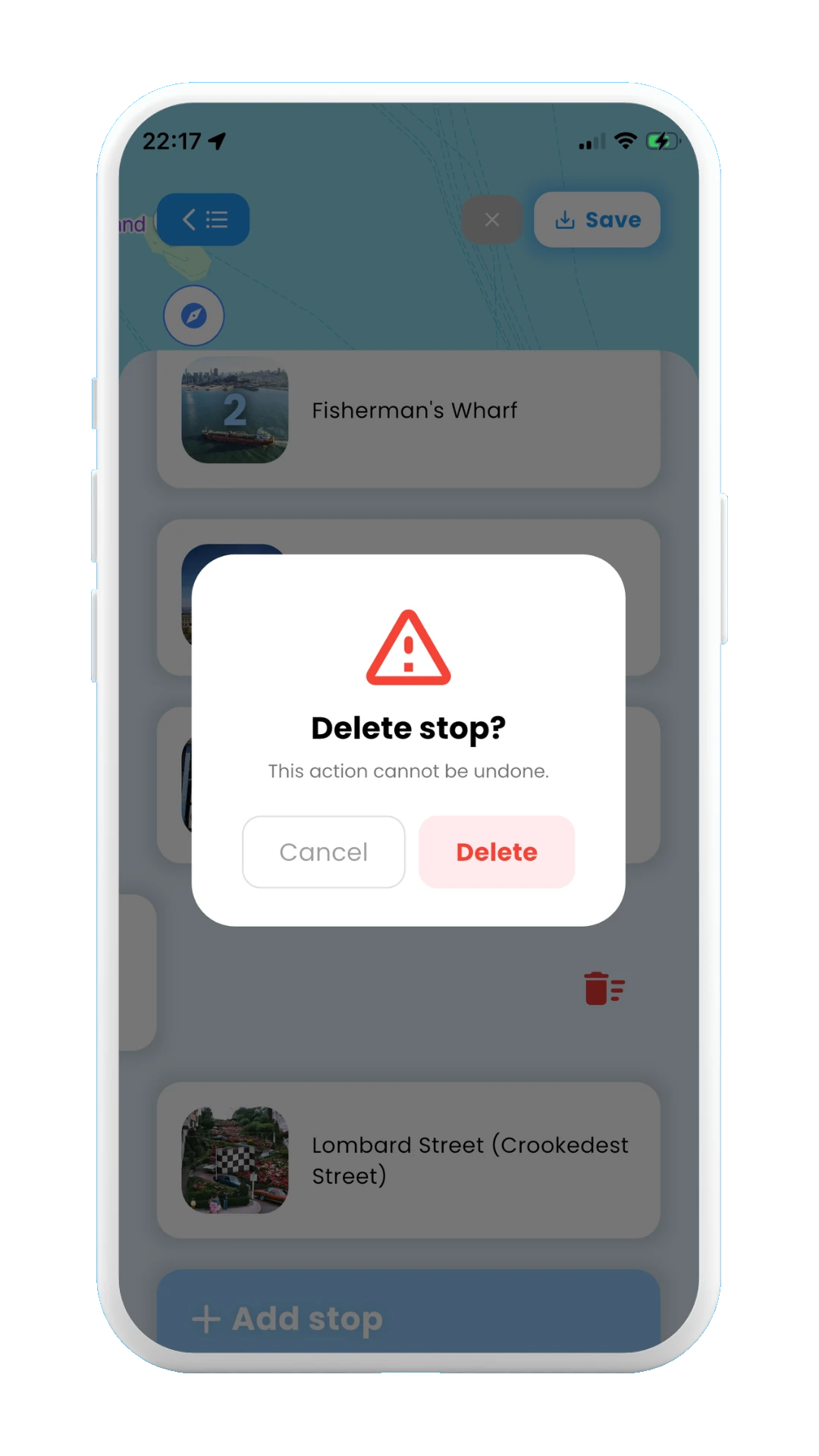
Confirm stop deletion
You have now reached the end of the section 1.Trip Itineraries. Now you know everything about how to create and use your trip itineraries with Meily!
The next section, 2. Posts , explains how to scan posts from social media (Tiktok, Instagram, Youtube) and save the scanned information into Meily. Feel free to take a break, grap a coffee, and continue with that.
Start with 2. Posts →