 Meily Trips
 Android
 iOS
iOS
2.2 How to create trips from scanned posts
Once you have scanned your posts, as shown in 2.1. How to scan posts, you will be able to create trip itineraries from it, or even include it in your existing trip itineraries. This section provides you with a step by step explanation on how you can do this with Meily Trips. Ready? Let's get started!
Create new trip itineraries from a single scanned post
First, go to the Posts page, and select the post you want to use for creating your new trip itinerary.
Then, tap on the Create trip button at the top-right corner of the screen. When doing this, the app will request the start date of your trip and your preferences.
Finally, the post will be scanned taking into account your chosen start date and your preferences, and a trip itinerary will be generated based on that. Once the itinerary is created, you will be able to edit it and save it as explained in section 1. Trip itineraries
The images below show all the mentioned steps to create a trip from a scanned post:
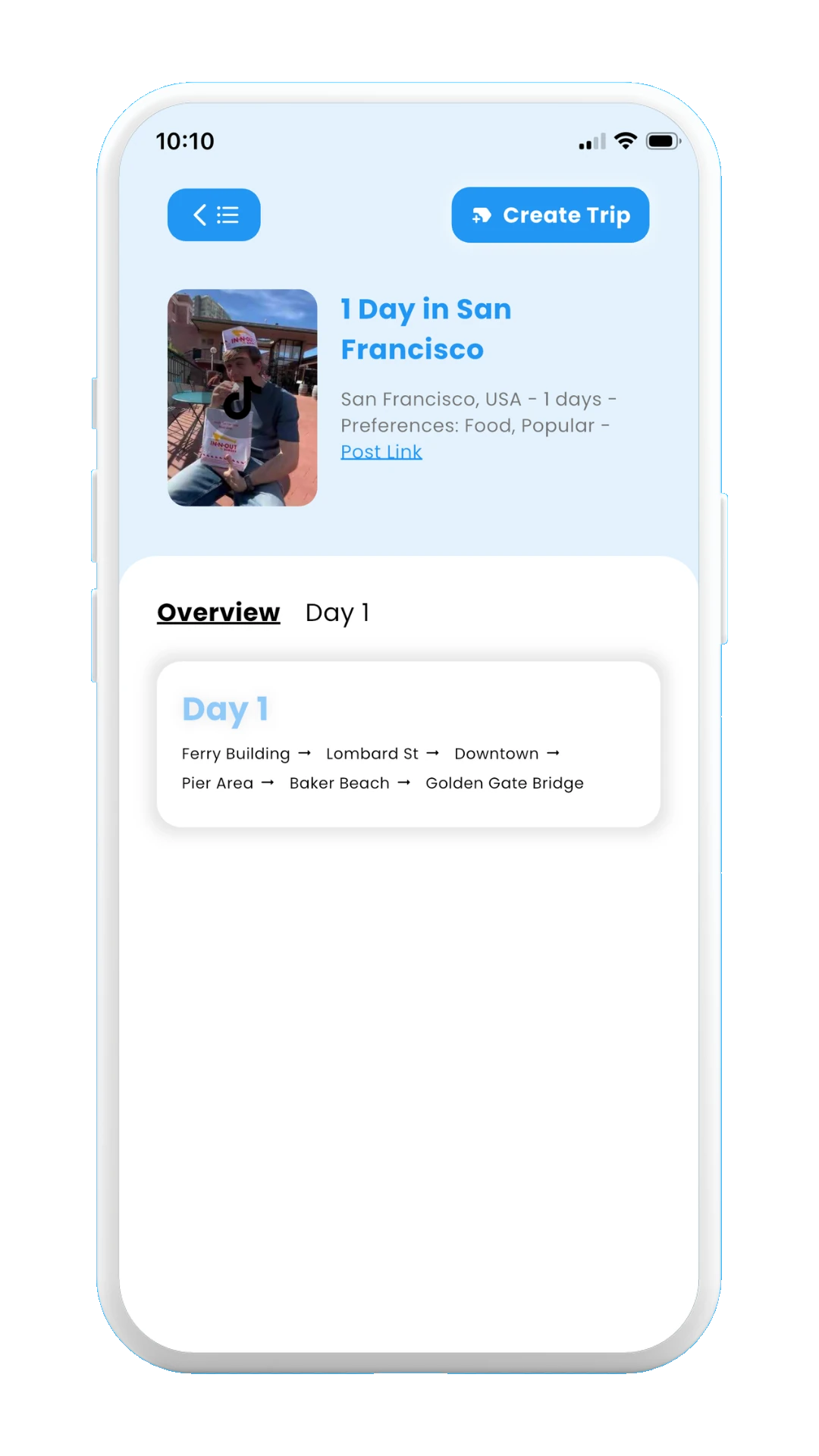
Select create trip
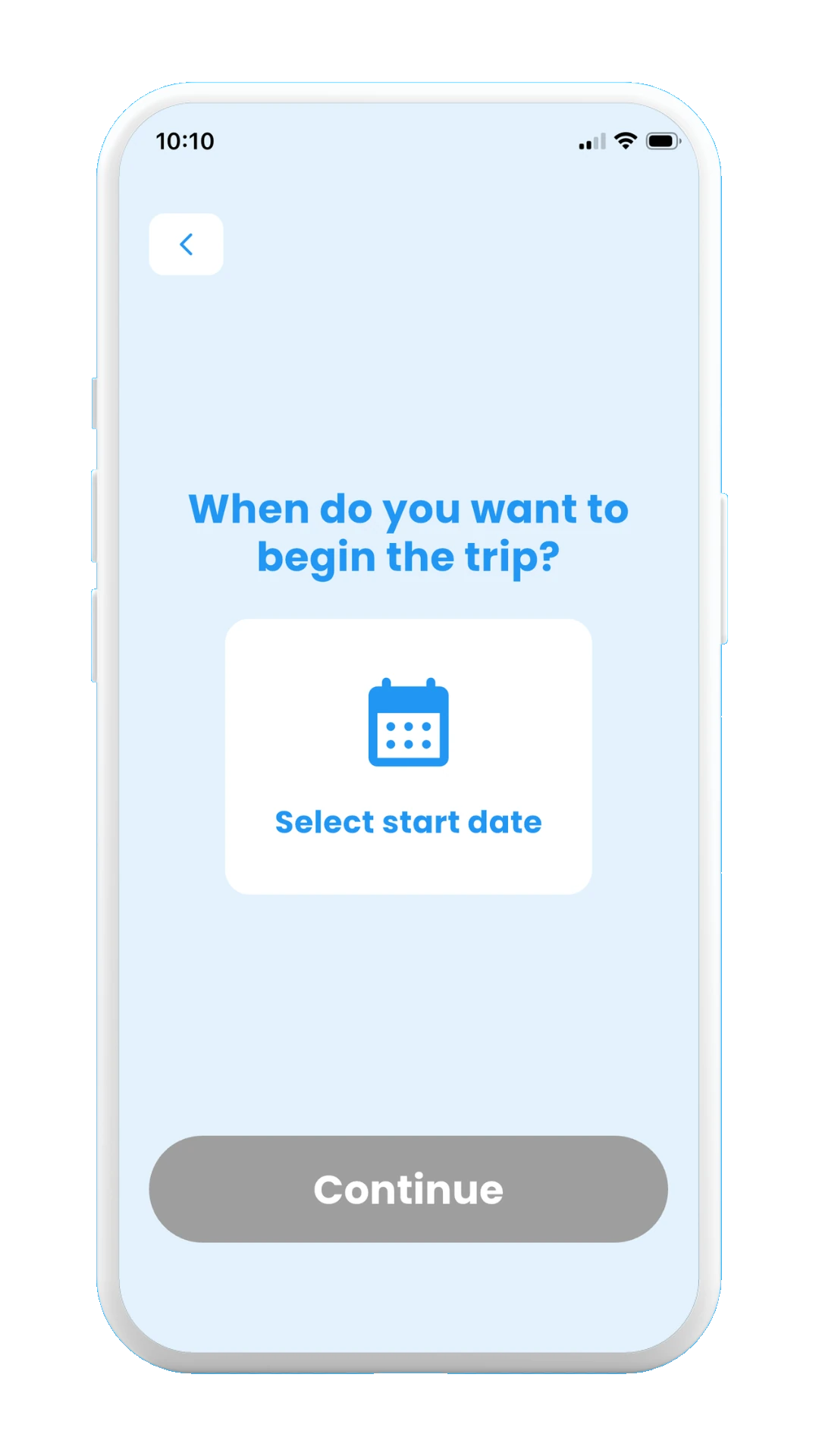
Choose start date
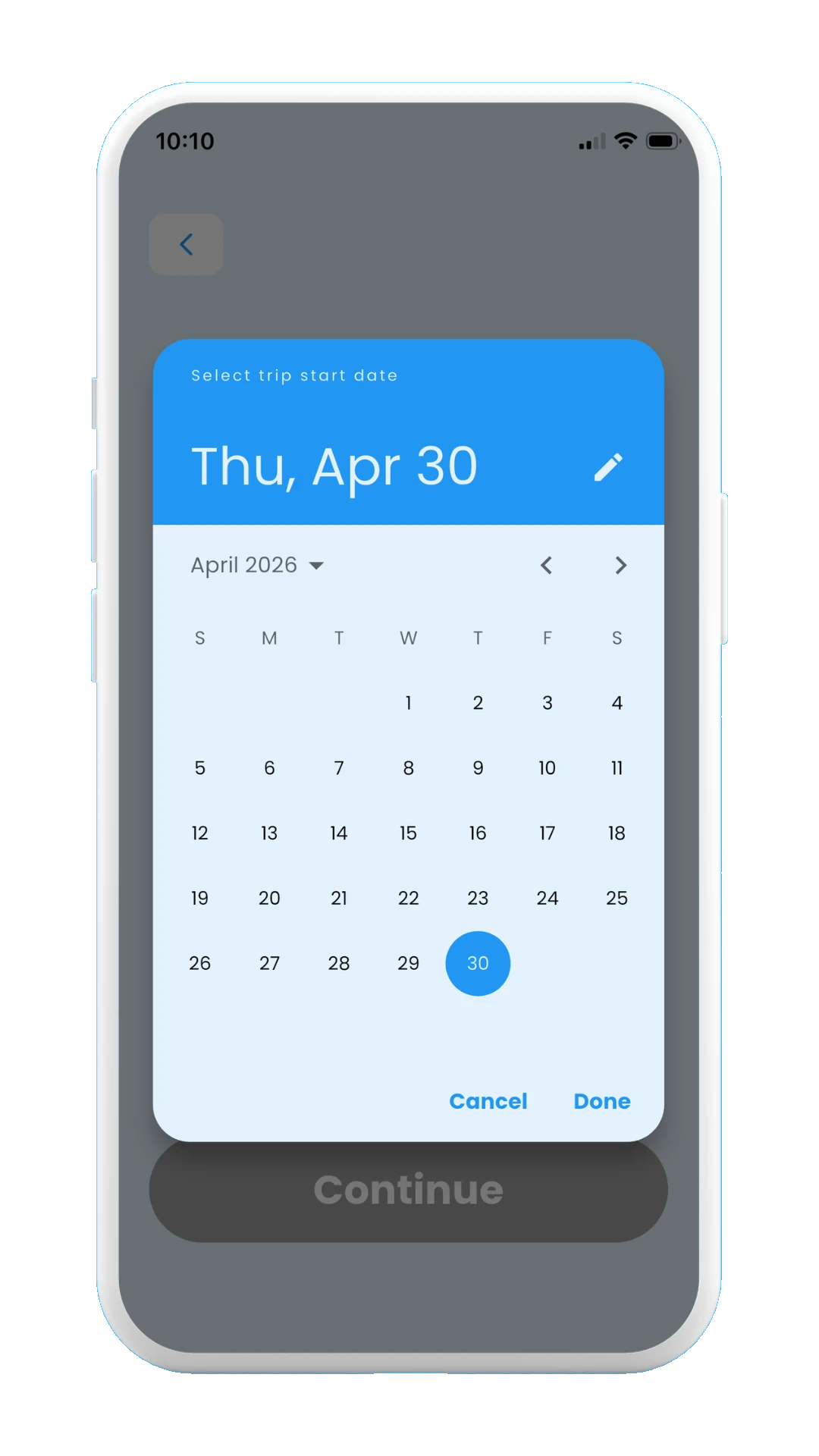
Pick date from calendar
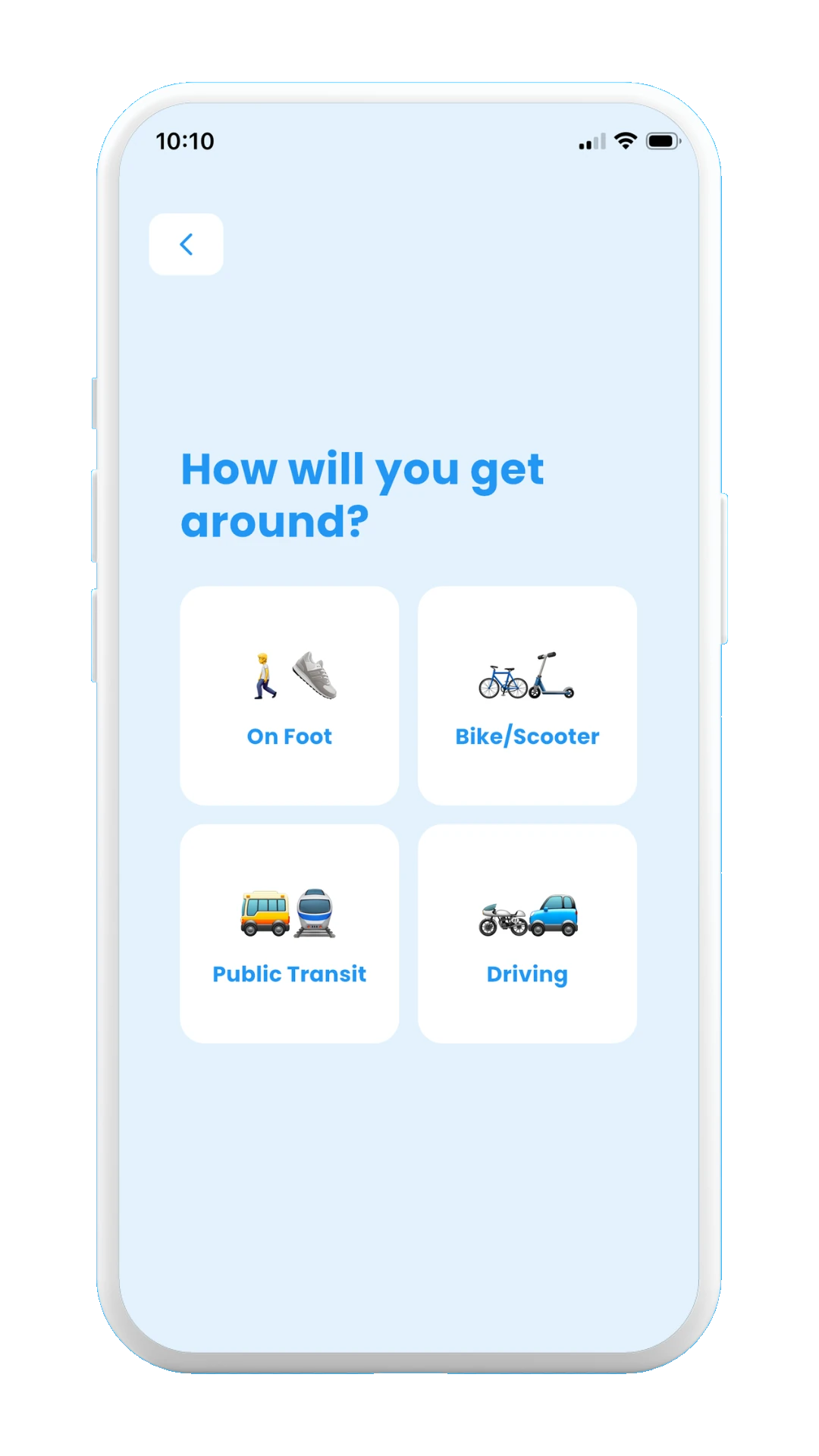
Choose how will you move around
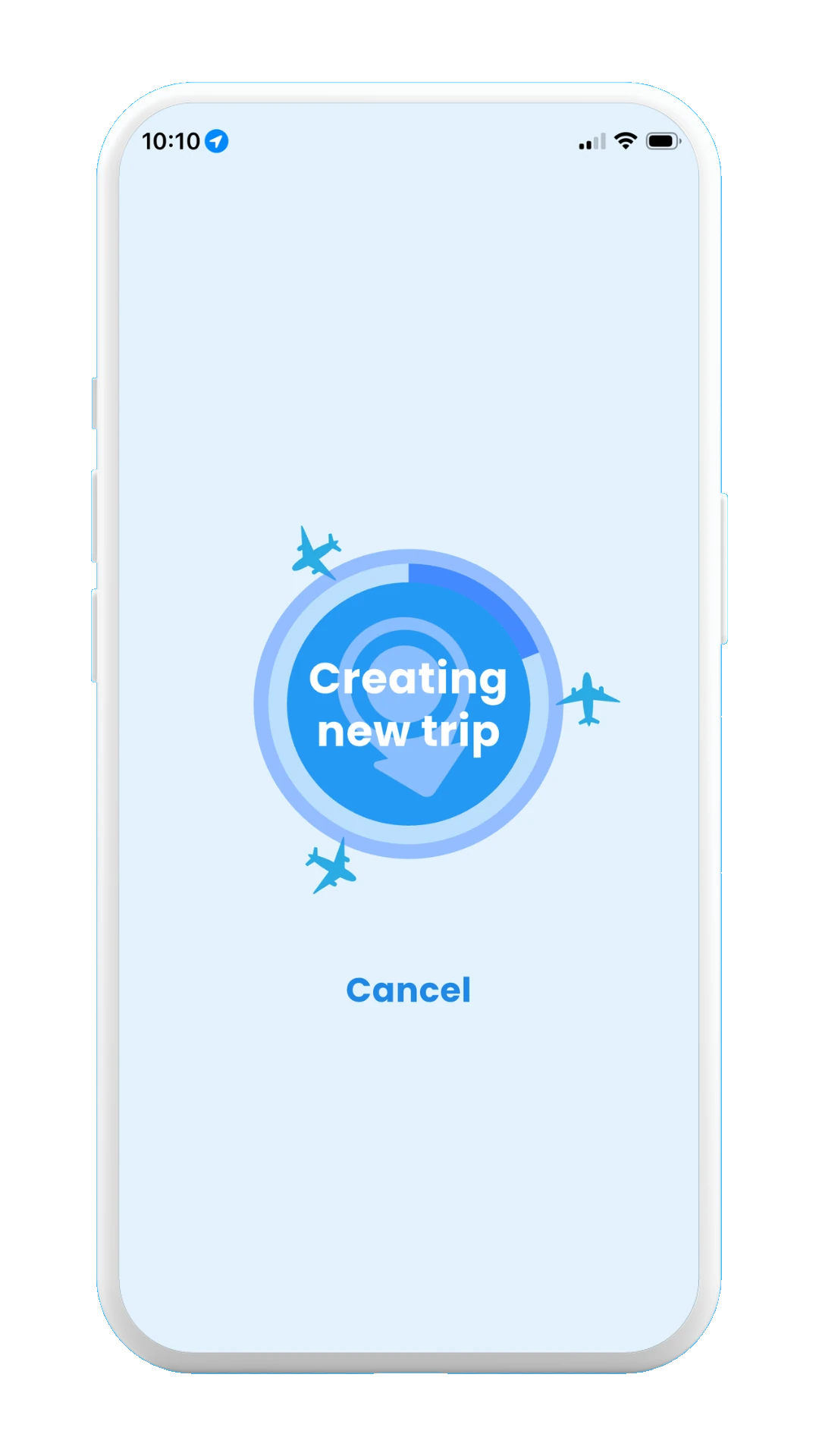
Creating trip
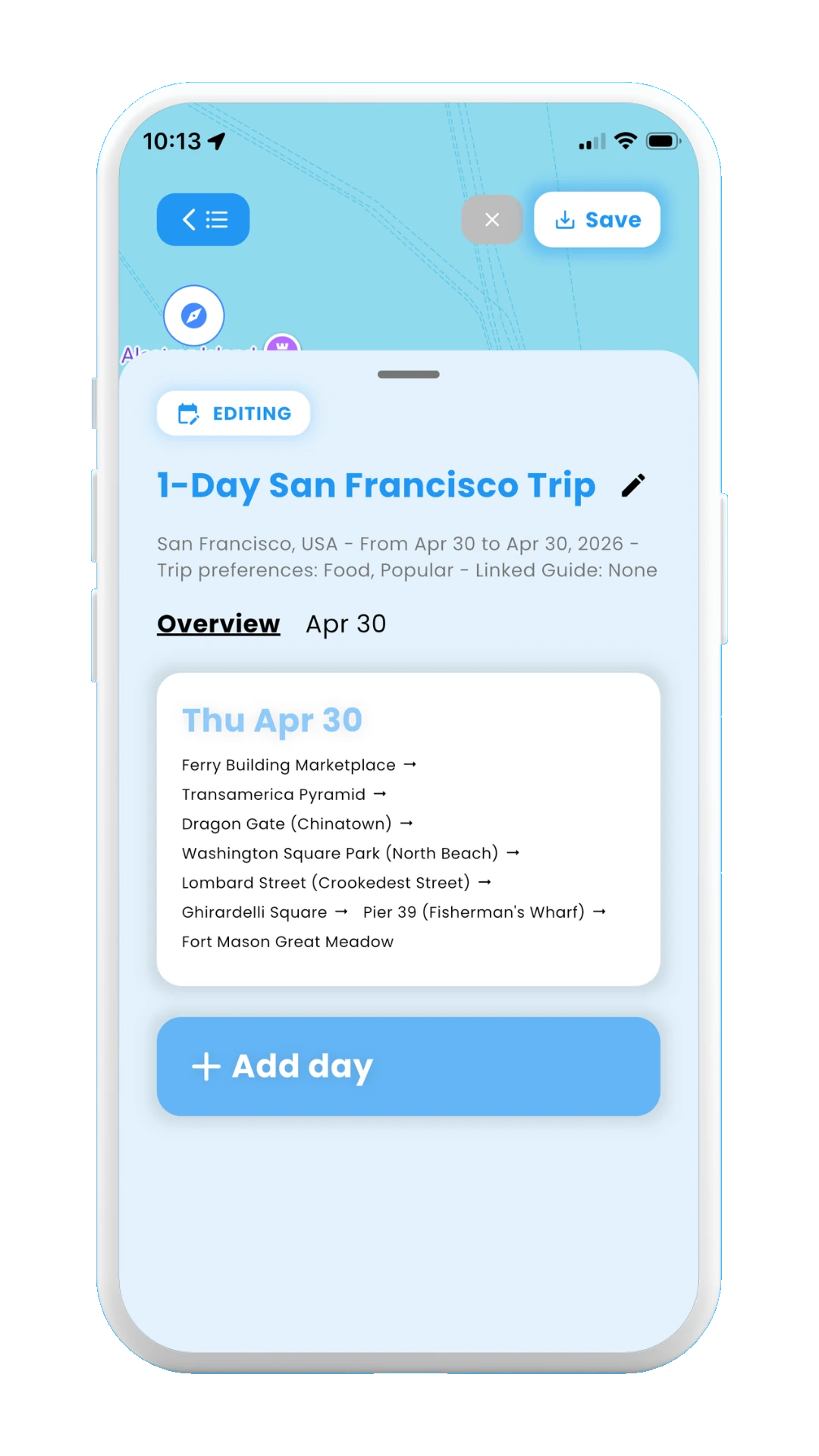
Trip overview
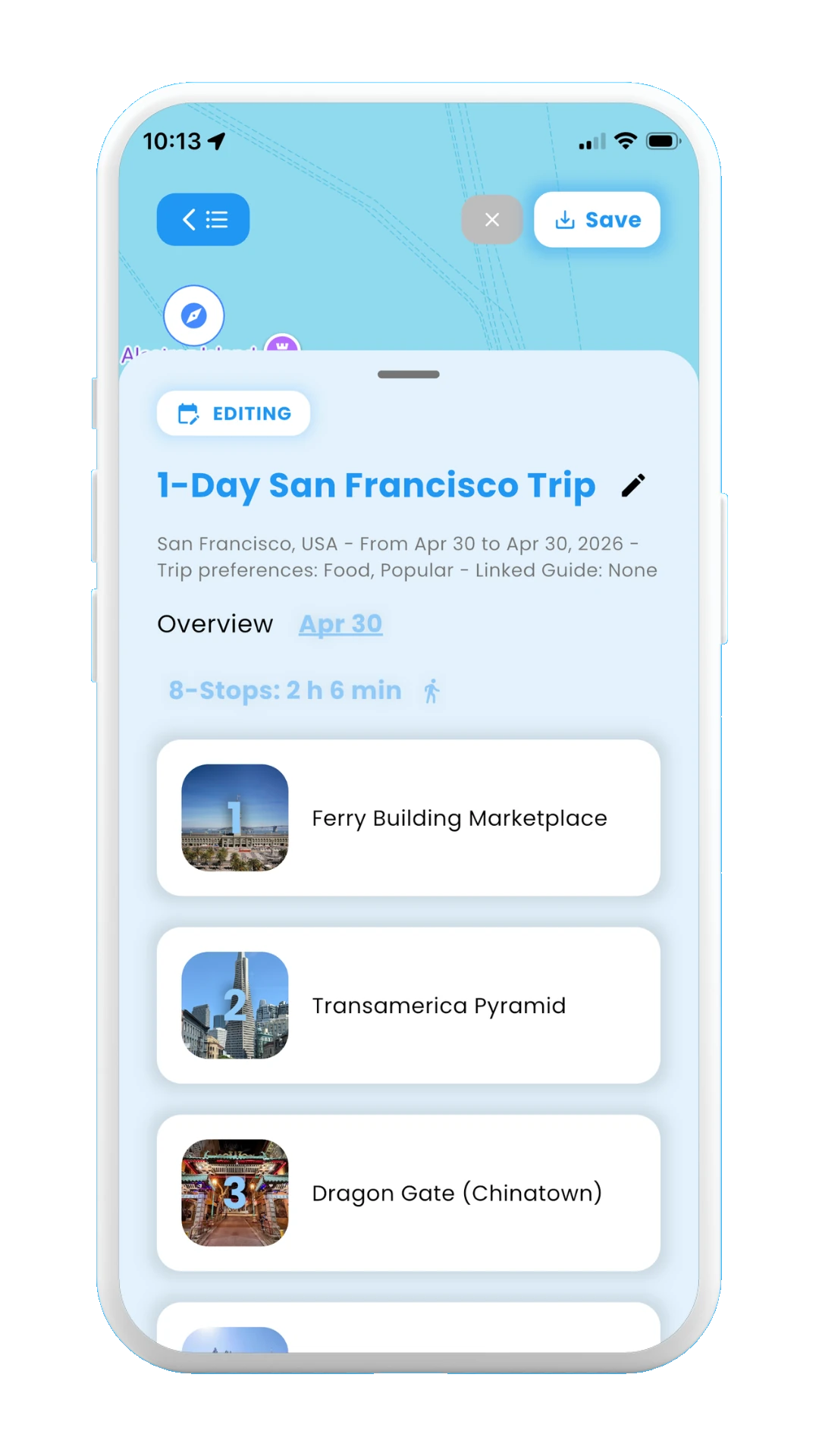
Stops for created trip
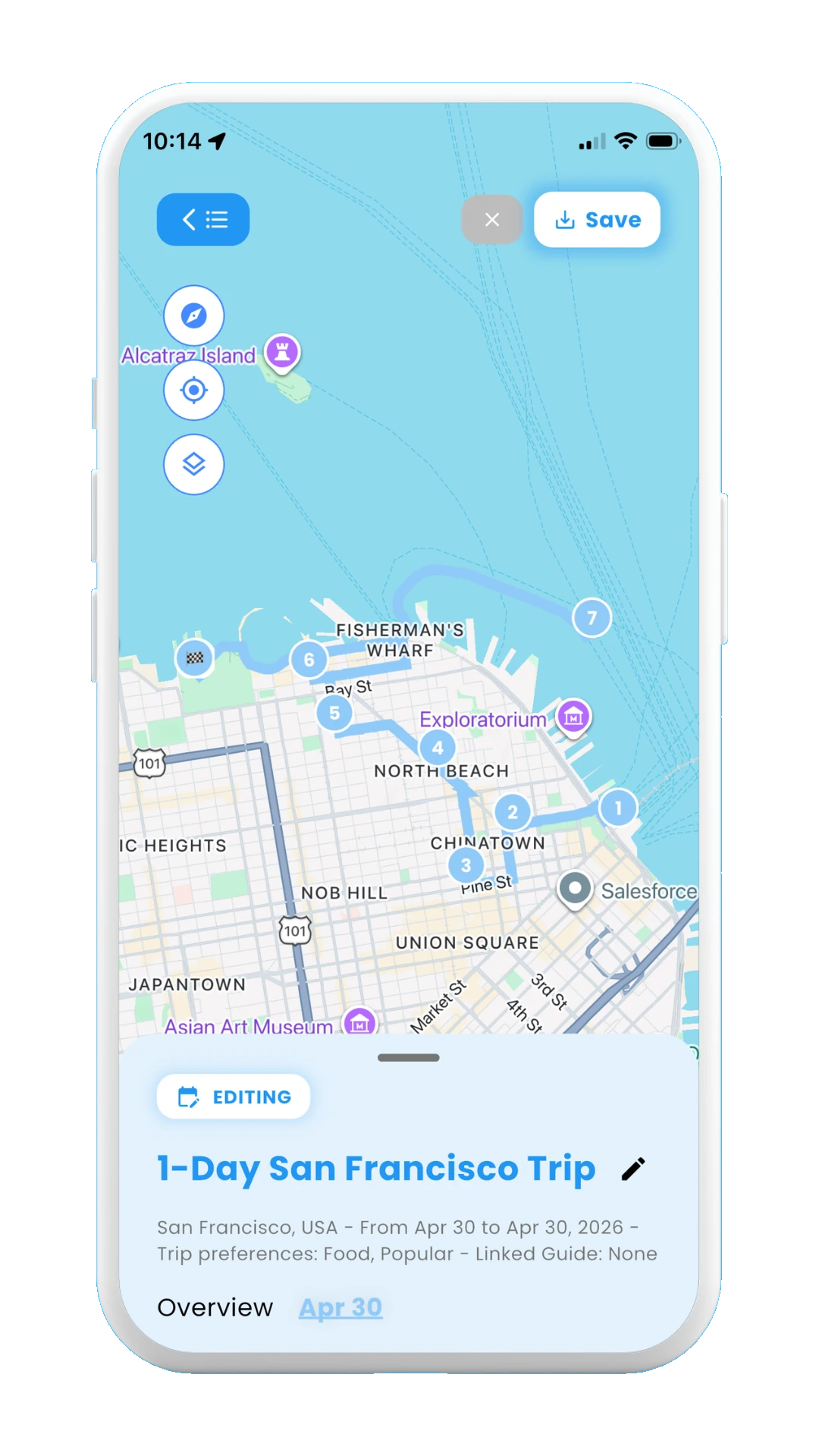
Created trip on the map
Create new trip itineraries from multiple scanned posts
In addition, you can create a new trip itineray from multiple scanned posts. This is explained step by step in section 1.1. How to create a trip itinerary, as well as other available options to create trips.
Include scanned posts into existing trip itineraries
Finally, you can also use your scanned posts to modify your existing trip itineraries, by adding days or stops from selected posts in the trip's same location. This is explained in detail in section 1.2. How to use a trip itinerary.
You have now reached the end of the section 2. Posts. Now you know everything about how to scan and use your social media posts with Meily!
The next section, 3. Guides , explains how to create AI-powered tourist guides that you can use during your trips and saved them into Meily. Before continuing with that, feel free to take a break: grap something a coffee and something to eat, and let's continue with that, your stress free holidays are on the way.
Start with 3. Guides →